
Ready to observe? This guide walks you through a full classroom walkthrough on the web dashboard, from clicking Start Walkthrough to submitting your completed observation.
Start the Walkthrough
1. Log in to your Education Walkthrough account.
2. Click the green Start Walkthrough button at the top of your dashboard.
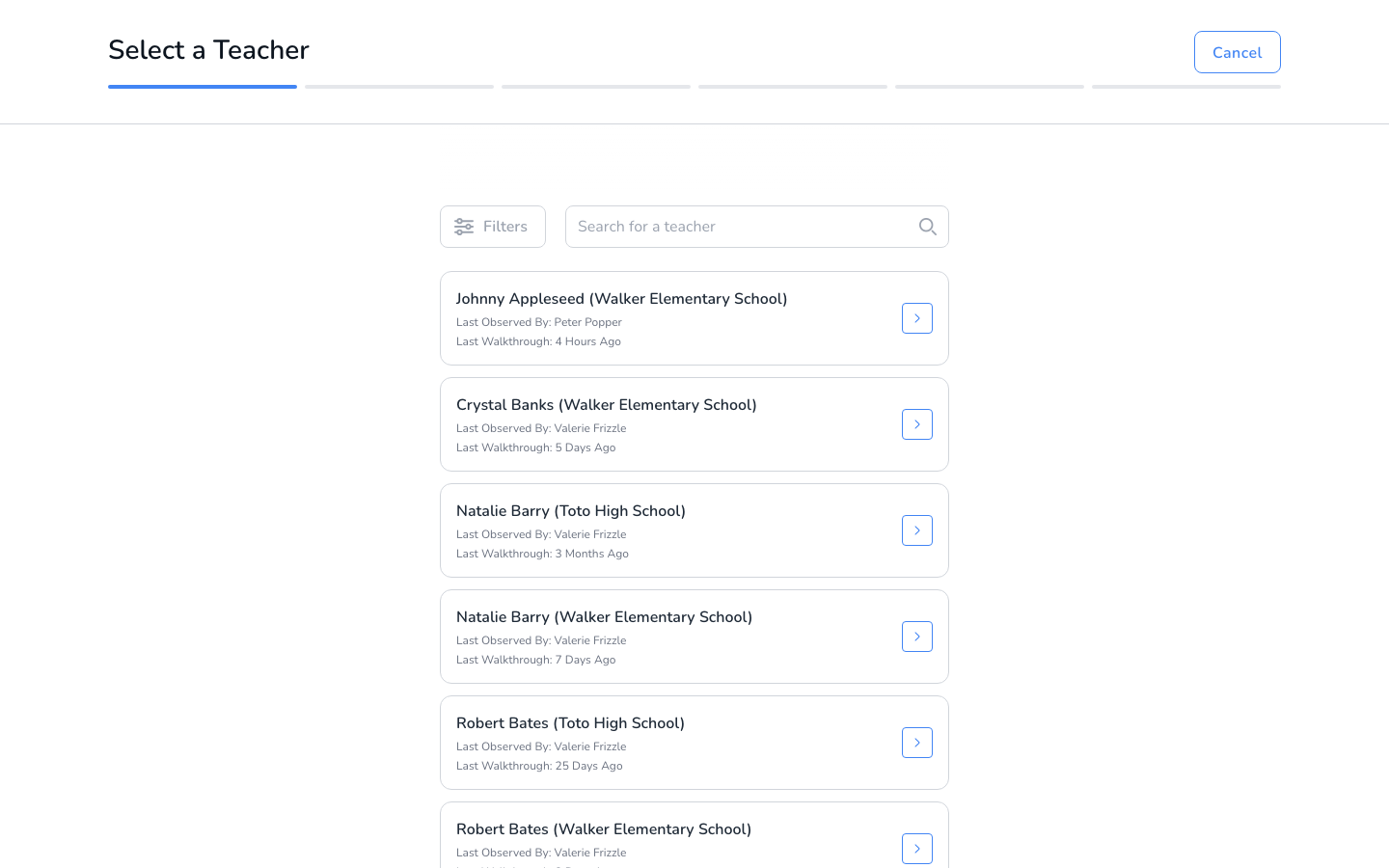
3. Select a Teacher. Each teacher card shows who observed them last and when. Use Filters to narrow the list. If the teacher is not listed yet, add them first using our Adding Teachers guide.
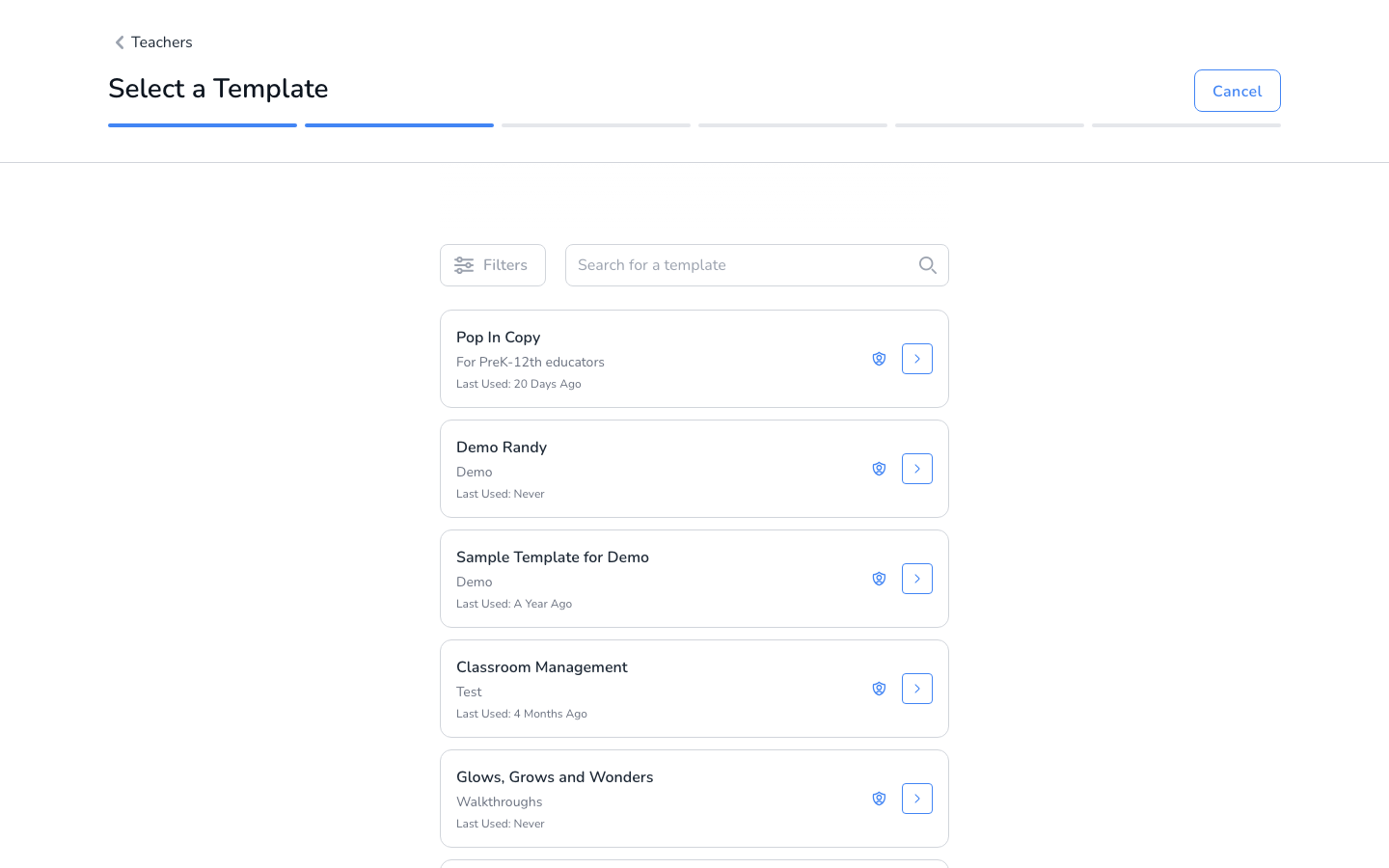
4. Select a Template. Each template card shows its description and when it was last used.
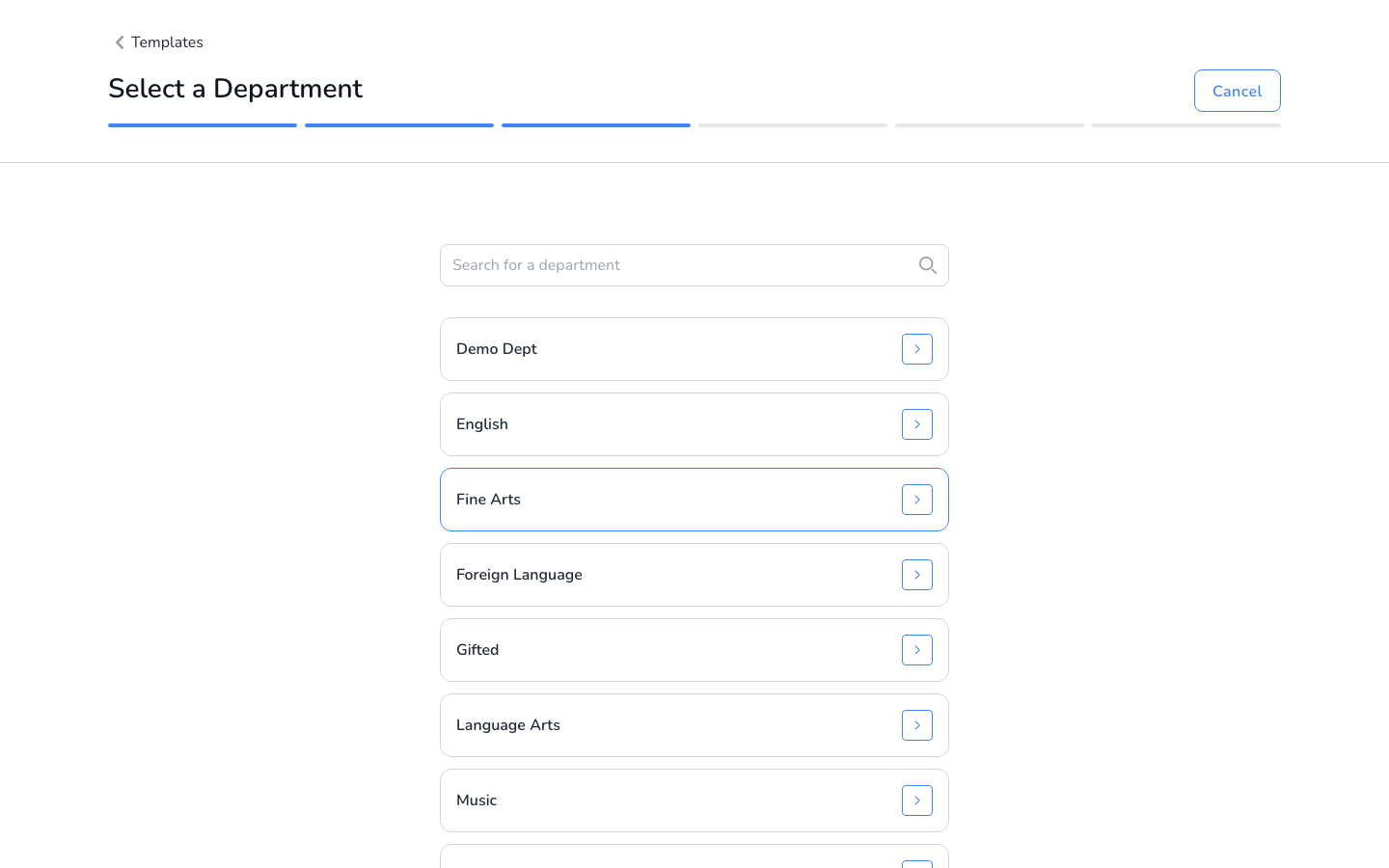
5. Select a Department, then follow the prompts to finish setting up the observation details.
Conduct the Observation
6. Work through your template. For each question, select a rating and add Comments for anything worth capturing. Use the Sections sidebar to jump between sections of your template. Your work is saved automatically as you go, and you will see a Draft saved timestamp at the top of the screen.
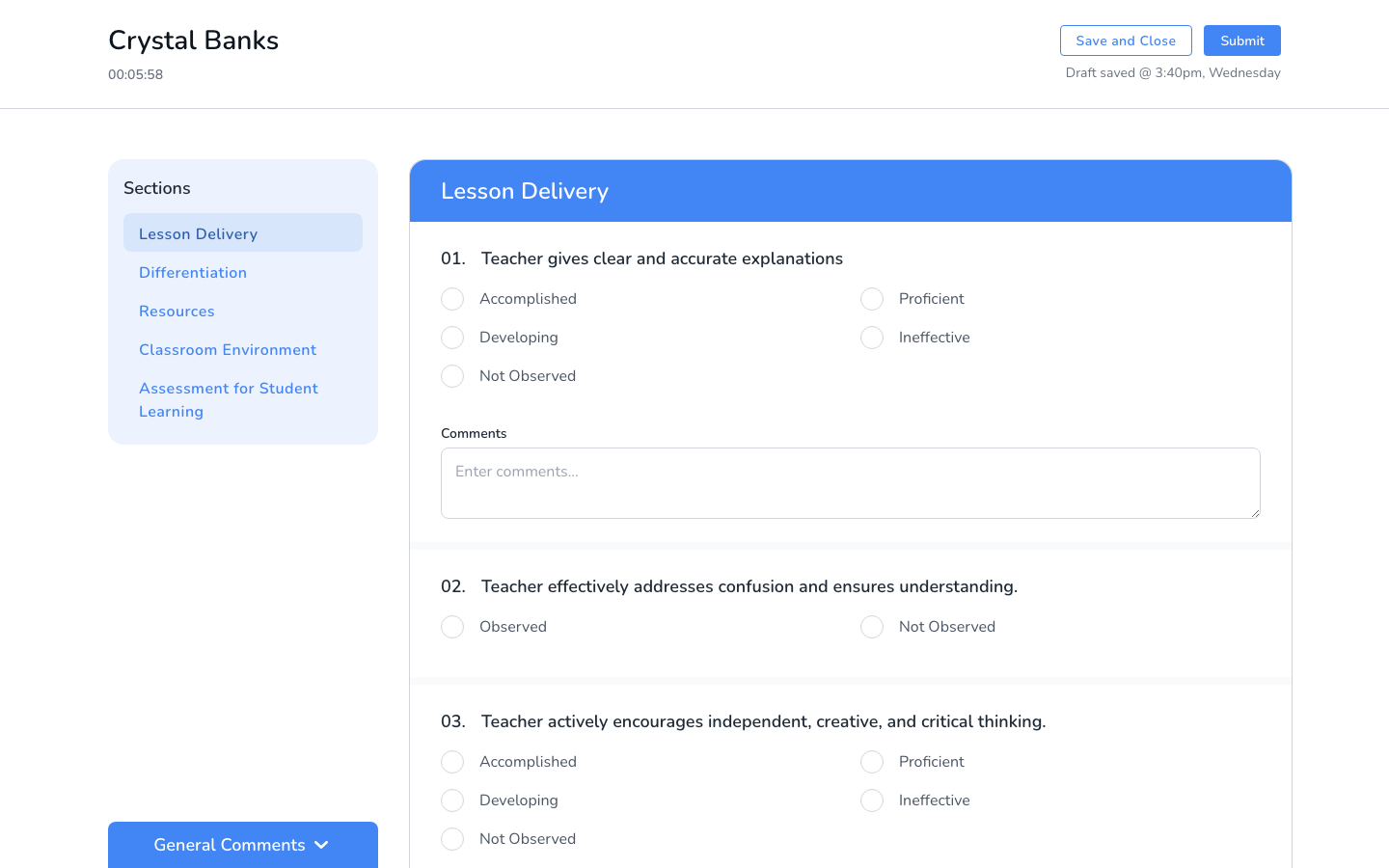
7. Add General Comments at the bottom: a summary of the walkthrough, reflective questions, or next steps for the teacher.
Complete the Walkthrough
8. Click Submit to complete the walkthrough. Not finished? Click Save and Close instead and pick it up later from the Walkthroughs page, where in-progress walkthroughs show a Finish link. When you reopen a draft, you can choose to resume or pause the timer. Learn more about the walkthrough timer and saving drafts.
FAQs
How does the teacher get their feedback?
Completed walkthrough reports can be emailed to the teacher. See emailing a completed walkthrough.
I submitted too early. Can I undo it?
Yes. Use Unsubmit to return the walkthrough to draft status and keep editing.
Do I have to complete a walkthrough in one sitting?
No. Save and Close keeps your walkthrough as a draft, and automatic draft saving protects your work as you go.
Need Additional Help?
Have questions or need help? Our support team is always here to assist you. Reach out anytime, we’re happy to help!