
The details of a walkthrough, like the class name, department, and grade, are set when you start the observation. What you can change afterward depends on the field, so here is a quick map of each option.
Change the Date or Time
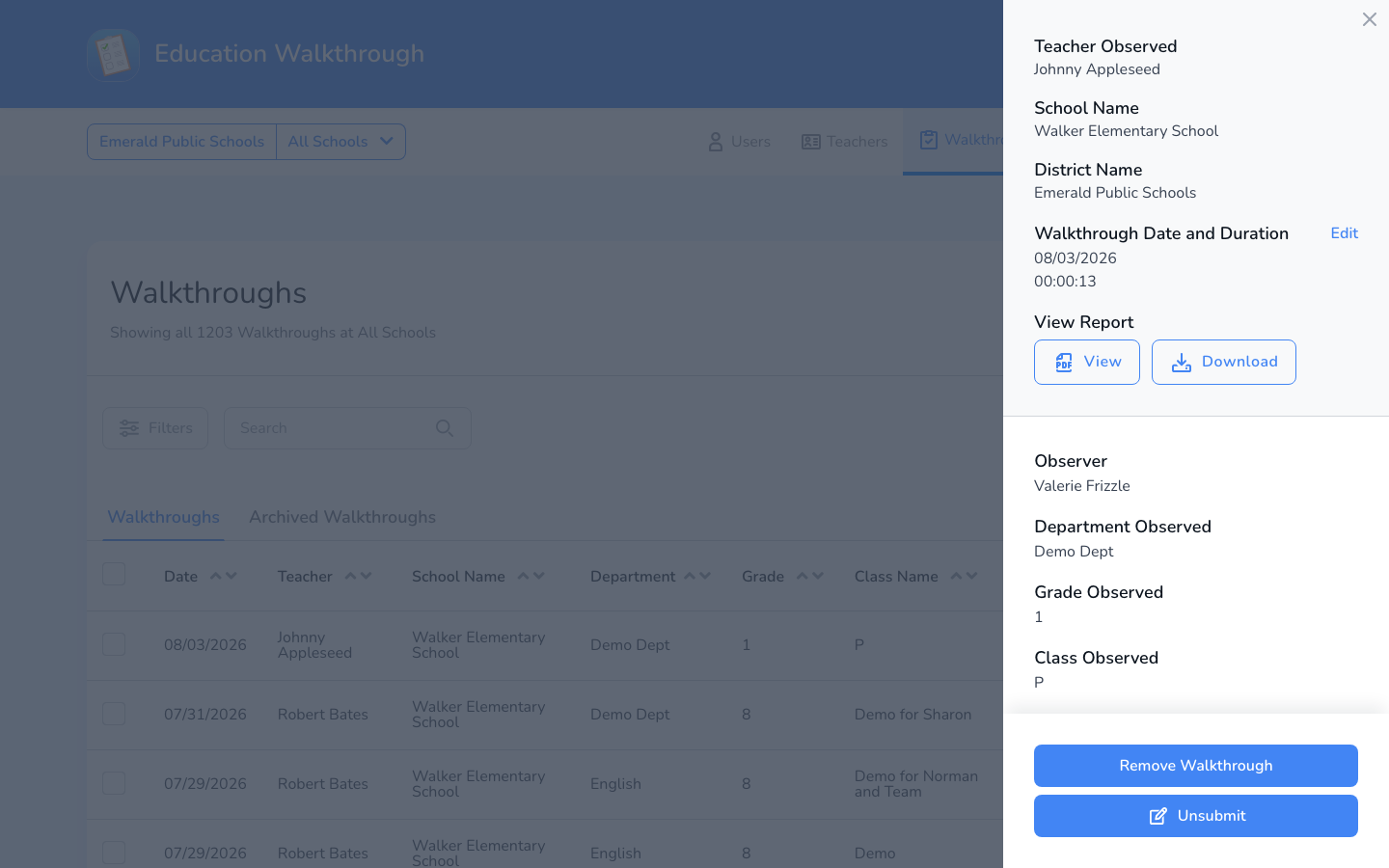
The walkthrough date, start time, and end time can be edited directly on a submitted walkthrough. Open the walkthrough’s expanded view from the Walkthroughs page and click Edit next to Walkthrough Date and Duration. Our article on editing the walkthrough date and time has the full steps.
Change Your Answers or Comments
To update answer selections, question comments, or general notes on a submitted walkthrough, use Unsubmit to return it to draft status:
1. Navigate to the Walkthroughs page and find the walkthrough. If your table is long, use Search or Filters to locate it.
2. Click the walkthrough to open its expanded view.
3. Click the blue Unsubmit button toward the bottom, add a reason if you would like, and confirm. Our unsubmit guide covers this step in detail.
4. Click Edit Now, make your updates, then submit the walkthrough again.
Previously sent reports are not changed when you unsubmit. After resubmitting, you can use Resend in the expanded view to send the updated report. See resending walkthrough emails.
Change the Class, Department, or Grade
These details are currently set when the walkthrough is created and cannot be edited from the dashboard afterward. If one of them is wrong on a walkthrough, reach out to our support team and we will help you get it corrected.
FAQs
Will the teacher’s original report update automatically?
No. Reports that were already sent stay unchanged. Resend the report after resubmitting so the teacher has the corrected version.
What exactly can I edit after unsubmitting?
Your answer selections, comments on individual questions, and the general comments. The date and time have their own Edit option in the expanded view.
Need Additional Help?
Have questions or need help? Our support team is always here to assist you. Reach out anytime, we’re happy to help!