A teacher stops you in the hallway: “I never got the feedback from Tuesday.” Nine times out of ten it is sitting in a spam folder or was filtered by the district’s mail server, and the fastest fix is to send it again from the walkthrough itself. You can resend any completed walkthrough’s report from the web dashboard in under a minute, to the teacher or to anyone else who should have it.
Send or resend a report
- Open Walkthroughs and find the walkthrough. Search and the filters help on a long list, see Navigating the Walkthroughs Page.
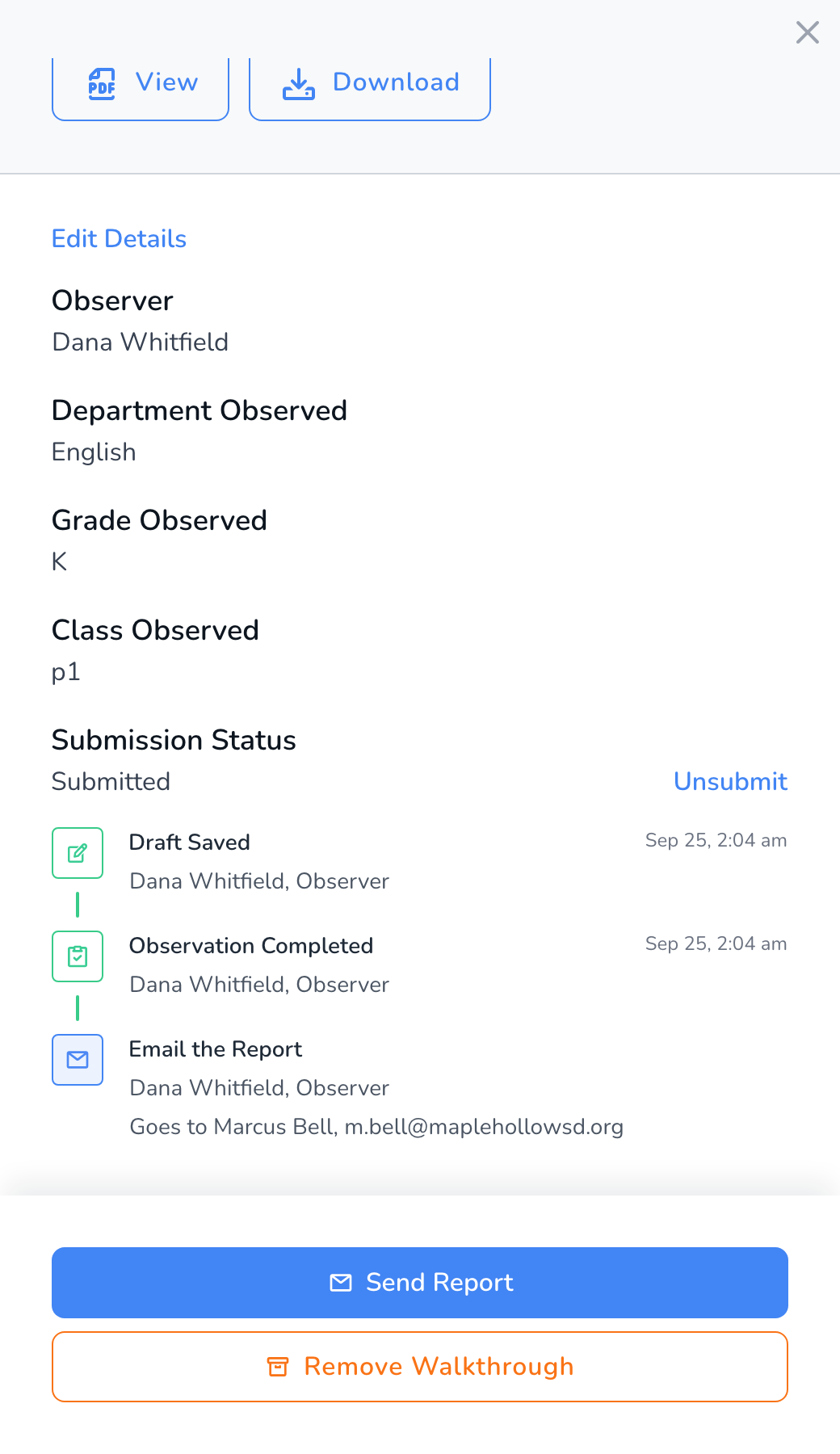
- Click the arrow at the end of the row to open its details. The timeline under Submission Status shows every time the report has been emailed and to whom.
- Click Send Report at the bottom of the panel.
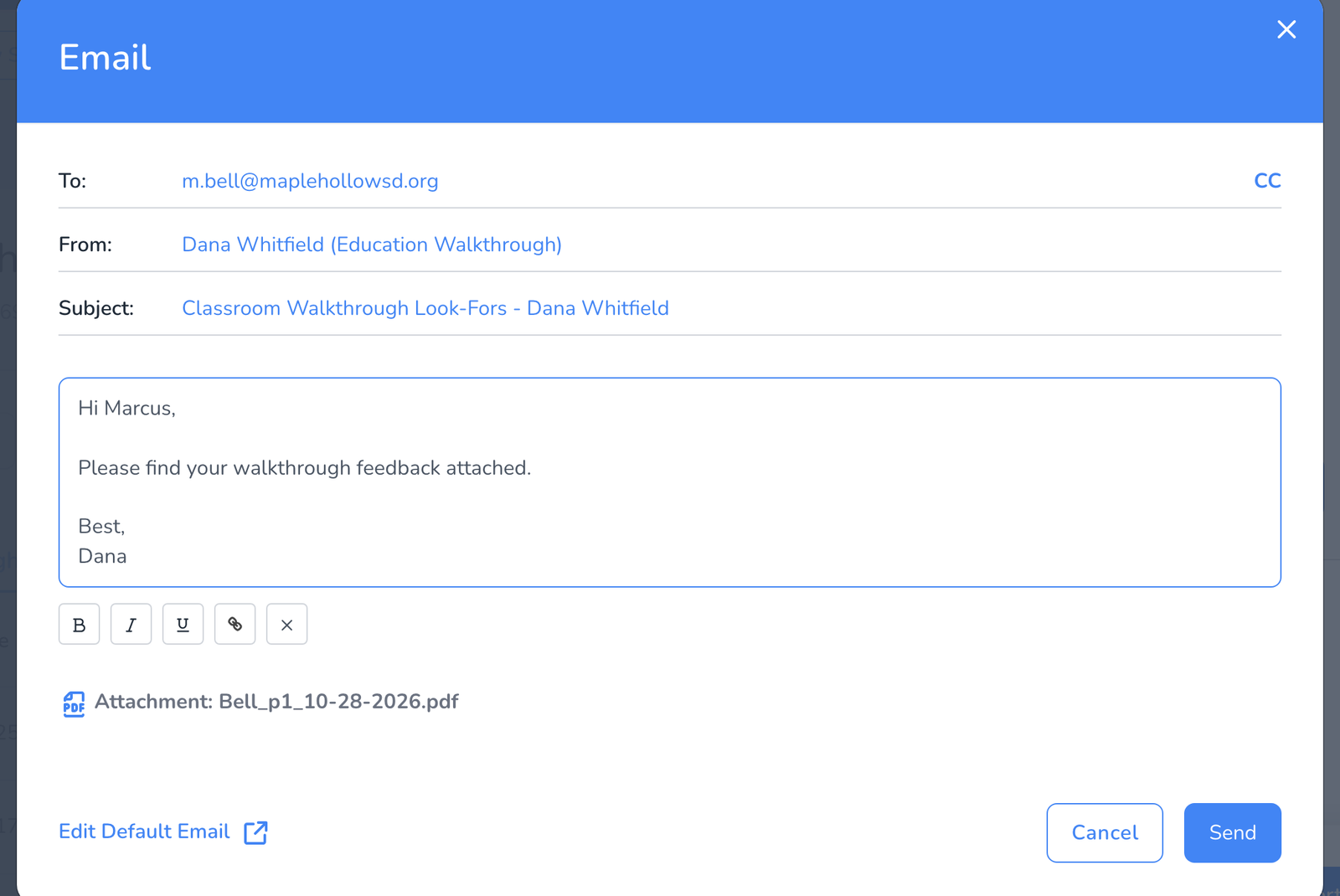
- The Email window opens with the teacher’s address in To, your name in From, the walkthrough as the subject, your default message, and the report PDF attached. Add a CC or edit the message if you want.
- Click Send. You will see Email Sent Successfully, and the timeline gains a new Email the Report entry.
If it still does not arrive
- Ask the teacher to check spam and quarantine. The message comes from your name at Education Walkthrough, which some filters hold the first time.
- Have the district allow mail from educationwalkthrough.com, see How to Whitelist Email Addresses.
- Check the address on the teacher’s record. A typo there sends every report to nobody.
- If no teacher in the school is getting reports, see What Can I Do If My Teachers Are Not Receiving Any Emails.
Frequently asked questions
Q: Can I send the report to someone other than the teacher?
A: Yes. Change To or add a CC in the Email window before you send. The teacher’s address is only the default.
Q: Can I change what the email says every time?
A: Edit the message in the window for a one-off change. To change the wording for every report, click Edit Default Email, or see Set Up Email Sender for Completed Walkthroughs.
Q: I corrected the walkthrough after sending. Does the teacher get the new version?
A: Not automatically. Send the report again after your changes, see How to Unsubmit a Walkthrough.
Q: Can I resend from the mobile app?
A: Yes. Open the completed walkthrough in the app and choose Send Report to email it again, to the teacher or to someone new. The web and the app share the same send history.
Q: Does the teacher see that it is a resend?
A: No. It arrives as a normal report email.