
A rating says Developing. A comment says the objective was posted but never referenced after minute two. A photo shows the anchor chart. Evidence turns a score into something a teacher can act on, and it is attached question by question, where the look-for lives.
Comments
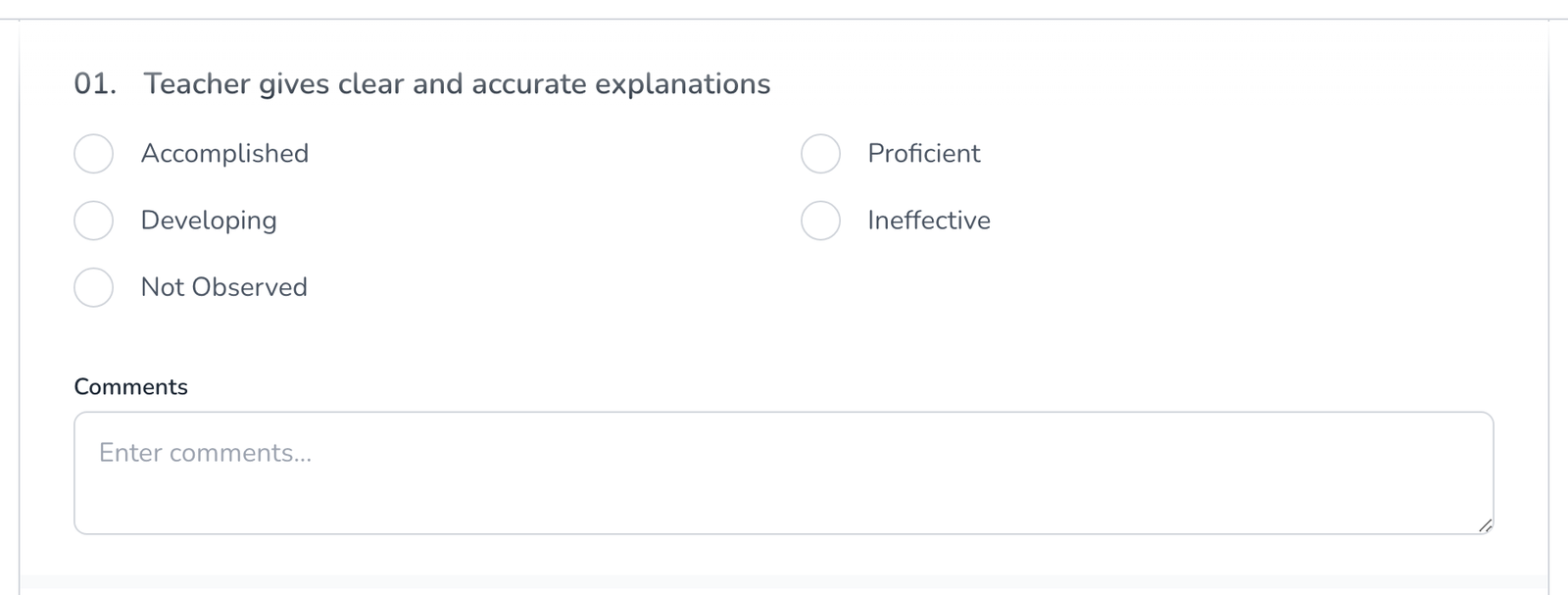
Where the template allows it, a Comments box sits under the question’s answer options. Type what you saw. Keep it to evidence and leave the summary for the general comment, see How to Add General Comments.
Photos and video
- On the web, click the photo or video icon next to the comment box and choose a file. Up to five photos and five videos per question.
- In the app, tap the camera icon on the question to take a photo or record, or pick from the camera roll. Videos can run up to five minutes and 30 MB.
- Remove an attachment with the x on its thumbnail before you submit.
Turning evidence on for a question
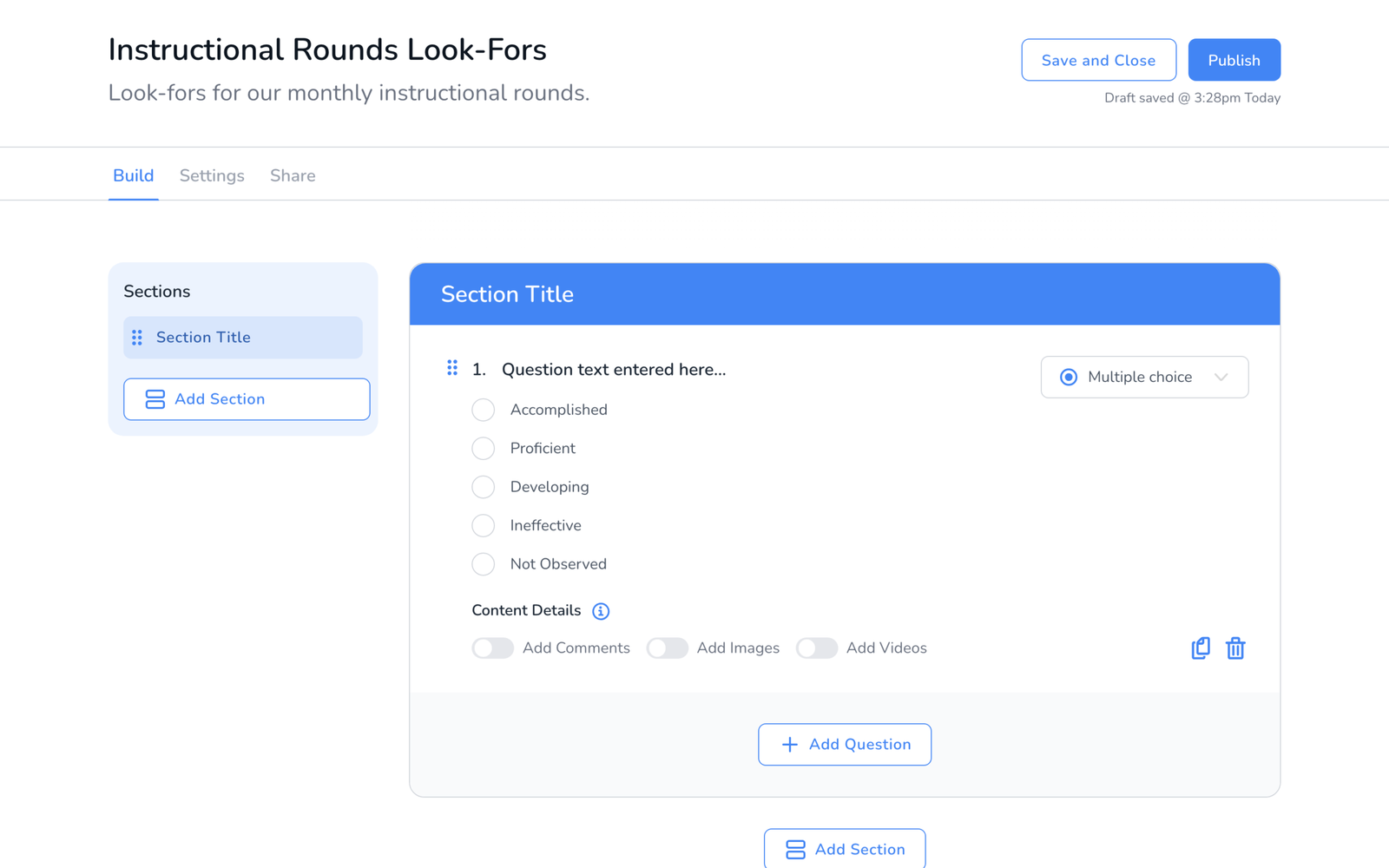
Comments, photos, and video are switched on per question in the template builder, under each question’s Content Details: Add Comments, Add Images, Add Videos. If a question has no comment box, the template has them off. Ask the template’s owner, or see How to Build a Walkthrough Template.
Frequently asked questions
Q: Does the teacher see the photos?
A: Yes. Comments and attachments print in the walkthrough PDF and the emailed report. Very large reports arrive as a download link, see Why Some Walkthrough Emails Have a Download Button.
Q: Should students be in the photo?
A: Photograph the work, the board, the materials. Keep students out of frame and follow your district’s media policy, see What Data Does Education Walkthrough Collect?.
Q: I am offline. Can I still add photos?
A: Yes. They stay on the device with the walkthrough and upload when you sync, see Working Offline in the Mobile App.
Q: Can I add a photo to the walkthrough as a whole, not one question?
A: Yes. The general comment has its own photo and video buttons.