Every report that compares this year to last year, every quarter-by-quarter chart, and the end-of-year archive all depend on one setting: when your school year starts and ends. Set it once each summer and the rest of the year’s data lands in the right buckets.
School Admins set the calendar for their school. District Admins set it once for the whole district and it flows down to every school, then adjust any school that runs on different dates.
Update the calendar
- Sign in and open Settings.
- District Admins, scroll to School Settings and pick the school from the Choose a School dropdown if you are setting dates for one school rather than the district.
- Next to School year calendar, click Edit calendar.

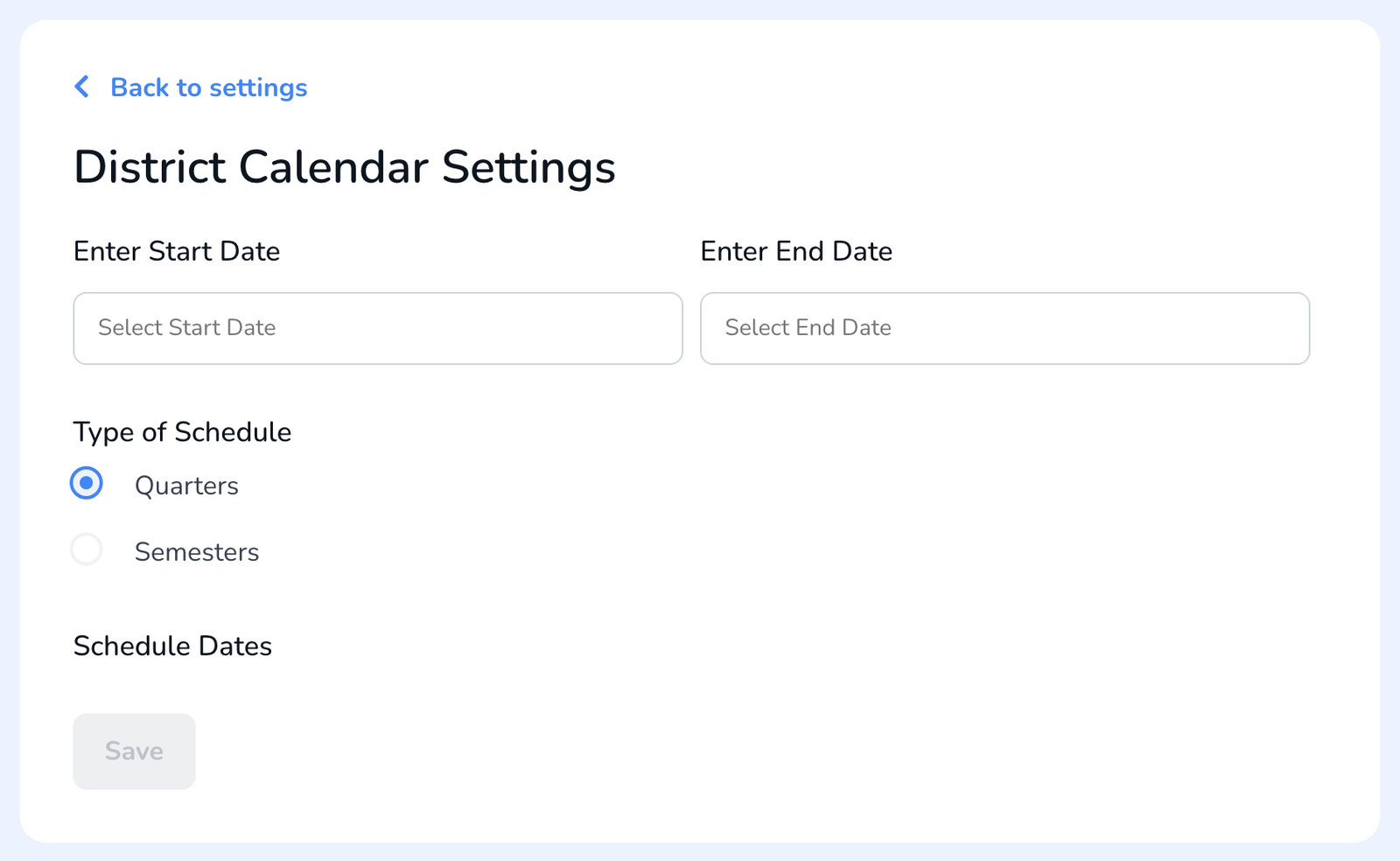
- Enter the Start Date and End Date of the school year.
- Under Type of Schedule, choose Quarters or Semesters. The Schedule Dates below fill in from your start and end dates so you can check the term boundaries.
- Click Save. You will see Calendar updated successfully.
Why it matters
Analytics use the schedule type to group walkthroughs by term, and the start and end dates to decide what counts as this year. The end-of-year archive uses the same dates to know which walkthroughs belong to the year you are closing out. See How to Use Analytics and How to Archive Users, Teachers, Walkthroughs, and Templates.
Frequently asked questions
Q: I am a District Admin. Do I have to set every school?
A: No. Set the district calendar once and every school inherits it. Only schools on a different schedule need their own dates, which you set by choosing that school under School Settings.
Q: We changed from quarters to semesters this year. Will old data break?
A: No. Past walkthroughs keep their dates. Changing the schedule type only changes how analytics group them from now on.
Q: When should I update it?
A: Before the first walkthroughs of the new year, so nothing from August lands in last year’s bucket. A good habit is to set the calendar right after archiving last year’s data.
Q: Can I set next year’s calendar in advance?
A: Set the current year only. The calendar holds one start and end date at a time, so update it when the new year begins.