
Retiring, leaving education, or just done with a trial you started to look around. You can delete your own account from the web dashboard. Before you do, read the two paragraphs below, because deletion is immediate and it takes your walkthroughs with it.
Before you delete
- Moved schools? Do not delete. Your account can move with you, see I Moved to Another School.
- New email? Do not delete. Change the email on the account instead, see How to Change Your Account Email Address.
- Leaving a school you administer? Your walkthroughs are the school’s records. Ask your School Admin or District Admin to reassign your seat and keep the data; they remove you from the school without deleting your walkthroughs, see How to Remove a User.
- Individual Premium through the App Store or Google Play? Deleting the account does not cancel a store subscription. Cancel it in your Apple or Google subscriptions first.
Delete your account
- Sign in to the web dashboard and open Settings.
- Scroll to the bottom of your profile and click the red Delete Account button.
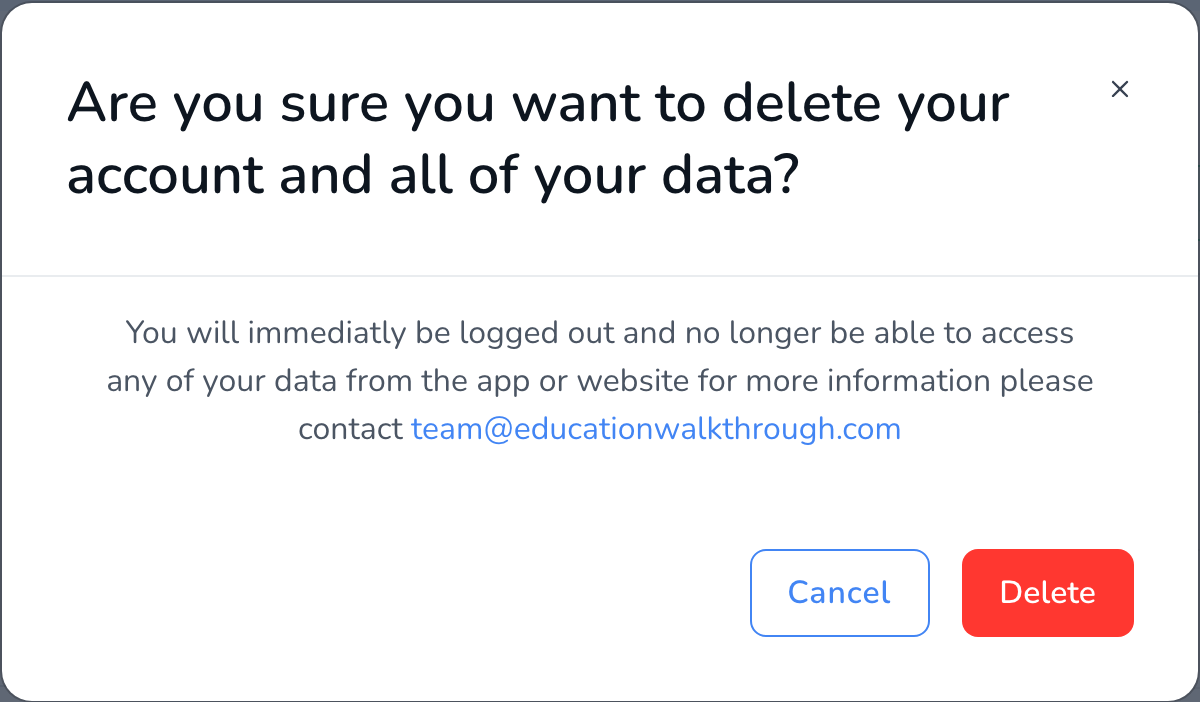
- Read the confirmation. If you pay for Individual Premium on the web, the message also says the subscription will be cancelled.
- Click Delete. You are signed out immediately, on the web and in the app.
What happens to your data
Your sign-in stops working right away. The account and its data are kept in a deleted state for 90 days, then removed permanently. Within that window, support can restore it if you deleted by mistake. Walkthroughs you completed as part of a school or district account are that institution’s records; their admins decide what happens to them. Details are in our privacy policy.
Frequently asked questions
Q: I deleted by mistake.
A: submit a support ticket from the address on the account within 90 days and we can restore it.
Q: Can I delete from the mobile app?
A: Use the web dashboard. Sign in at dashboard.educationwalkthrough.com, open Settings, and follow the steps above.
Q: I want my teachers’ data deleted too.
A: Teacher records belong to the school, not to one observer. A School Admin can remove teachers from the Teachers page, and a district can request full deletion of its data by submitting a support ticket.
Q: Will deleting stop the reminder emails?
A: Yes. All email to a deleted account stops. If you only want fewer emails, change your notification settings in Settings instead.