
Rewrite With AI tidies up the wording of the general comments you write for a teacher. You still decide what to say. The rewrite only smooths out how it reads, which helps when you are writing feedback quickly between classrooms.
As the tooltip in the product puts it, AI only polishes the words you already wrote. It does not grade the lesson, invent observations, or add anything you did not type.
Before you start
Rewrite With AI only appears when the template behind the walkthrough has Include General Comments switched on, which is off by default. If you cannot see the button, turn that setting on first. See How to Attach the Observation PDF and Add General Comments to the Teacher Email.
How to use it
- Complete a walkthrough and open the email to the teacher, or click Resend on a walkthrough you have already finished.
- Make sure your general comments are in the message. Use Add General Comments if they are not.
- Click Rewrite With AI.
- Read the result, edit anything you want to change, then click Send.
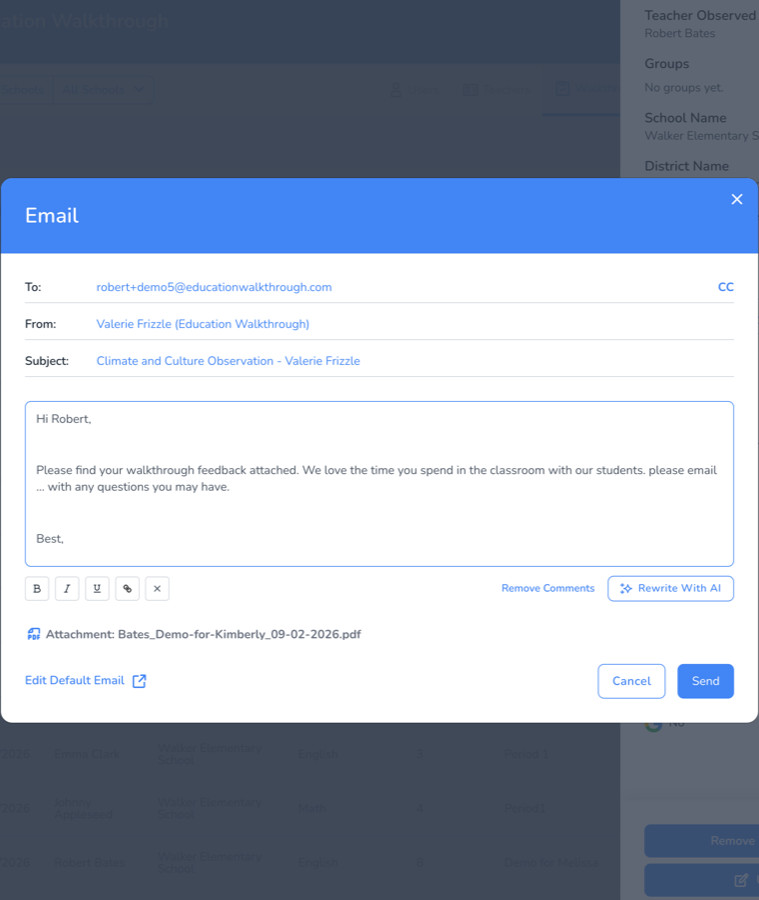
What it changes, and what it leaves alone
The rewrite is deliberately narrow. It only touches your general comment.
- Your general comment is rewritten.
- The greeting stays as it is.
- Your default message stays as it is.
- Your sign-off stays as it is.
That means the shape of the email you send never changes. Only the paragraph you wrote about the lesson is polished.
If the rewrite does not work
If something goes wrong, a message appears underneath the button telling you the rewrite failed and that your text is unchanged. Nothing you wrote is lost, so you can click the button again or simply send the email as it stands.
Frequently asked questions
Does the AI decide how the lesson went?
No. It rewrites the words you typed. It does not score the observation, read the rubric answers, or add feedback of its own.
Can I edit the result?
Yes. The rewritten text lands in the message box, and you can change any of it before you send.
Why can I not see the button?
The template that walkthrough uses has Include General Comments turned off. Turn it on in the template settings and the button appears.
What if I do not like the rewrite?
Edit it directly in the message box, or click Remove Comments and add your comments again to start over.