
Setting up a new school year or a new building? Instead of adding teachers one at a time, import your whole roster at once. Education Walkthrough gives you two ways to do it: paste a list directly, or upload a CSV file from Google Sheets or Excel.
Open the Import Tool
1. Log in to your Education Walkthrough account and go to the Teachers page.
2. Click Import Teachers in the upper right.
3. Choose your import type. You can also click Download CSV template here to start from a correctly formatted file.
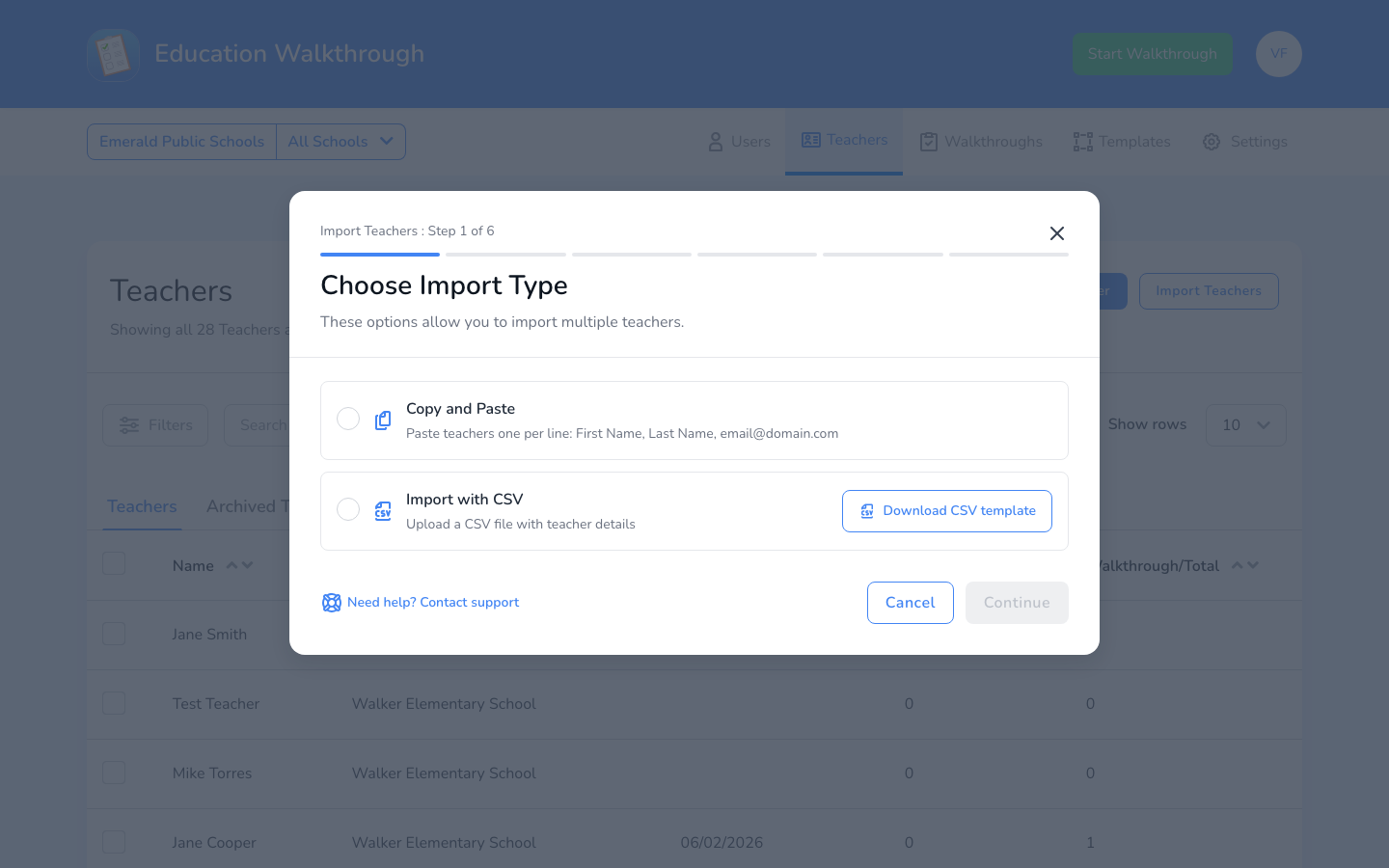
Option 1: Copy and Paste
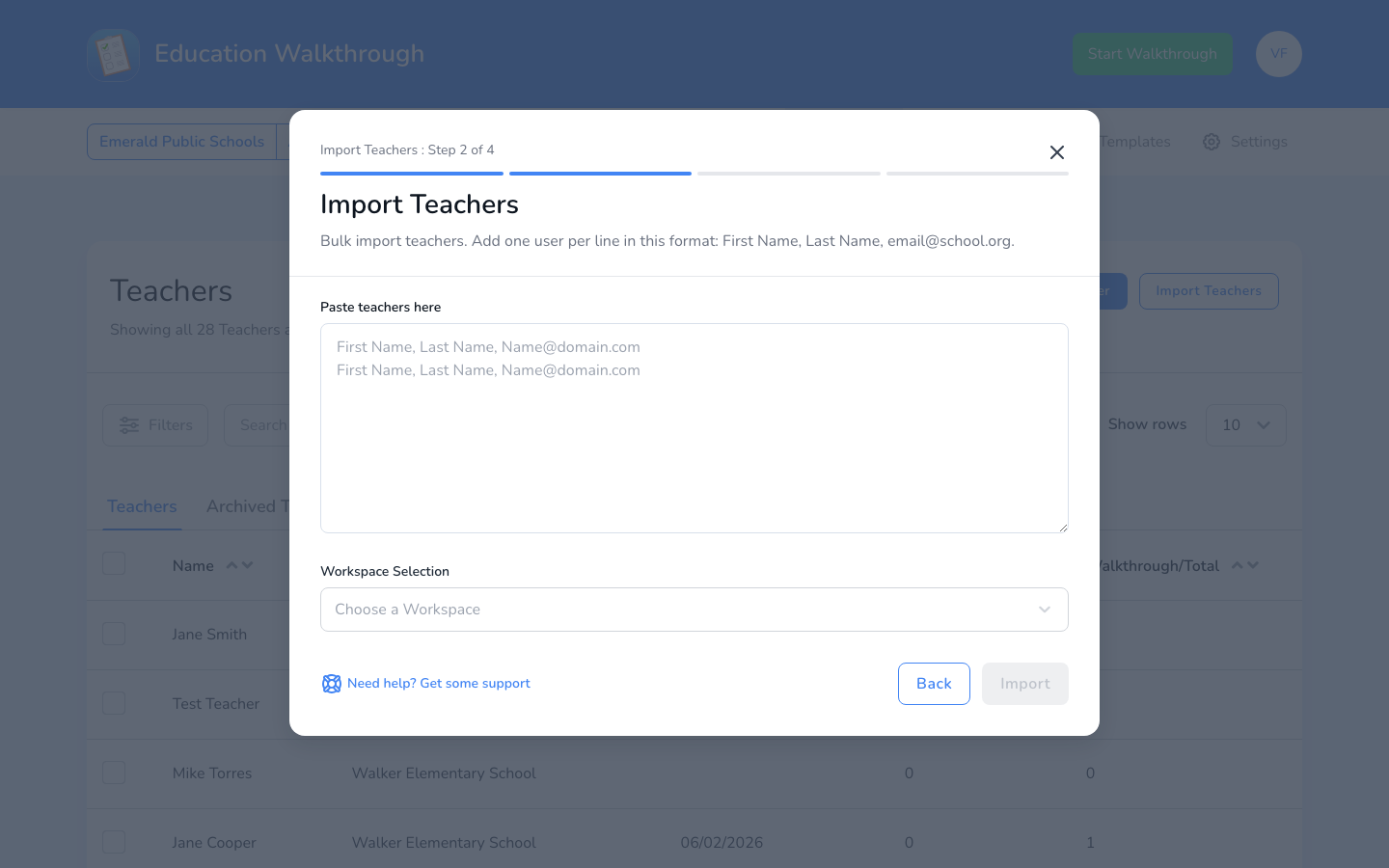
Paste your teachers one per line in this format: First Name, Last Name, email@school.org. Then choose the school workspace to add them to and click Import.
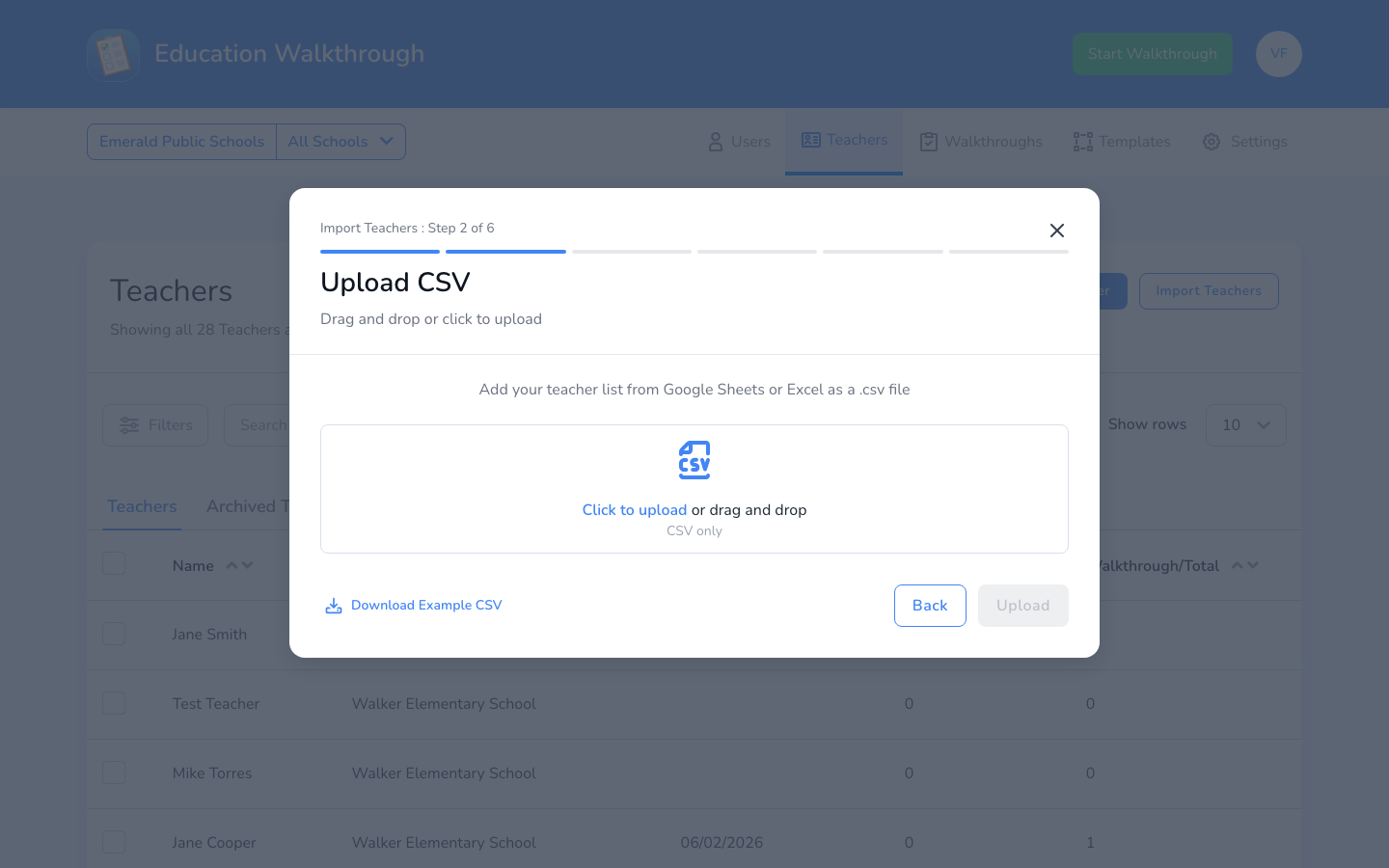
Option 2: Import With CSV
Drag and drop your .csv file, or click to upload it. Your file can come from Google Sheets or Excel, just save it as a .csv first. Click Download Example CSV if you want to check the expected format. Then continue through the remaining steps to review and confirm your import. Have a teacher who works at more than one school? List all of their schools in the School Name column, separated by commas.
District Admins: Import With ClassLink
If your district uses ClassLink, District Admins can sync teachers automatically instead of importing them by hand. Go to Settings, find Teacher Rostering under District-Wide Settings, and click Edit Rostering to connect your account. Our ClassLink sync guide walks through the setup.
FAQs
One of my teachers works at multiple schools. How do I import them?
List every school in the School Name column of your CSV, separated by commas. For example, Walker Elementary School, Toto High School. The import adds the teacher to each school as one shared profile, so their observation history stays in one place. Most teachers only need their one school, and nothing changes for them. You can also share a teacher after the fact from their profile. See sharing teachers across schools.
I got a “teacher already exists” error.
The teacher’s email is already in your account, often at another school in your district. Our teacher already exists article explains how to resolve it.
What information do I need for each teacher?
First name, last name, and email address.