
Forgot your password, or just want to set a new one? You can reset your Education Walkthrough password from the login page in about a minute.
How to Reset Your Password
1. Go to the Education Walkthrough login page.
2. Click Forgot Password? below the password field.
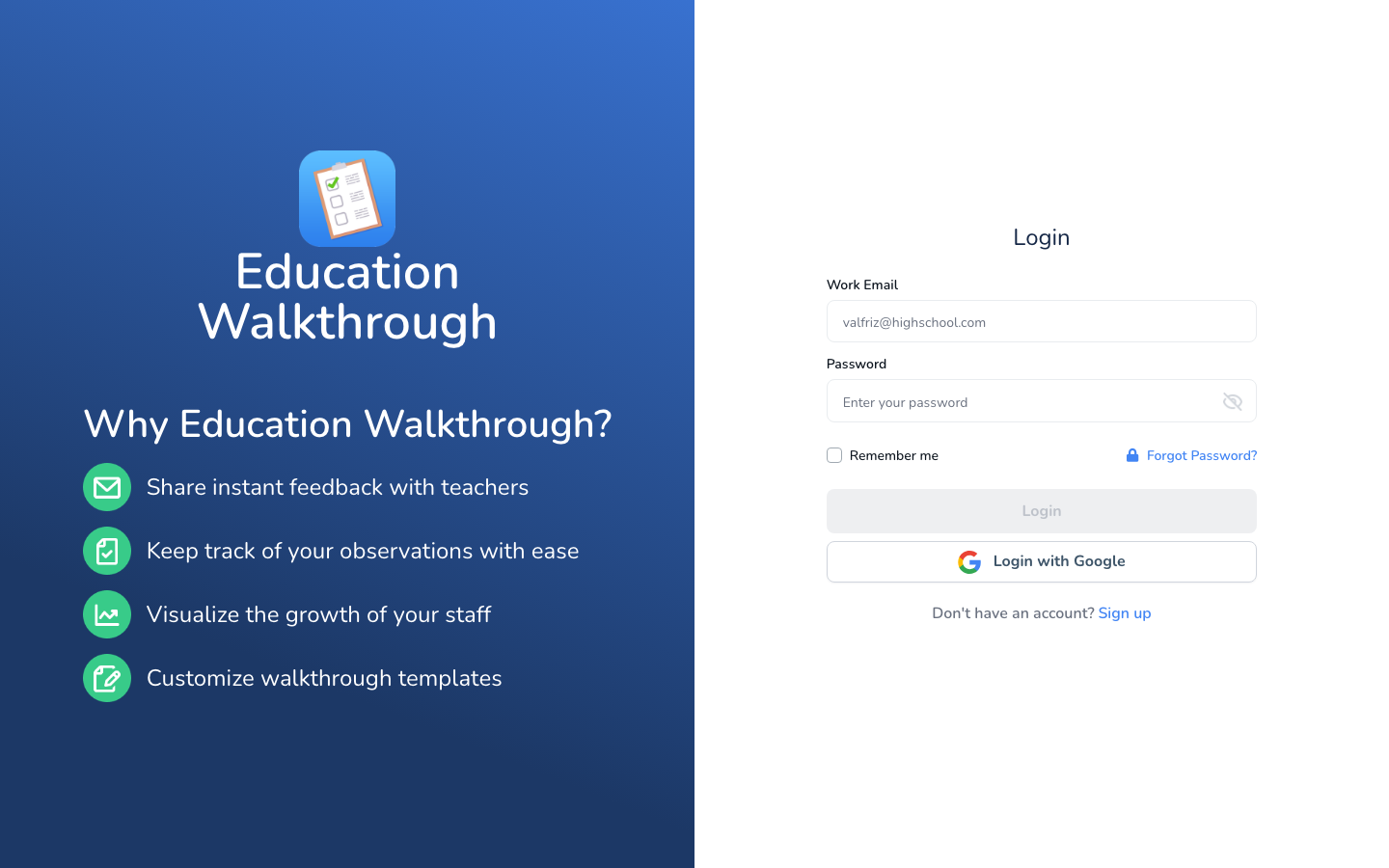
3. On the Recover Password screen, enter your work email address and click Submit.
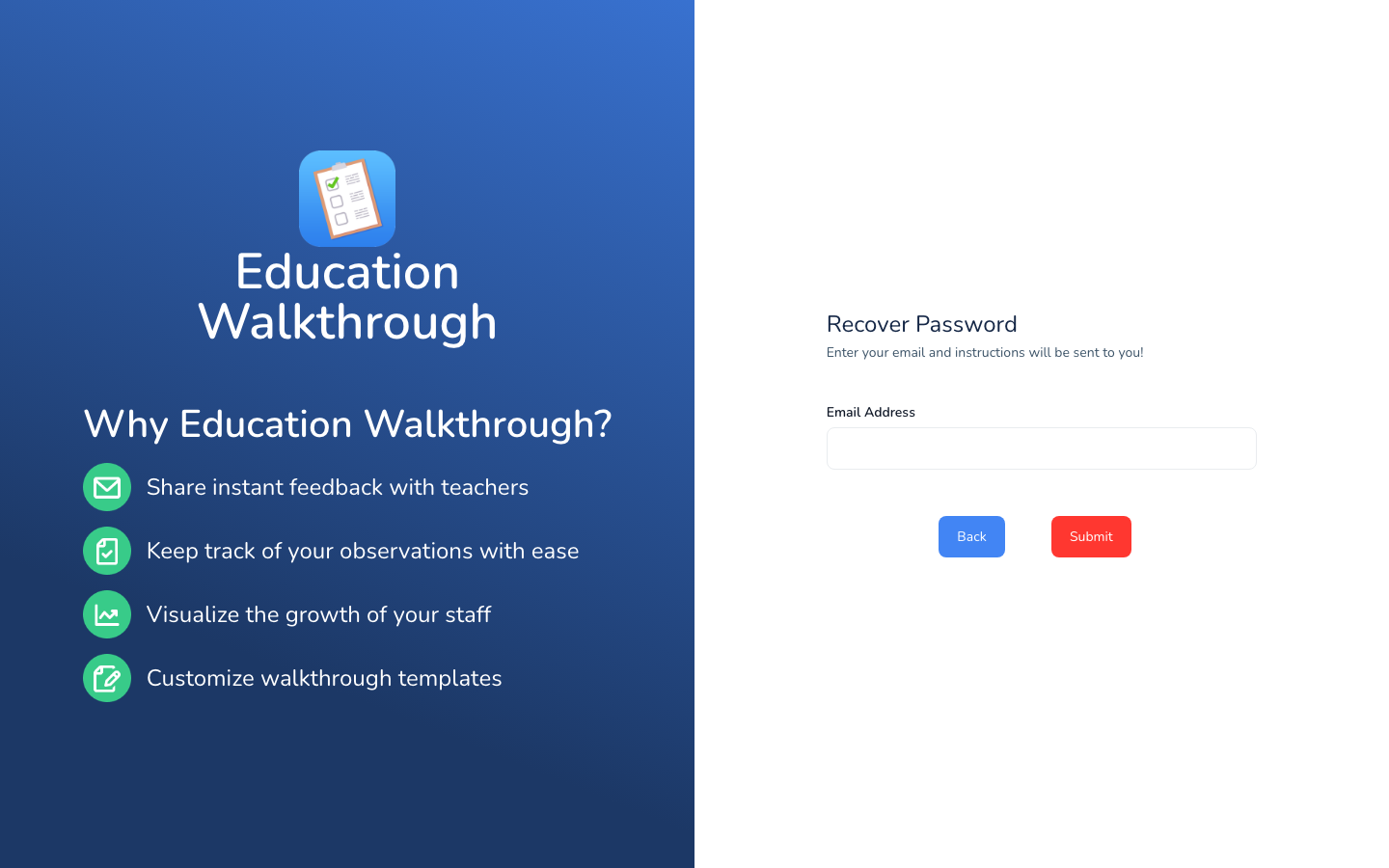
4. Check your inbox for an email with instructions and follow the link to set your new password. If it does not arrive within a few minutes, check your spam or junk folder. Still nothing? Your school’s email filter may be blocking it. Share our whitelisting guide with your IT team.
5. Log in with your new password.
Signed Up With Google?
If you use the Login with Google button, your account does not have a separate Education Walkthrough password. Your password is managed by Google, so any password changes happen in your Google account, and you keep signing in with the Login with Google button.
FAQs
The reset email never arrived. What now?
Check spam and junk folders first, then ask your IT team to whitelist our email addresses using the guide linked above. If it still does not arrive, contact support.
Can I change my password while logged in?
The fastest path is the same one: log out, click Forgot Password?, and follow the emailed instructions to set a new password.
Need Additional Help?
Have questions or need help? Our support team is always here to assist you. Reach out anytime, we’re happy to help!