
A bilingual campus in Texas has principals who think in Spanish and coaches who think in English, and both are in the same classrooms every week. Each person can run Education Walkthrough in the language they work in. The choice is per account, and it follows you between the web dashboard and the mobile app.
Change your language
- Sign in and open Settings.
- Under Language, click Edit Language.
- Choose English or Spanish from Select Language and click Save.
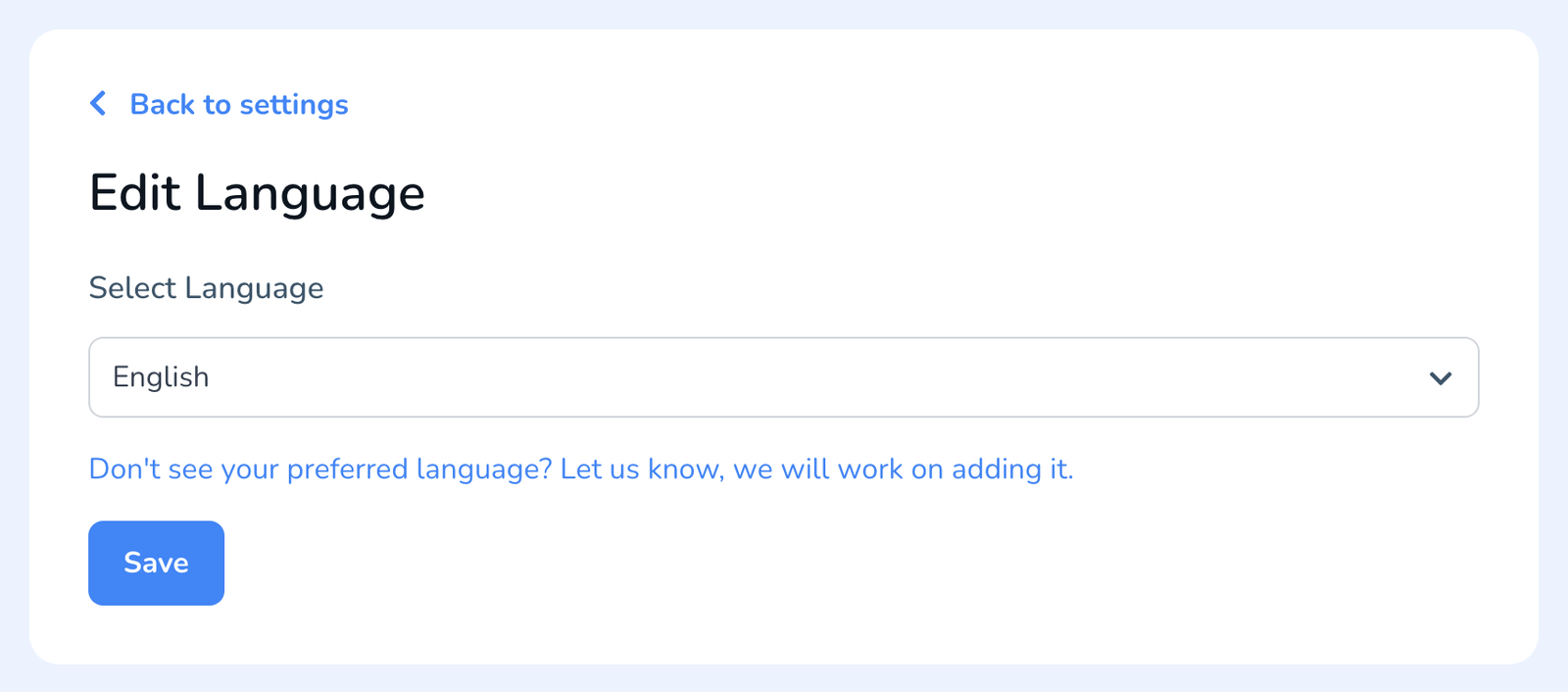
The dashboard switches right away. The app picks up the change the next time you open it. The same panel has a line for languages we do not offer yet; use it, we track those requests.
What changes and what does not
- Changes. Menus, buttons, settings, and messages across the dashboard and the app.
- Stays as written. Your templates, questions, comments, and reports. They appear in whatever language they were typed in.
- Emails to teachers. Many of the emails Education Walkthrough sends follow your language setting, so a Spanish-speaking observer’s teachers receive Spanish notices. The feedback message itself is whatever you write in your email template, see How to Set Up the Email Teachers Receive.
Frequently asked questions
Q: Can I run the app in Spanish and the website in English?
A: No. One setting applies to both. Change it whenever you like.
Q: Can a school set everyone’s language?
A: No. Each person picks their own in Settings.
Q: We need French or Portuguese.
A: Tell us from the Edit Language panel or through a support ticket. The interface is English and Spanish today; Using Education Walkthrough in Different Languages covers writing templates in any language in the meantime.
Q: Does changing language change my account email?
A: No. That is a separate setting, see How to Change Your Account Email Address.