Every visit anyone on your team has done lands on the Walkthroughs page, finished or still in draft. It is where you find last Tuesday’s observation to resend the report, pick up the draft you started before the fire drill, and jump into Analyze Data when the leadership team wants numbers.
What you see
- Start Walkthrough, the green button in the top bar, begins a new visit from the web. Pick the template, teacher, department, grade, and class, then Start.
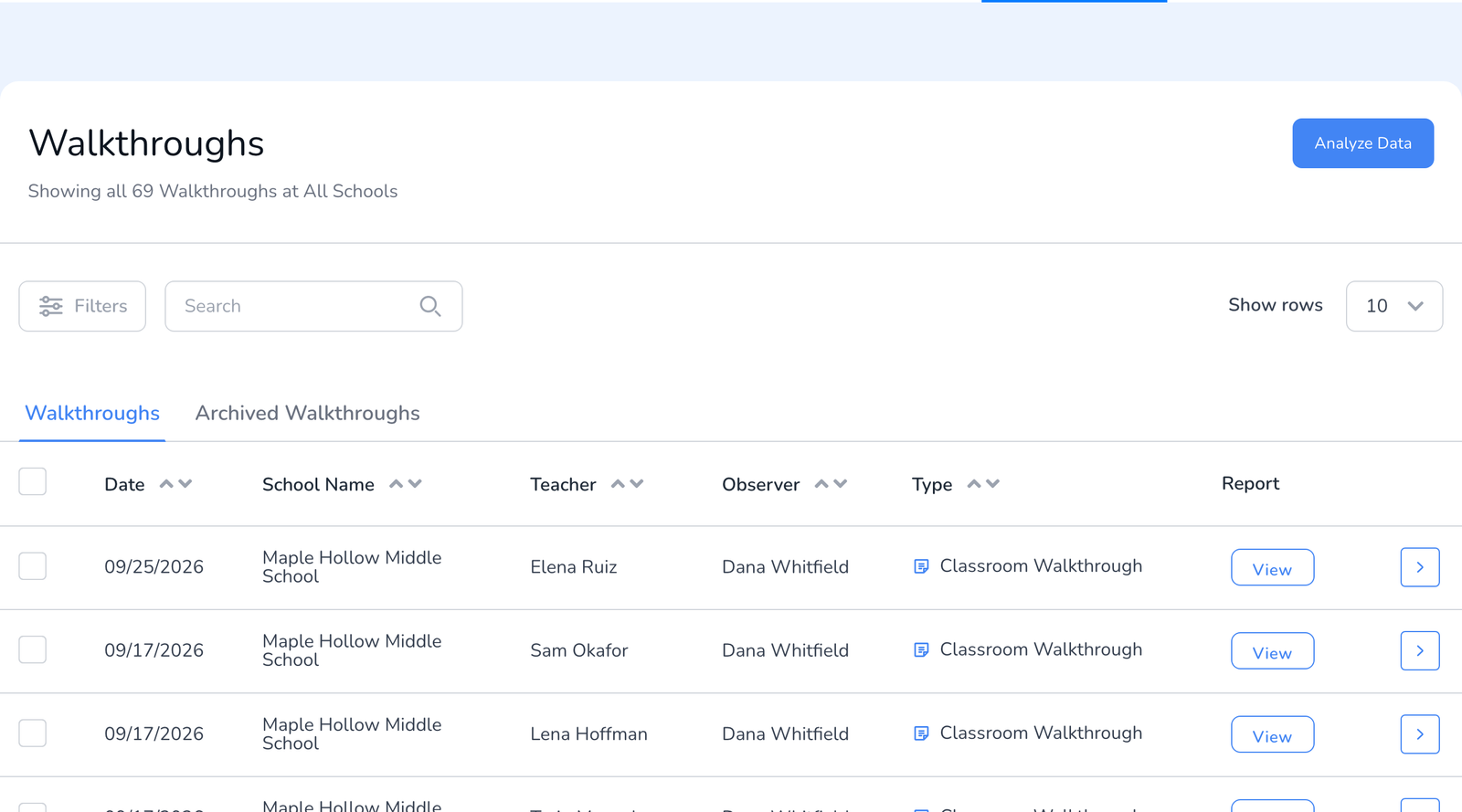
- Analyze Data opens the analytics for any date range and template, with Summary, Results, and Crosstable views, see How to View Walkthrough Results as a Pie Chart or Bar Graph.
- Columns. Date, School Name, Teacher, Observer, Type (the observation type of the template), Report (View for a completed walkthrough, Finish for a draft), and an arrow to open the details.
- Filters and Search. Filter by date completed (this week, last month, a custom range), teacher, observer, department, and template. Search matches the teacher and observer names.
- Tabs. Walkthroughs is everything current. Archived Walkthroughs holds past years you have set aside.
Open a walkthrough’s details
Click the arrow at the end of a row. The panel shows the teacher, observer, department, grade, class, the date and duration, and a timeline of what has happened: draft saved, observation completed, report emailed. From here you can View or Download the report PDF, Send Report to the teacher again, Unsubmit to make corrections, edit the date and time, or remove the walkthrough.
- How to Resend a Completed Walkthrough Report
- How to Unsubmit a Walkthrough
- How to Edit the Date and Time of a Walkthrough
- How to Resume the Walkthrough Timer, for drafts
Act on several at once
Tick the boxes next to walkthroughs and a bar appears above the table.
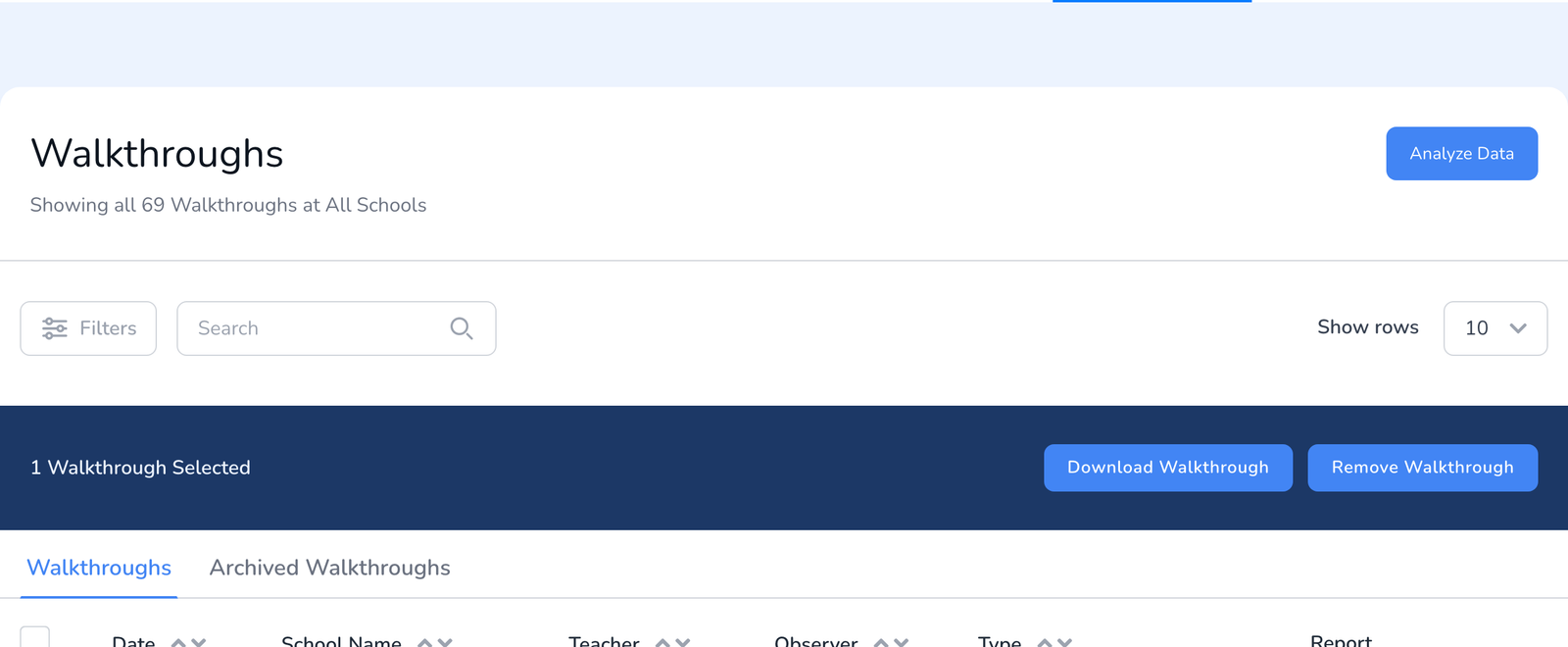
- Download Walkthrough downloads the report PDFs for the selected walkthroughs. For a spreadsheet of the underlying answers, see Export or Download Your Data to a CSV.
- Remove Walkthrough offers Archive, which keeps the data, or delete. See How to Archive Users, Teachers, Walkthroughs, and Templates.
Frequently asked questions
Q: I only see my own walkthroughs.
A: Some roles see only the visits they conducted. Administrators see every walkthrough for their school or district.
Q: Where are last year’s walkthroughs?
A: If they were archived at the end of the year, on the Archived Walkthroughs tab. They still count in reports that include prior years, see How to Create a Report.
Q: Can I filter to one teacher and download everything?
A: Yes. Filter by teacher, tick the box in the header to select every row shown, then click Download Walkthrough.
Q: A walkthrough from the app is missing here.
A: Open the app and let it sync. Walkthroughs completed offline appear on the web once the device reconnects.