
The look-fors capture what you saw. The general comment is where you talk to the teacher: the one thing that worked, the one thing to try next, a question to think about before you meet. It is the part of the walkthrough teachers actually read, and it goes into the email they receive.
Add a general comment on the web
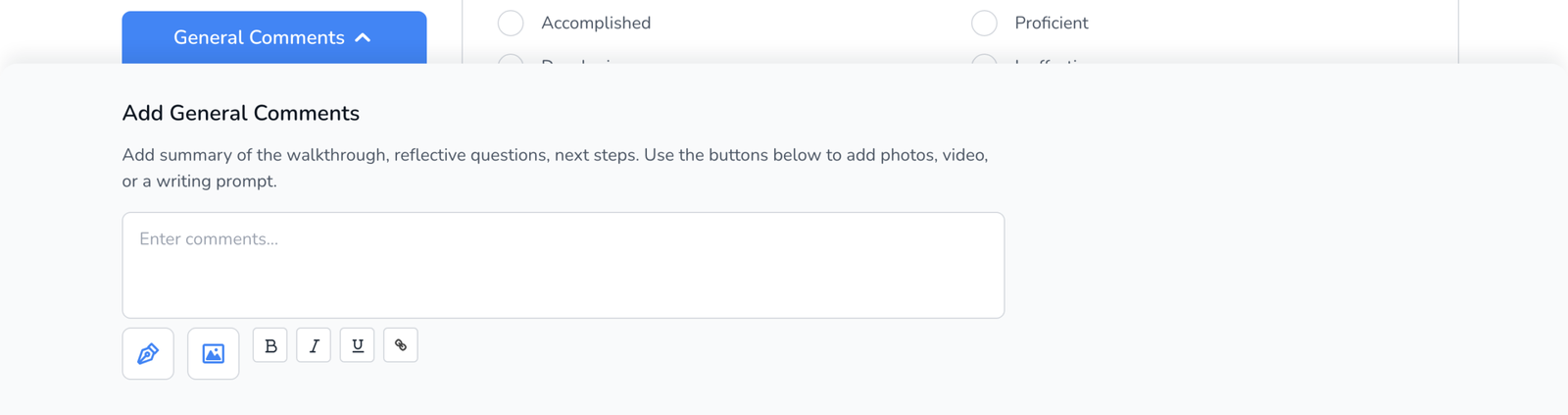
- While completing a walkthrough, click the blue General Comments button at the bottom of the Sections panel on the left. The panel slides open.
- Type in the box. Use the buttons underneath to add a photo, a short video, or a writing prompt, and to format with bold, italic, underline, or a link.
- Keep going with the questions, or click Submit. The comment saves with the walkthrough.
In the mobile app
Scroll past the last question. The General Comments box is at the end of the walkthrough, with the same photo and video options.
Sentence starters
Stuck on a blank box? Templates can carry up to twenty sentence starters, short prompts like One strength I noticed was that appear under the comment box. Tap one and finish the sentence. Starters are set per template on its Settings tab, see How to Build a Walkthrough Template.
Frequently asked questions
Q: I submitted without a general comment.
A: The product asks first: You have not added any General Comments. Would you like to add these before submitting? Choose Yes, Add Comments to go back, or submit without one. It is optional.
Q: Does the teacher see the general comment?
A: Yes, if the template’s Sending Emails settings include it (Include General Comments, on by default). It appears in the body of the email and in the PDF, see How to Attach the PDF and Add General Comments to the Teacher Email.
Q: How is this different from a comment on a question?
A: A question comment is evidence for that look-for. The general comment is the summary and next steps for the whole visit, see Add Comments, Photos, and Video to a Question.
Q: Can I edit it after submitting?
A: Only by unsubmitting the walkthrough, which returns it to draft. Reports already emailed do not change.