
Feedback that arrives the same day lands. Feedback that arrives at the end of the month is a performance review. Education Walkthrough is built so the teacher has the report in their inbox before you are back at your desk, and the general comment is the message they read first.
Send the report as you submit
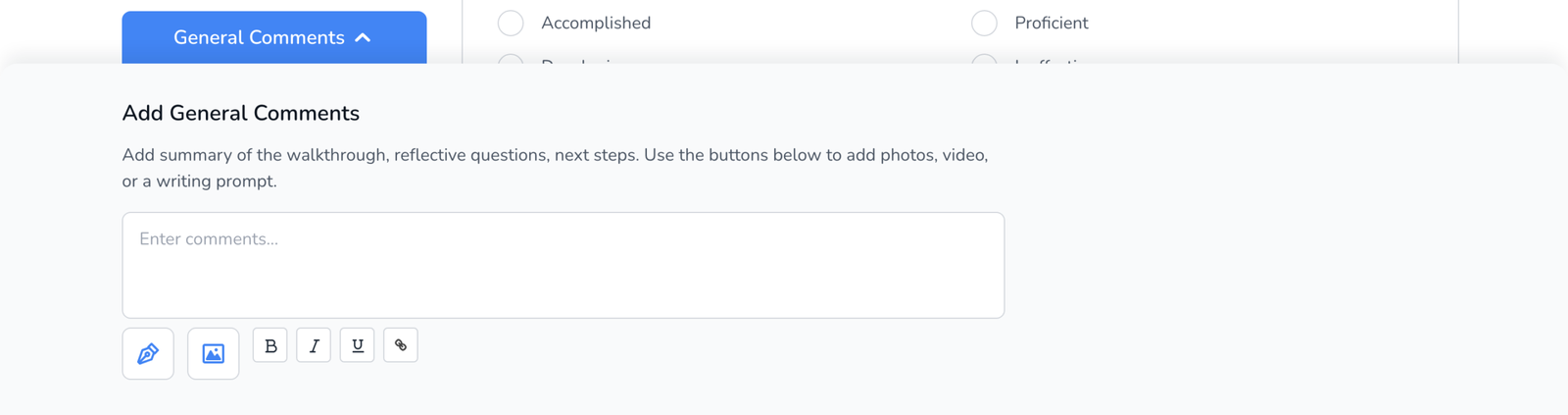
- Finish the walkthrough and write a General Comment: one strength, one next step, one question for the conversation, see How to Add General Comments.
- Click Submit. The walkthrough is saved and its PDF is built.
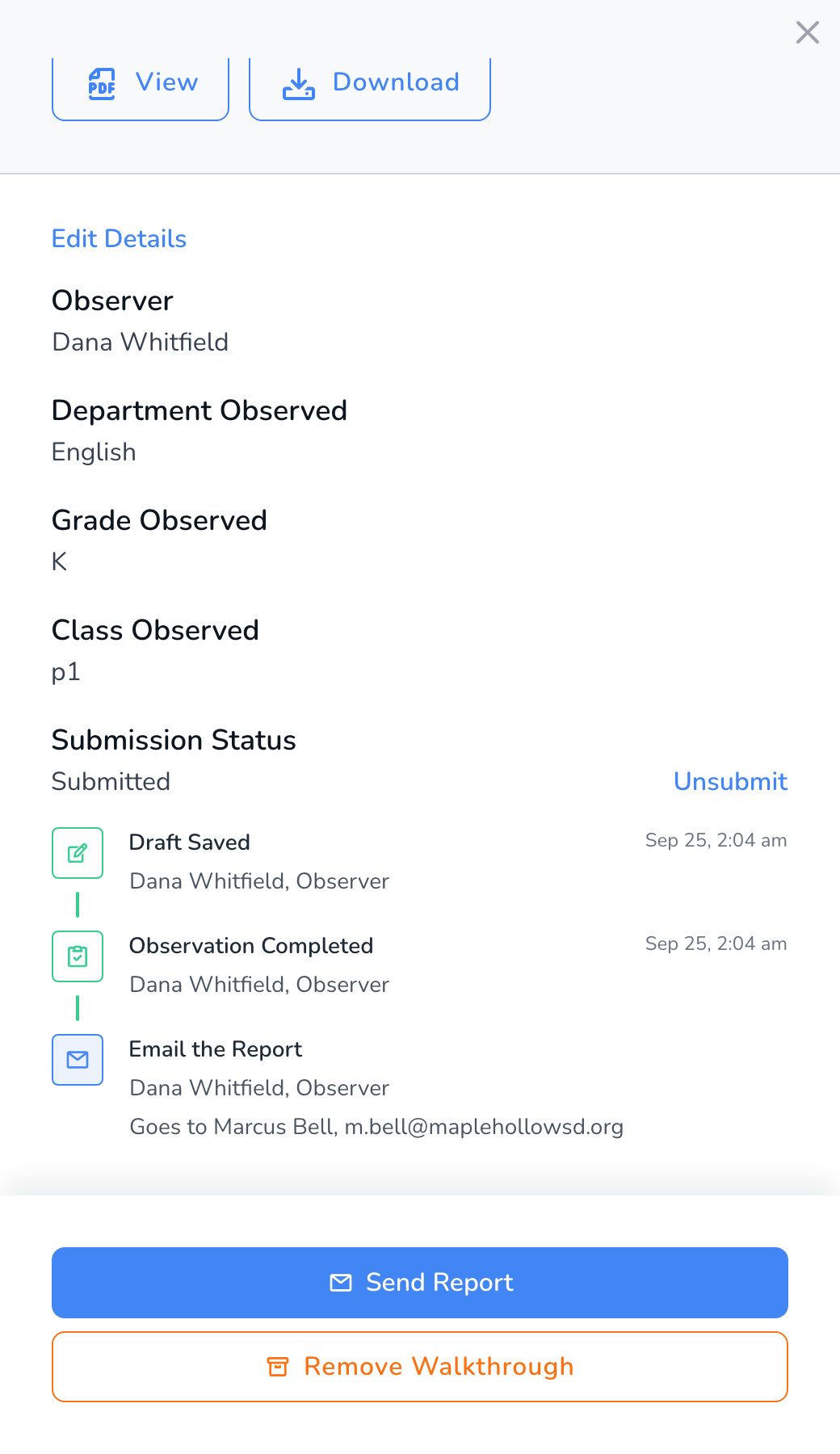
- Choose to email the teacher. The address comes from the teacher record; add CCs (a coach, yourself) and decide whether to attach the PDF.
- Send. The email goes out from Education Walkthrough with your name as the sender, using your Sending Emails template, see Set Up the Email Sender for Completed Walkthroughs.
Send later, or again
Open the walkthrough from the Walkthroughs page and click Send Report. Use it when you held a report for a conversation first, or when the teacher asks for another copy.
What the teacher receives
- The email with your general comment in the body, in the language your account is set to, see How to Change Your Language Settings.
- The PDF with every question, rating, comment, and photo, attached or as a download link if it is large, see Why Some Walkthrough Emails Have a Download Button.
- No login needed. Teachers do not have accounts. The email and PDF are the whole handoff.
Frequently asked questions
Q: Can I hold the report and send it after we talk?
A: Yes. Submit without emailing, meet, then use Send Report from the Walkthroughs page.
Q: I sent it with a mistake.
A: Unsubmit the walkthrough, fix it, resubmit, and send again. The first email does not change, so say so in the second, see How to Unsubmit a Walkthrough.
Q: Can the teacher reply?
A: Replies go to your email address, not into Education Walkthrough. The conversation happens in your inbox or in person.
Q: Can I send a report to someone other than the teacher?
A: Add them in CC. The teacher’s address is required; the CCs are yours to choose.