The email a teacher opens after a walkthrough sets the tone for the whole exchange. “Hi Marcus, please find your walkthrough feedback attached” is fine for a quick visit. A coaching cycle might want a line about the next conversation. Where the email comes from matters too, because district spam filters trust some senders more than others. Both are set once in Settings and used every time you send a report.
Open the email template
- Sign in and open Settings.
- Under Sending Emails, click Edit Email Template.
Choose the sender
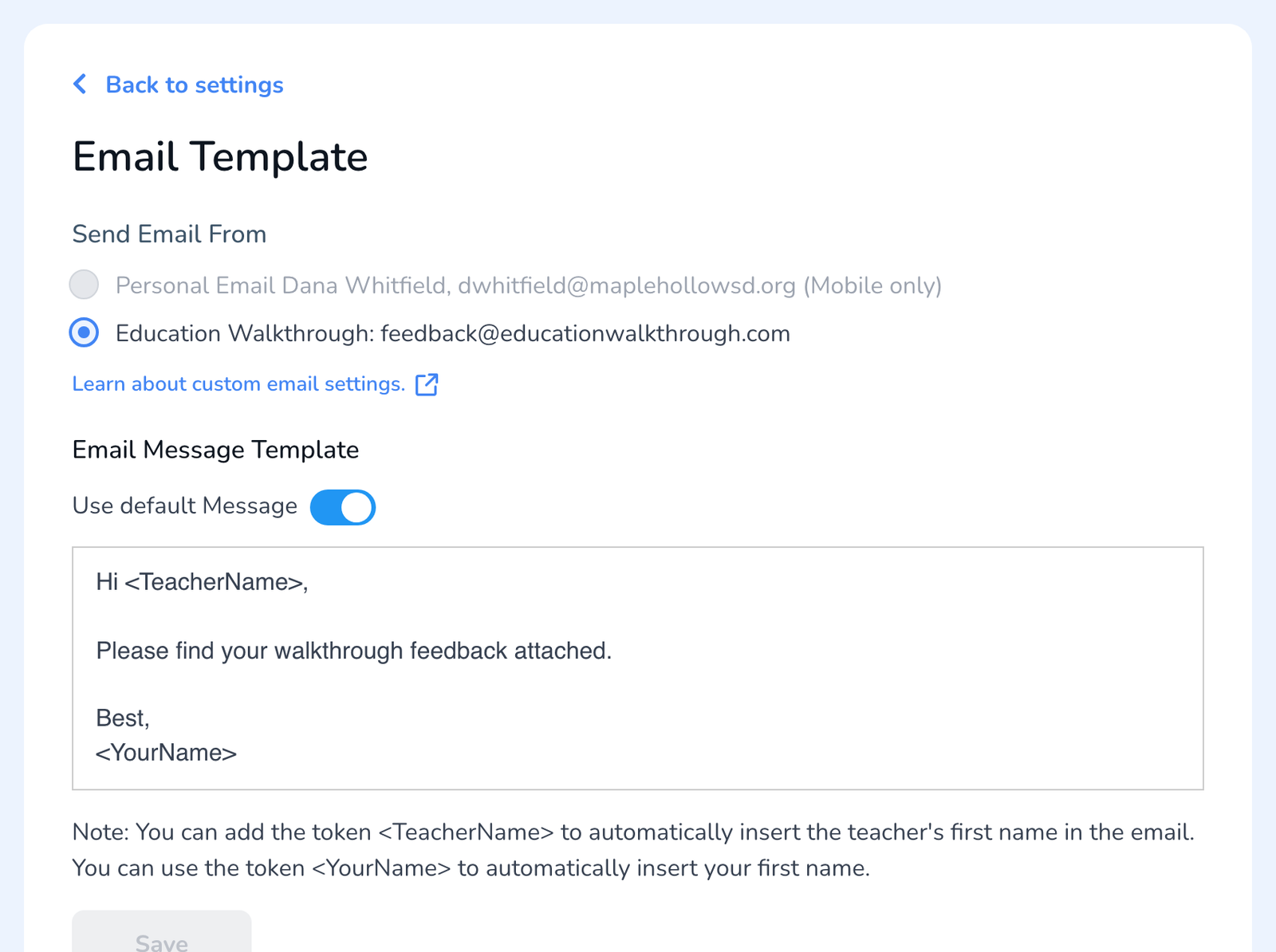
Under Send Email From there are two choices.
- Education Walkthrough. Reports go out from feedback@educationwalkthrough.com with your name on them. This is the default and works on the web and in the app. It is the reliable choice, because the address is set up for deliverability and does not depend on your district mail settings.
- Personal Email (Mobile only). Reports go out from your own address, using your phone’s mail account. It only applies to walkthroughs sent from the mobile app, and the message lands in your own Sent folder.
If teachers tell you reports are landing in spam, keep the Education Walkthrough sender and ask the district to allow it, see How to Whitelist Email Addresses.
Write the message
- Under Email Message Template, turn off Use default Message to write your own.
- Edit the text. Keep the two tokens: <TeacherName> becomes the teacher’s first name and <YourName> becomes yours, so one template reads personally to everyone.
- Click Save.
You can still change the wording on any single report in the Email window before you send it, and use Rewrite With AI to polish the comments that go in it. The template is the starting point, not a lock.
Frequently asked questions
Q: Does this change the subject line?
A: No. The subject is the template name and your name. The template here is the message body.
Q: Can I add my title and school under my name?
A: Yes, type them into the message after <YourName>. For a formatted signature, see How to Add a Signature.
Q: Is this per person or per school?
A: Per person. Each observer sets their own sender and message.
Q: A teacher says they never got the report.
A: Resend it from the walkthrough’s details, see How to Resend a Completed Walkthrough Report. If nobody at the school is receiving reports, see What Can I Do If My Teachers Are Not Receiving Any Emails.