
The Education Walkthrough mobile app is where most walkthroughs happen: in the room, on a phone or iPad, often with no Wi-Fi. The app was rebuilt in October 2025 to be faster and steadier. This guide covers installing it, finding your way around, and completing a walkthrough from start to share.
Install and sign in
- Download the app from the App Store or Google Play. If you already have it, update to the latest version from the same store. Schools that manage iPads centrally may need their technology office to push the update.
- Open the app and sign in with the same email and password you use on the web dashboard. Everything on your account, templates, teachers, and past walkthroughs, is already there.
- Signed in on the web through ClassLink or Google? Use the same button in the app.
Trouble signing in? See Troubleshooting Login and Google Sign-In.
Find your way around
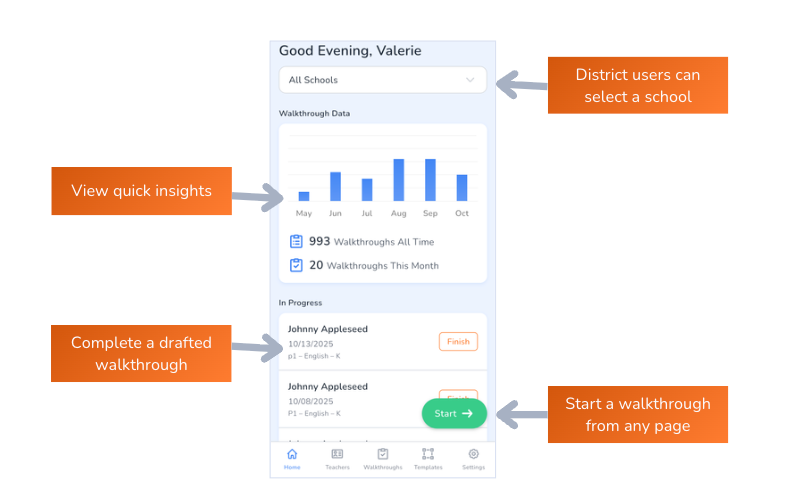
- Home. Start a new walkthrough and see recent activity.
- Teachers. Your roster, with search.
- Walkthroughs. Drafts in progress and completed walkthroughs.
- Templates. Your templates and the ones shared with you.
- Settings. Your profile, the school you are viewing, and app preferences.
Complete a walkthrough
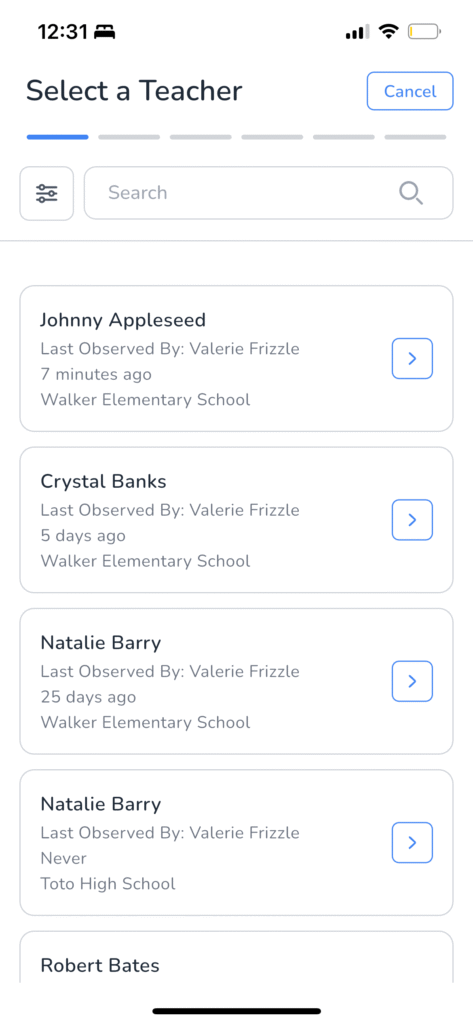
- Tap the green Start button.
- Pick the teacher, then the template. Type a few letters of a name to find it fast. Templates that observe something other than a teacher, a team or a location for example, ask for that instead, see Observation Types.
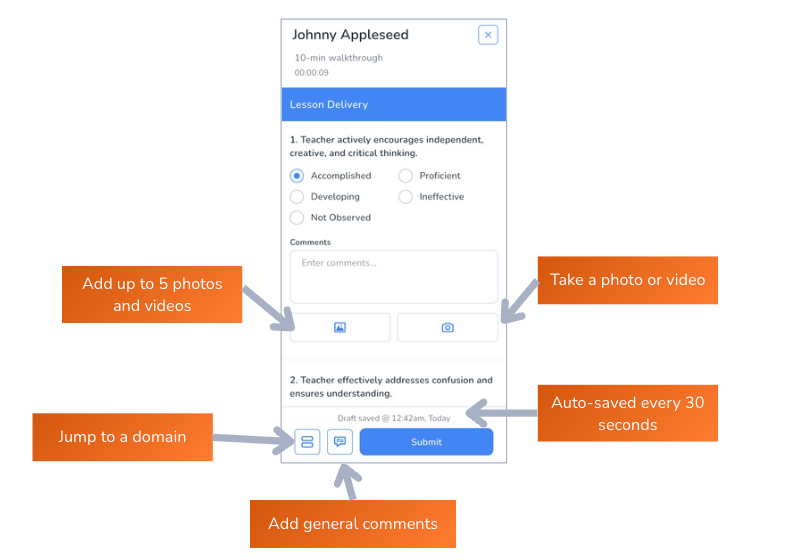
- Work through the questions. Add a comment, a photo, or a short video wherever the template allows it. Several photos can go on one question.
- Tap Complete Walkthrough. The summary screen lets you read it over, then share it with the teacher by email or as a PDF.
Working without Wi-Fi
Walkthroughs save on the device as you go. If the connection drops in a far corner of the building, keep working. The walkthrough uploads the next time the app is online. Premium accounts can also switch on Offline Mode on purpose, see Working Offline in the Mobile App.
Frequently asked questions
Q: I started a walkthrough and had to leave the room. Where is it?
A: On the Walkthroughs tab under drafts. Open it to finish from where you stopped.
Q: Can I build or edit templates in the app?
A: No. Templates are built on the web dashboard. The app uses them.
Q: The teacher got a download link instead of the PDF.
A: Large reports, usually ones with many photos, are sent as a link, see Why Some Walkthrough Emails Have a Download Button.
Q: Something else is not working.
A: Tell us through Submit a Ticket and include your device and app version from Settings.