
A district instructional coach might be in three buildings before lunch. Their account belongs to one school, but their work does not. District-level roles switch between schools with one dropdown, on the web and in the app, and nothing about their account changes when they do.
This applies to District Admins, District Leaders, and the district office and region roles, see User Roles. A School Admin or School Leader sees only their own school and has no switcher.
Switch schools on the web
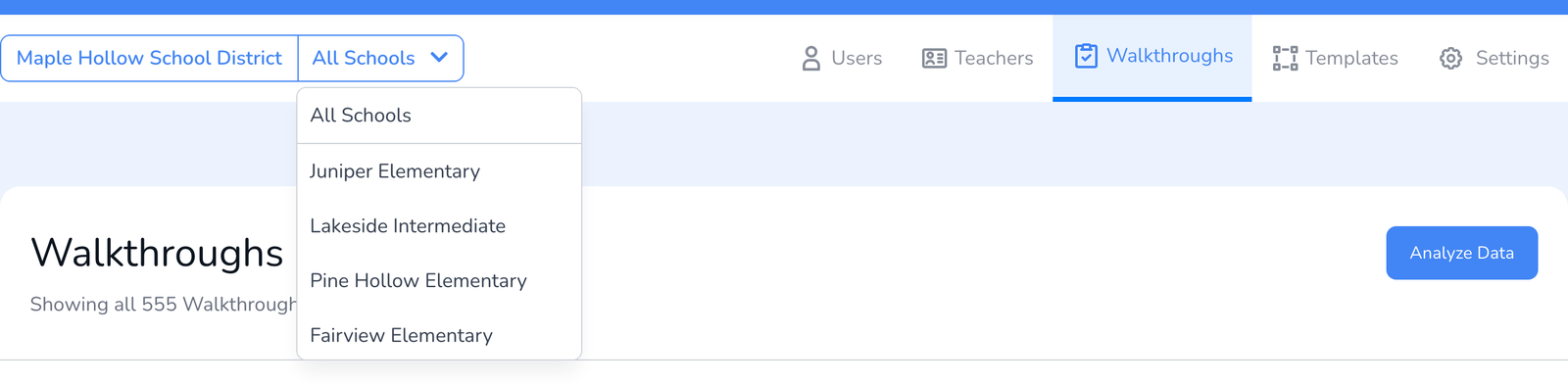
- Look at the top left of any page, next to your district’s name. The school dropdown reads All Schools or the name of the school you are viewing.
- Click it and choose a school. Every page, Users, Teachers, Walkthroughs, Templates, Settings, now shows that school.
- Choose All Schools to see the whole district again.
Switch schools in the app
- Open Settings in the app.
- Tap Schools and choose the school you are visiting.
- Start the walkthrough. The teacher list is that school’s roster.
What switching changes
- The teacher list. Start Walkthrough offers the teachers of the selected school.
- What you see. Users, teachers, walkthroughs, and templates are filtered to that school. Analytics follow the same choice, see How to View Walkthrough Results.
- Not your account. Switching is a view, not a move. Your home school, role, and license stay as they are. To actually move someone to another school, see How to Move Users and Teachers to Another School.
Frequently asked questions
Q: I do not see the dropdown.
A: Your role is scoped to one school. Ask your District Admin for a district-level role if you observe in more than one building.
Q: A school is missing from the list.
A: It has not been added to the district yet, or you are a district office role and the school is not in your office. A District Admin adds schools under Settings, see Understanding the District Plan.
Q: I observed at the wrong school.
A: Walkthroughs are filed under the school the teacher belongs to. Open the walkthrough’s details and use Edit Details to pick the right teacher, and the walkthrough follows.
Q: I actually moved to a different school.
A: Then your account should move too, see I Moved to Another School. How Do I Change My School?.