
A template is the form, or instructional tool, your team uses during a walkthrough. It holds your look-fors and your rubric, and at Education Walkthrough we call it a template. Sharing one means other people can use it for their own walkthroughs, instead of each observer rebuilding their own version of the same thing.
That is what makes the data add up. When a school observes with the same template, the results roll into one set of analytics you can actually compare. When everyone uses their own, you get fragments that will not line up.
Templates are private until you share them
Every template you create starts as Private. Nobody else can see or use it until you choose to share it. You stay the author either way, so even after sharing, you are the only one who can edit it.
Where to change sharing
- Go to Templates.
- Find your template and click Edit.
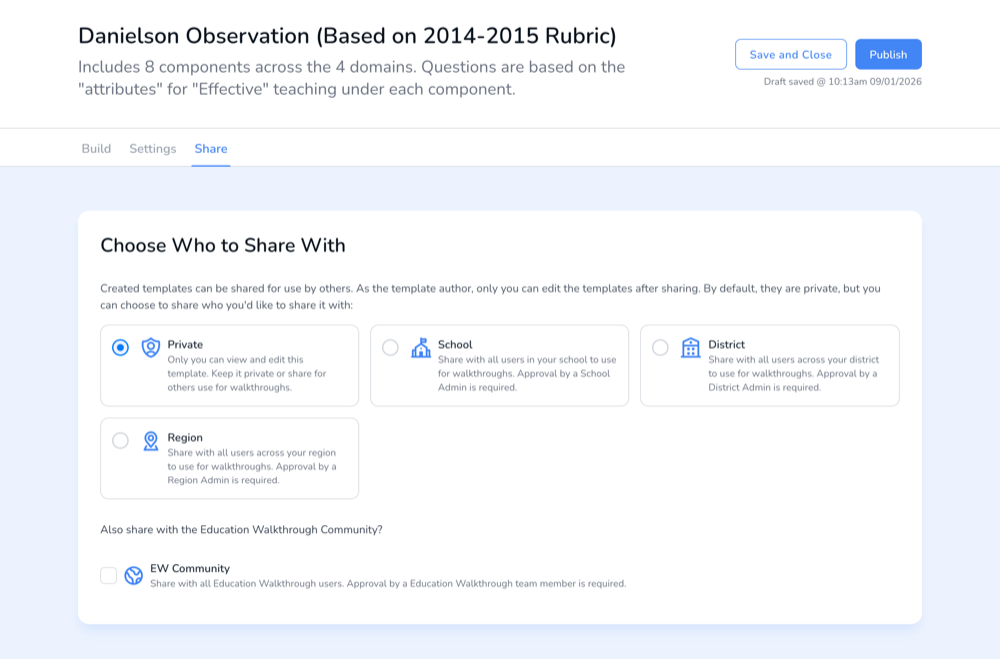
- Open the Share tab at the top, beside Build and Settings.
- Choose who to share with, then publish or save the template.
The Templates list has a Shared with column, so you can see at a glance which of your templates are private and which are out with your team.
Who you can share with
- Private. Only you can view and edit the template.
- School. Everyone in your school can use it for walkthroughs.
- District. Everyone across your district can use it.
- Region. Everyone across your region can use it.
- EW Community. An optional extra, shares it with all Education Walkthrough users.
Sharing beyond Private needs a sign-off. School sharing is approved by a School Admin, district sharing by a District Admin, region sharing by a Region Admin, and EW Community sharing by an Education Walkthrough team member. That approval step is what stops half-finished templates reaching a whole district.
Which of these you can pick depends on your role and scope. See User Roles.
Shared is not the same as published
A template has to be both shared and published before your team can start a walkthrough with it. A shared template that is still a draft will not show up for anyone else, which is the most common reason a colleague says they cannot find your template. See Create a Template for building and publishing one.
Locking template creation, for District Admins
District Admins have one extra control. Under Settings, in District-Wide Settings, Lock School Template Creation prevents School Staff from creating and editing templates.
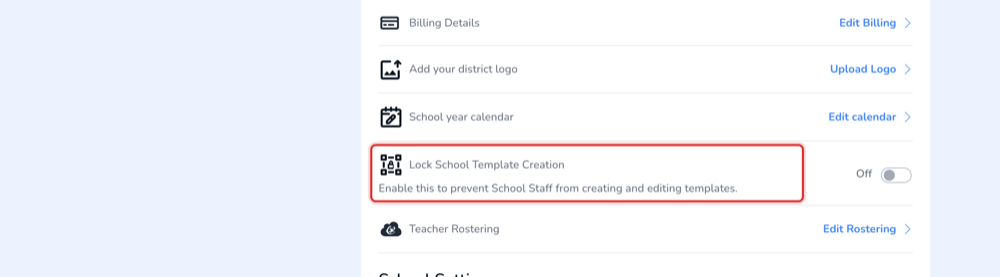
This is a district-level setting only. A School Admin will not see it. Districts turn it on when they want one official set of look-fors used everywhere, rather than each school quietly building its own variant. If every building writes its own version of the same walkthrough, your district-level analytics stop being comparable, and that is usually the moment this setting gets switched on.
Leave it off if you would rather let schools build their own templates alongside the district ones.
If a sharing change has not appeared yet
Give it a few minutes. Individual apps can take 3 to 5 minutes to pick up a sharing change, and signing out of the app and back in refreshes it. If it still has not landed, this sharing troubleshooting article goes through the rest.
Frequently asked questions
My team cannot see a template I created. Why?
Check two things. It has to be shared with them, and it has to be published rather than left as a draft. If both look right, wait a few minutes and have them sign out and back in.
Can someone else edit a template I shared?
No. You are the author, and only you can edit it after sharing. Others can use it for their walkthroughs.
Why is my shared template waiting on approval?
Sharing beyond Private needs an admin at that level to approve it, so a district-wide template needs a District Admin sign-off.
Can a School Admin lock template creation?
No. Lock School Template Creation lives in District-Wide Settings and is a District Admin control.
What about teachers who work at more than one school?
That is a different feature. See How to Share Teachers Across Multiple Schools.