
When you finish a walkthrough, you can email the results straight to the teacher. Two template settings let you decide what that email includes: whether the completed observation is attached as a PDF, and whether your general comments are written into the email itself. You set these once on the template, and every walkthrough built from it follows the same rule.
This gives instructional leaders a simple way to match the email to the moment. A quick coaching walkthrough might go out as a short note with your comments in the body, while a full observation might carry the complete PDF report as an attachment.
Where these settings live
Both settings sit on the template itself, under the Settings tab of the Template Builder, in the After Observation section.
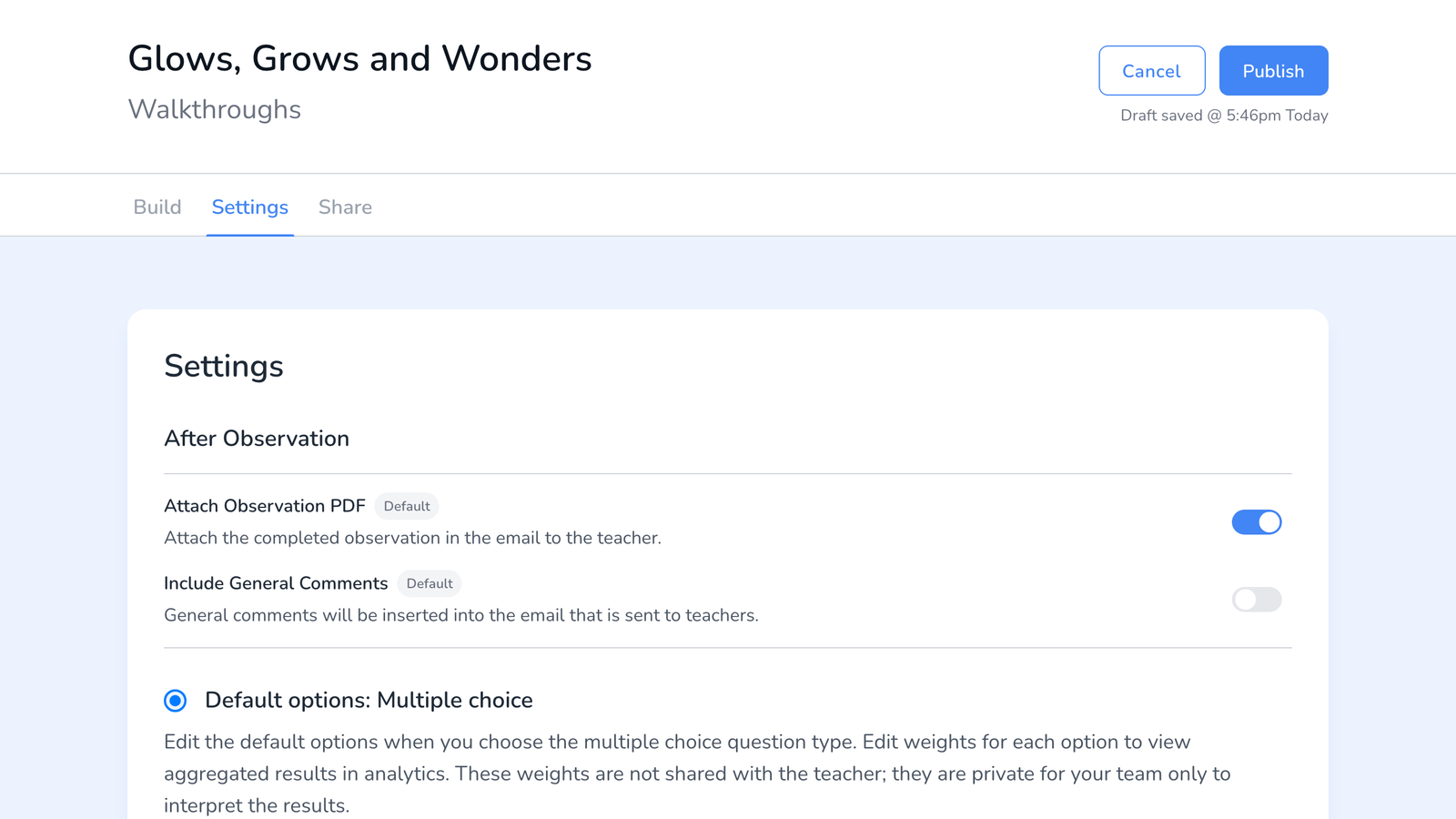
The two settings

- Attach Observation PDF (on by default). When this is on, the completed observation is attached to the email to the teacher as a PDF. Turn it off if you would rather send just a message with no attachment.
- Include General Comments (off by default). When this is on, the general comments you write are inserted into the body of the email that is sent to the teacher. Turn it on when you want your written feedback to appear in the email itself.
The small Default badge next to each setting means it still matches the template type’s standard setup. If you change a toggle, that badge updates to show the template now uses a custom setting.
How to change them
- Go to Templates and click Edit on the template you want to change.
- Open the Settings tab in the Template Builder.
- In the After Observation section, switch Attach Observation PDF and Include General Comments on or off.
- Click Publish (or save the template) to apply the change.
From then on, any walkthrough you complete with that template uses these settings when you send the email to the teacher.
What the teacher receives
When you complete a walkthrough and send the email, the settings decide the shape of the message:
- With Attach Observation PDF on, the teacher gets the completed observation as a PDF attachment.
- With Include General Comments on, the general comments you added appear in the body of the email, alongside your message.
- With both off, the teacher receives your default message only, with no attachment and no general comments.
Frequently asked questions
Are these settings per template, or account wide?
They are set on each template. Different templates can send different kinds of emails, so a coaching template and a formal observation template can behave differently.
What are the defaults?
Attach Observation PDF is on by default, and Include General Comments is off by default. You can change either one at any time.
Where do the general comments come from?
You add general comments when you send the email after completing a walkthrough. If Include General Comments is on, those comments are placed into the email body.
Can I still email the teacher if both settings are off?
Yes. The teacher still receives your default email message. Turning the settings off simply removes the PDF attachment and the general comments from that email.