Every walkthrough starts from a template, so the Templates page is where a school’s instructional focus actually lives: the look-fors for this year’s rounds, the coaching visit form, the formal observation rubric the district requires. This page is where you build them, see which are live, and keep the list from turning into a pile of drafts.
What you see
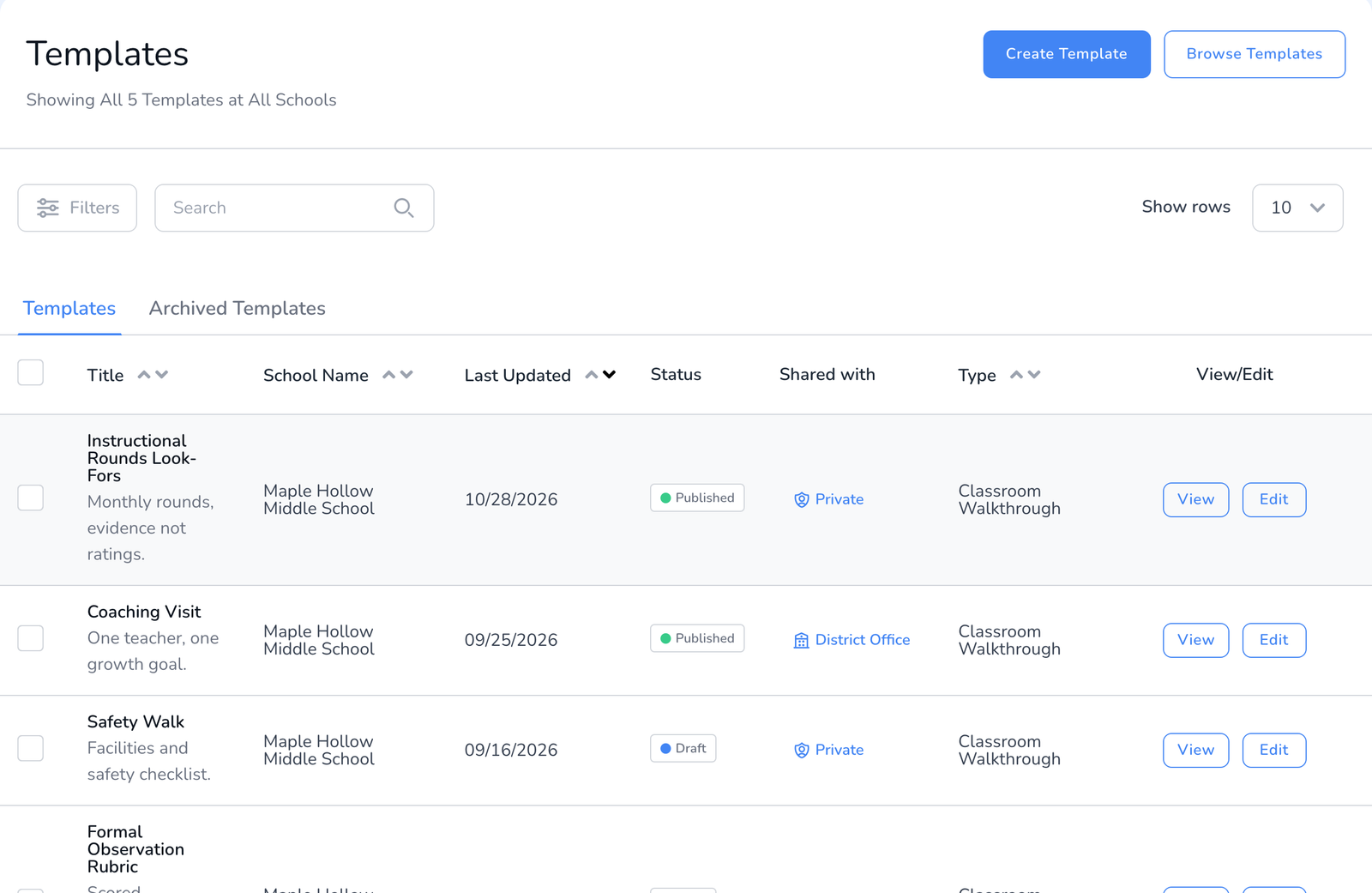
- Create Template opens the builder, from scratch, from a copy, or from the community library, see How to Build a Walkthrough Template. Browse Templates goes straight to the library of templates shared by other Education Walkthrough schools.
- Columns. Title and description, School Name, Last Updated, Status (Published or Draft), Shared with (Private, School, District Office, District), and Type, the observation type that decides which reports the template feeds, see Observation Types.
- View previews the template as an observer sees it. Edit opens it in the builder.
- Filters and Search. Filter by title, type, author, last updated, and status. Search matches titles.
- Tabs. Templates is everything current. Archived Templates holds what you have set aside.
Act on one template or several
Tick the box next to one or more templates and a bar appears above the table.
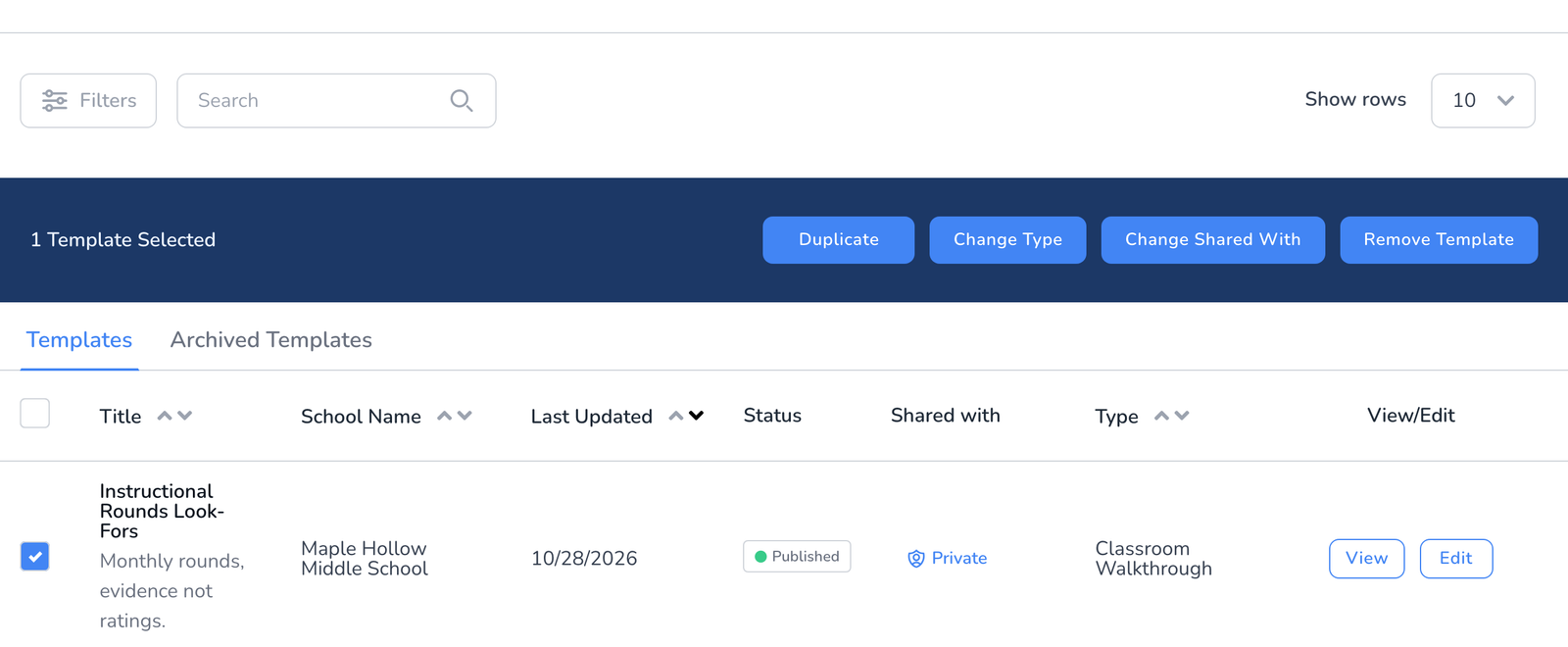
- Duplicate makes a copy you can rename and edit without touching the original.
- Remove Template offers Archive, which keeps the template and its walkthrough history, or delete. See How to Archive Users, Teachers, Walkthroughs, and Templates.
Three things to know
- Drafts never appear in Start Walkthrough. A template has to be published first, see How to Publish a Template.
- Private means only you. Share it with the school or district so colleagues can use it, see How to Share Templates.
- A template without a type is left out of analytics until you set one. The page tells you at the top when any need classifying.
Frequently asked questions
Q: Can I rename a template from this page?
A: Open it with Edit and click the name at the top of the builder, see How to Edit the Name and Description of a Template.
Q: Why can I not create a template?
A: Your district may have locked template creation to District Admins, see How to Lock Template Creation to the District.
Q: I see templates from other schools.
A: You are on All Schools. Pick your school from the dropdown at the top to see only its templates.
Q: Where do community templates come from?
A: Other Education Walkthrough schools share them to the library after our review. Browse them with Browse Templates, or on the public template library.