You built the walkthrough template for this year’s instructional rounds, the assistant principals are ready to start Monday, and none of them can find it. Nothing is broken. Every template starts out Private, visible only to the person who built it, until you share it. This article covers how to share, who approves, and the two other reasons a colleague might still not see a template.
Share a template
- Open Templates and click Edit on the template.
- Click the Share tab in the builder.
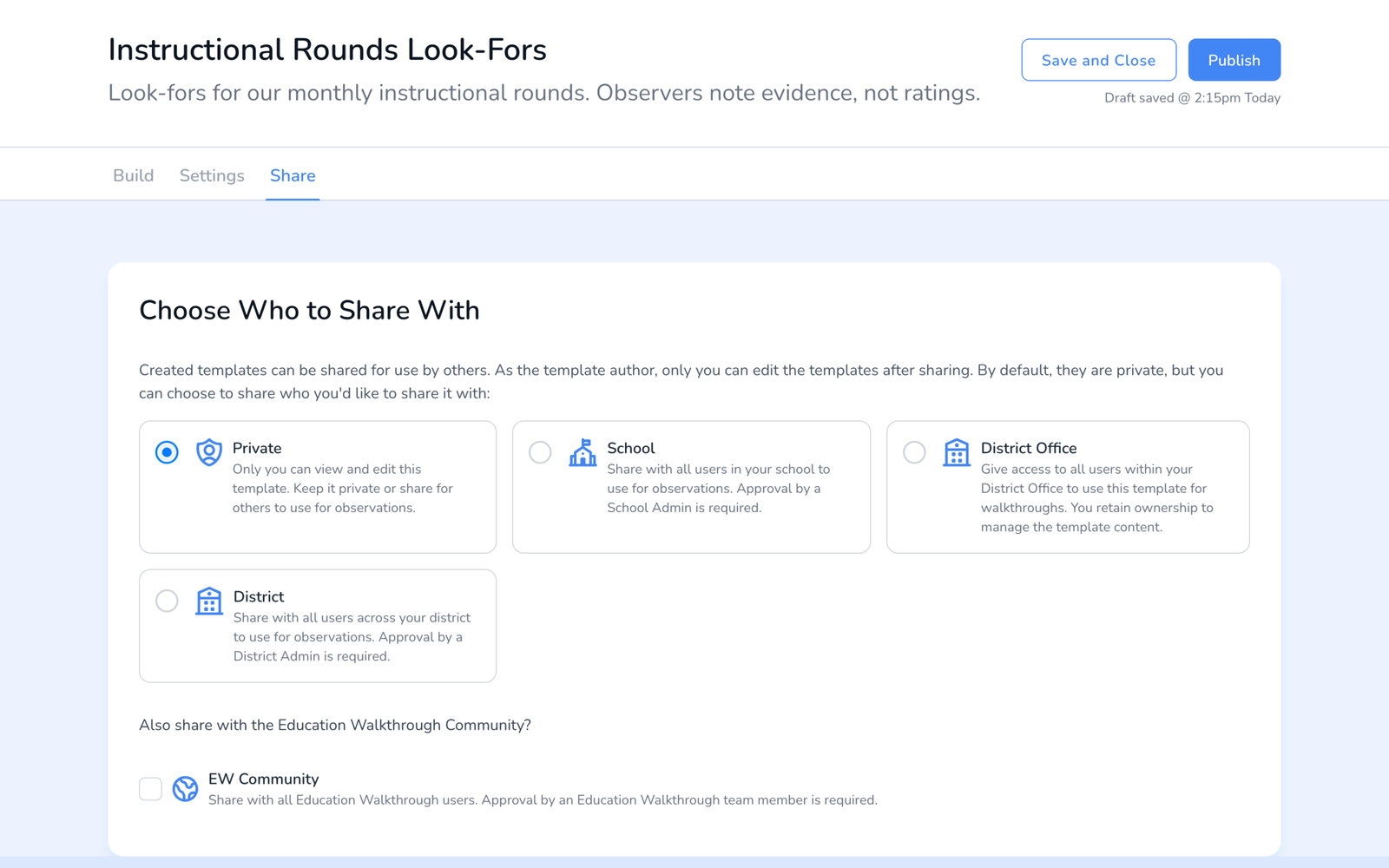
- Choose who should have it. Private keeps it to you. School shares it with everyone in your school. District Office and District share it across the office or the whole district. Each option explains who approves.
- If you also want to offer it to other Education Walkthrough customers, tick EW Community. Our team reviews those before they appear in the library.
- Click Save and Close, or Publish if the template is not published yet. A template has to be published before anyone can start a walkthrough with it, see How to Publish a Template.
Who approves
Sharing with a school needs a School Admin to approve it, and sharing with a district needs a District Admin. The admin is notified by email with the request. If you are that admin, your own templates are approved as soon as you share them. You stay the author either way, so only you can edit the template after it is shared.
Three reasons a colleague still cannot see it
- It is still private or waiting for approval. Check the Shared with column on the Templates page. Private means only you.
- It is not published. Drafts never appear in Start Walkthrough, for you or anyone else. Publish it.
- They are in a different school. A template shared with your school is not visible in another school in the district. Share at the district level, or have a District Admin share it.
If template creation is locked to the district, only District Admins can build and share templates in the first place, see How to Lock Template Creation to the District.
Frequently asked questions
Q: Can two of us edit the same shared template?
A: No. The author edits, everyone else uses. If a colleague needs their own version, they can duplicate it from Create Template and edit the copy, see How to Build a Walkthrough Template.
Q: I shared with the district but one school still does not see it.
A: Confirm the District Admin approved the share, and that the school’s users are on the district account rather than a separate school plan. See Understanding the School Plan.
Q: What does sharing with the EW Community do?
A: It submits the template to the public template library after our review. Your school’s data is never shared, only the template’s questions.
Q: Can I unshare a template?
A: Yes. Set it back to Private on the Share tab. Walkthroughs already completed with it are not affected.
Q: Does sharing a template also share teachers?
A: No. Teachers are shared separately, see Sharing Teachers and Templates.