The template is called “Walkthrough v2 FINAL” and the description still says “draft, do not use.” Observers see that name every time they start a visit, and the description prints on the report the teacher receives. Both can be changed in a few seconds without touching the questions.
Rename a template or change its description
- Open Templates and click Edit on the template’s row. The template opens in the builder.
- Click the template name at the top of the page. It becomes a text field. Type the new name, up to 80 characters, and click anywhere else to finish.
- Click the description under the name to edit it the same way, up to 400 characters.
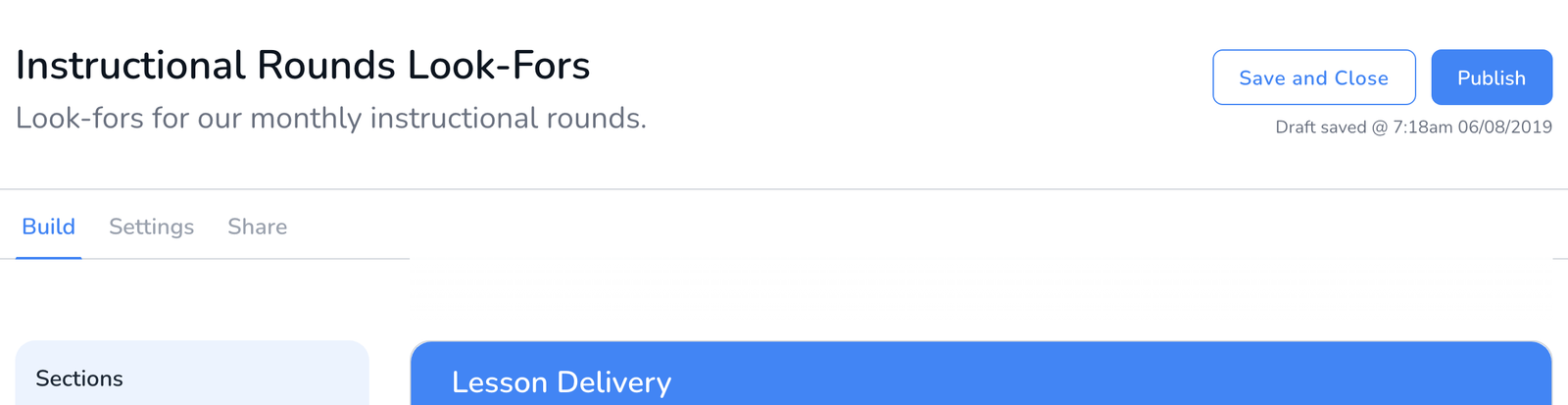
- Your change is saved as a draft on its own, the time shows next to Draft saved. Click Save and Close to leave the builder.
- If the template is already published, click Publish so the new name shows for everyone who uses it. See How to Publish a Template.
What changes and what does not
- The new name appears in Start Walkthrough, on the Templates page, and on reports generated from now on.
- Walkthroughs already completed keep their data. Renaming does not move or alter any observation, see What Happens to Your Data When You Edit a Template After Observations.
- Only the template’s author can edit it. Administrators who only have it shared to them see the name but cannot change it.
Frequently asked questions
Q: Can I rename a template that is shared with the district?
A: Yes, if you are its author. The new name shows for every school it is shared with once you publish the change.
Q: Will reports I already sent show the old name?
A: Yes. A report that was emailed is a snapshot. Reports generated after the change use the new name.
Q: I want a differently named copy and keep the original too.
A: Use Duplicate a Template from Create Template and rename the copy. See How to Build a Walkthrough Template.
Q: Can I do this in the mobile app?
A: Templates are edited on the web dashboard.