
By October the question in the leadership meeting is not “are we doing walkthroughs” but “who have we not seen yet.” The Teachers page answers it in one glance: every teacher on the roster, when they were last observed, and how many visits they have had this year. It is also where the roster itself gets built and kept clean.
What you see
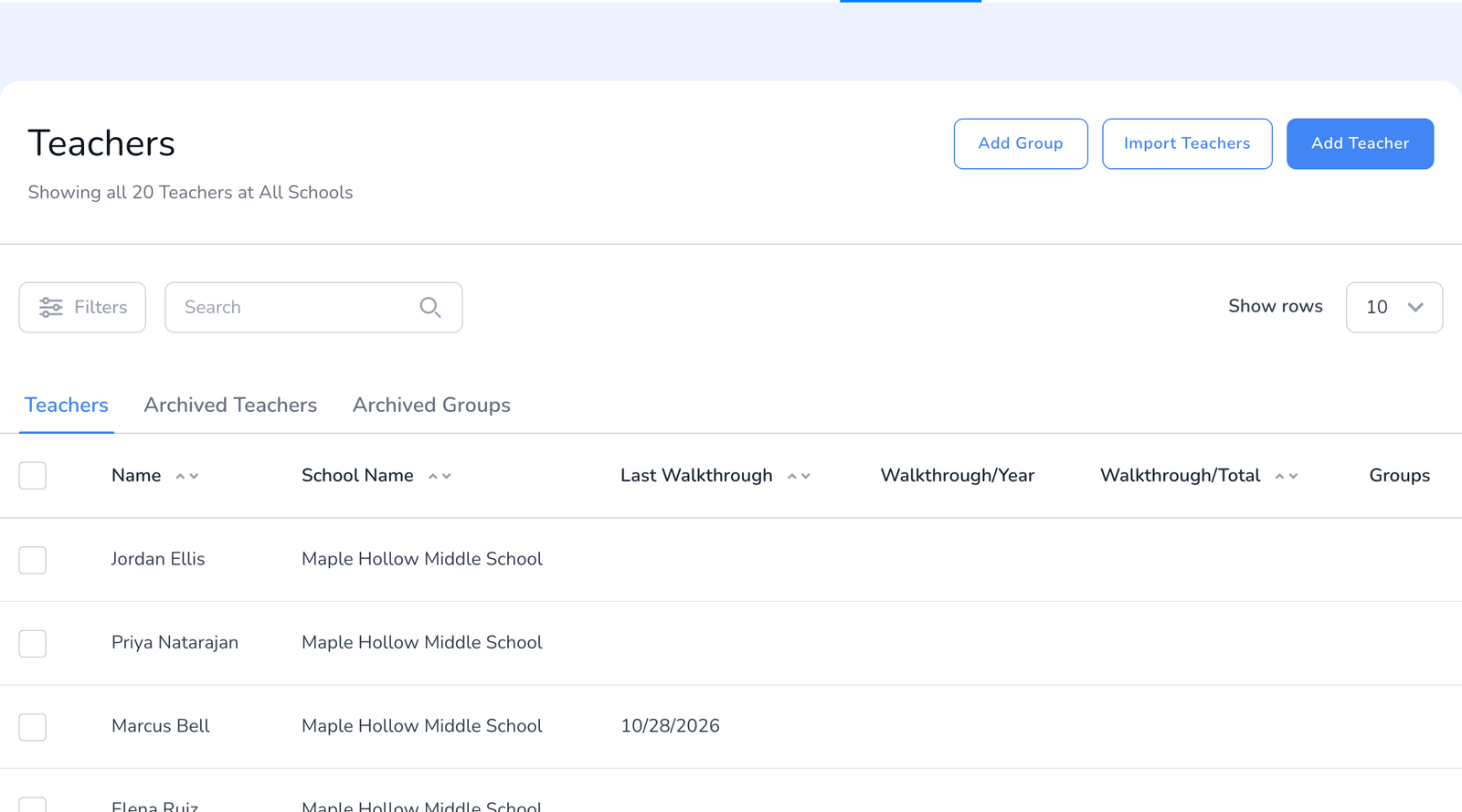
- Add Teacher adds one person. Import Teachers brings in a list from a spreadsheet or a paste, see How to Import Teachers. Districts on ClassLink can sync the roster instead, see Teacher Rostering and Syncing Your ClassLink Account.
- Columns. Name, School Name, Last Walkthrough (the date of the most recent visit), Walkthrough/Year (visits this school year), Walkthrough/Total (all time), and Groups.
- Sort by Last Walkthrough to find who has gone longest without a visit, or by Walkthrough/Year to balance coverage.
- Filters and Search. Filter by name, by last walkthrough date (this week, last month, a custom range), by total walkthroughs (none, 1 to 5, 6 to 10, more than 10), and by group.
- Tabs. Teachers is the active roster. Archived Teachers and Archived Groups hold what you have set aside.
Act on one teacher or many
Tick the box next to one or more teachers and a bar appears above the table.
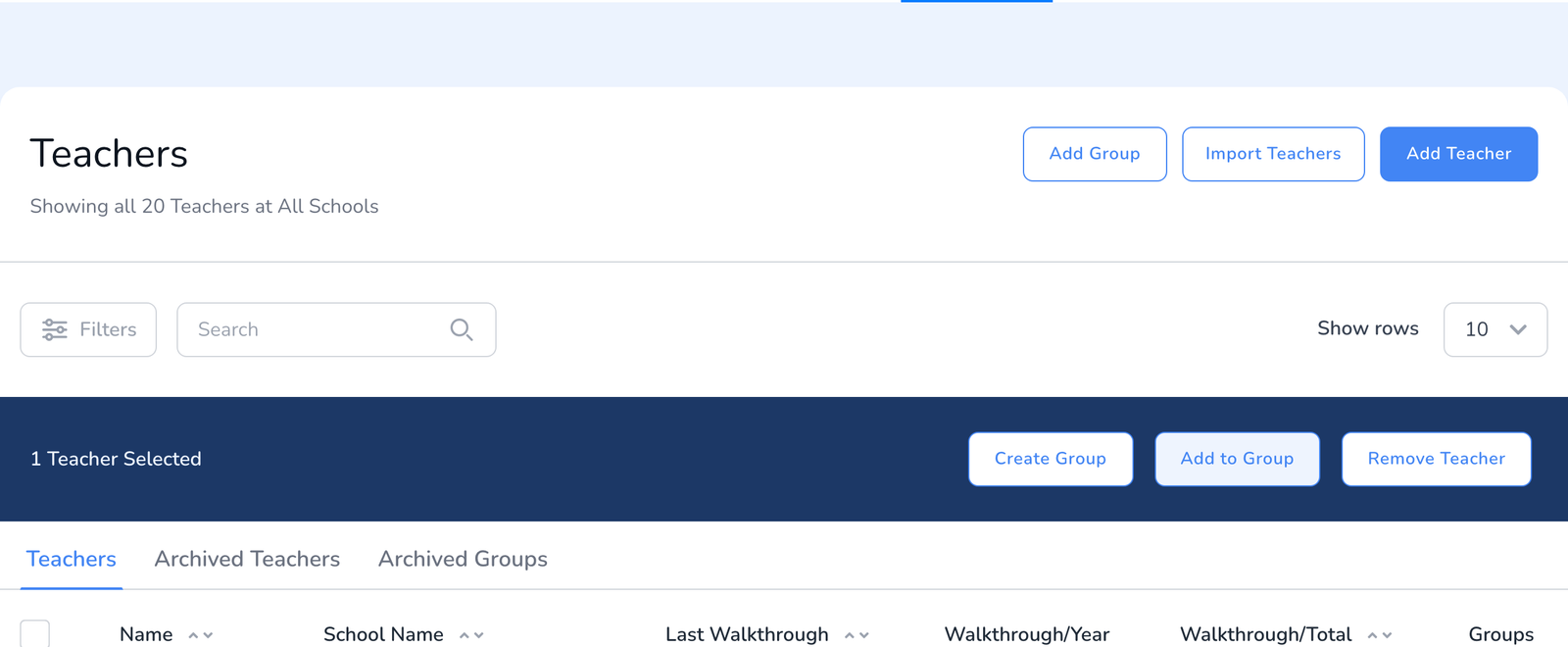
- Add to Group puts them in a teacher group, for example first-year teachers, see How to Create and Use Groups.
- Change School moves them to another school in the district. It appears for district-level admins with All Schools selected, see How to Move Users and Teachers to Another School.
- Remove Teacher offers Archive, which keeps their walkthrough history, or delete. Archive is almost always the right choice, see How to Archive Users, Teachers, Walkthroughs, and Templates.
Click a teacher’s row to open their profile with their recent walkthroughs and the same actions for that one person.
Frequently asked questions
Q: A teacher works in two of our schools. Do I add them twice?
A: No. Add them once and share them with the second school, see How to Share Teachers Across Multiple Schools. Two records split their walkthrough history.
Q: I get Teacher already exists when adding someone.
A: They are on the roster of another school in the district. See Error: Teacher Already Exists.
Q: Walkthrough/Year shows zero for everyone in August.
A: The year count follows your school year calendar. Set the new year’s dates in Settings and the count restarts from that date.
Q: Can teachers see this page?
A: No. Teachers are subjects of walkthroughs, not account holders. They receive feedback by email.