
When an observer starts a walkthrough, they pick the department and grade along with the teacher and template. Those two pickers are what let you later compare Math to Science, or 3rd grade to 5th, in Analyze Data. The lists behind them are set in Settings, and a school should set them once, before the first walkthrough.
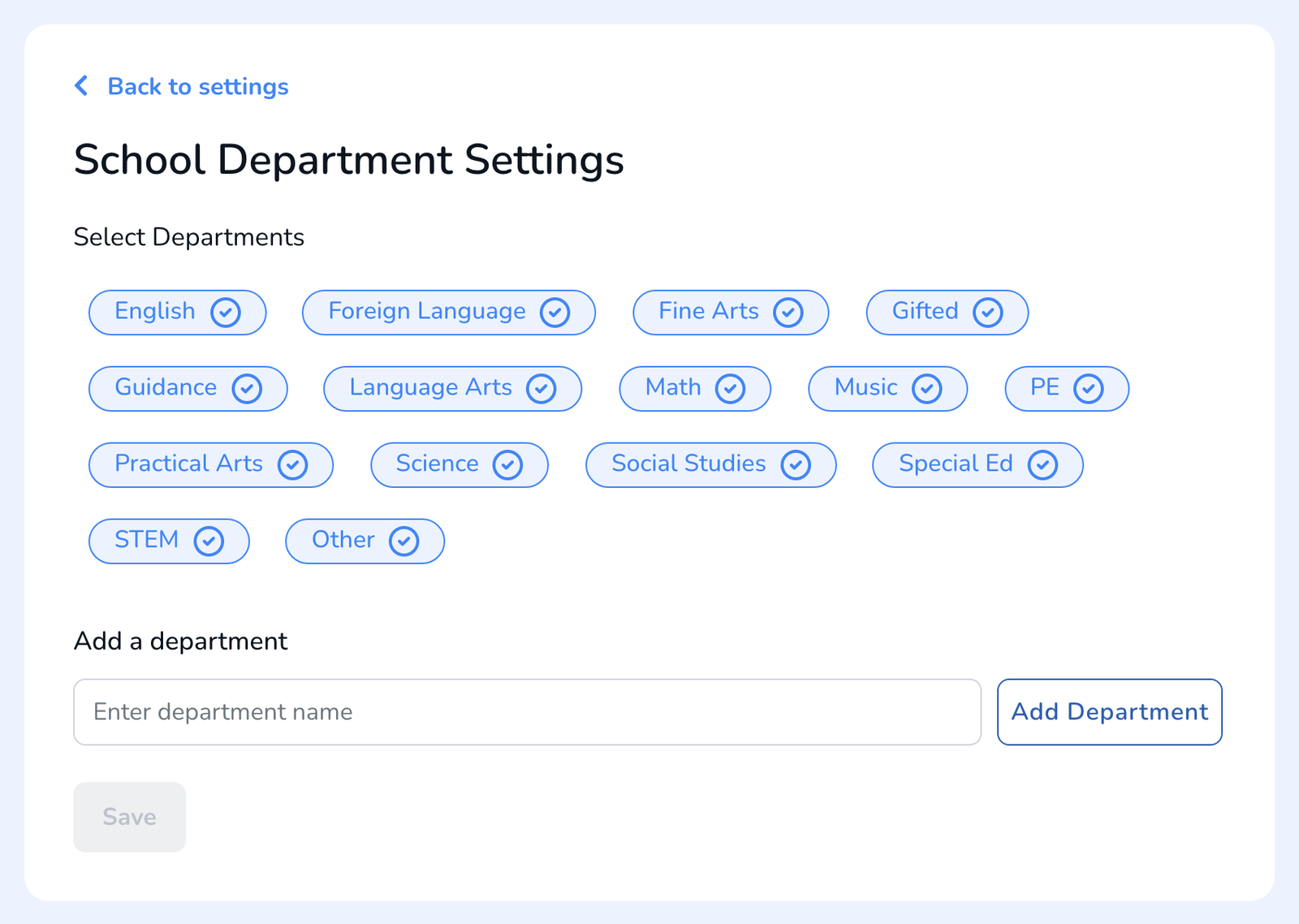
Set the department list
- Open Settings. District Admins pick the school first under School Settings.
- Click Edit Departments.
- Tick the departments your school uses. Untick the ones it does not; they disappear from the picker.
- Need one that is not listed, such as Dual Language or CTE? Type it under Add a department and click Add Department.
- Click Save.
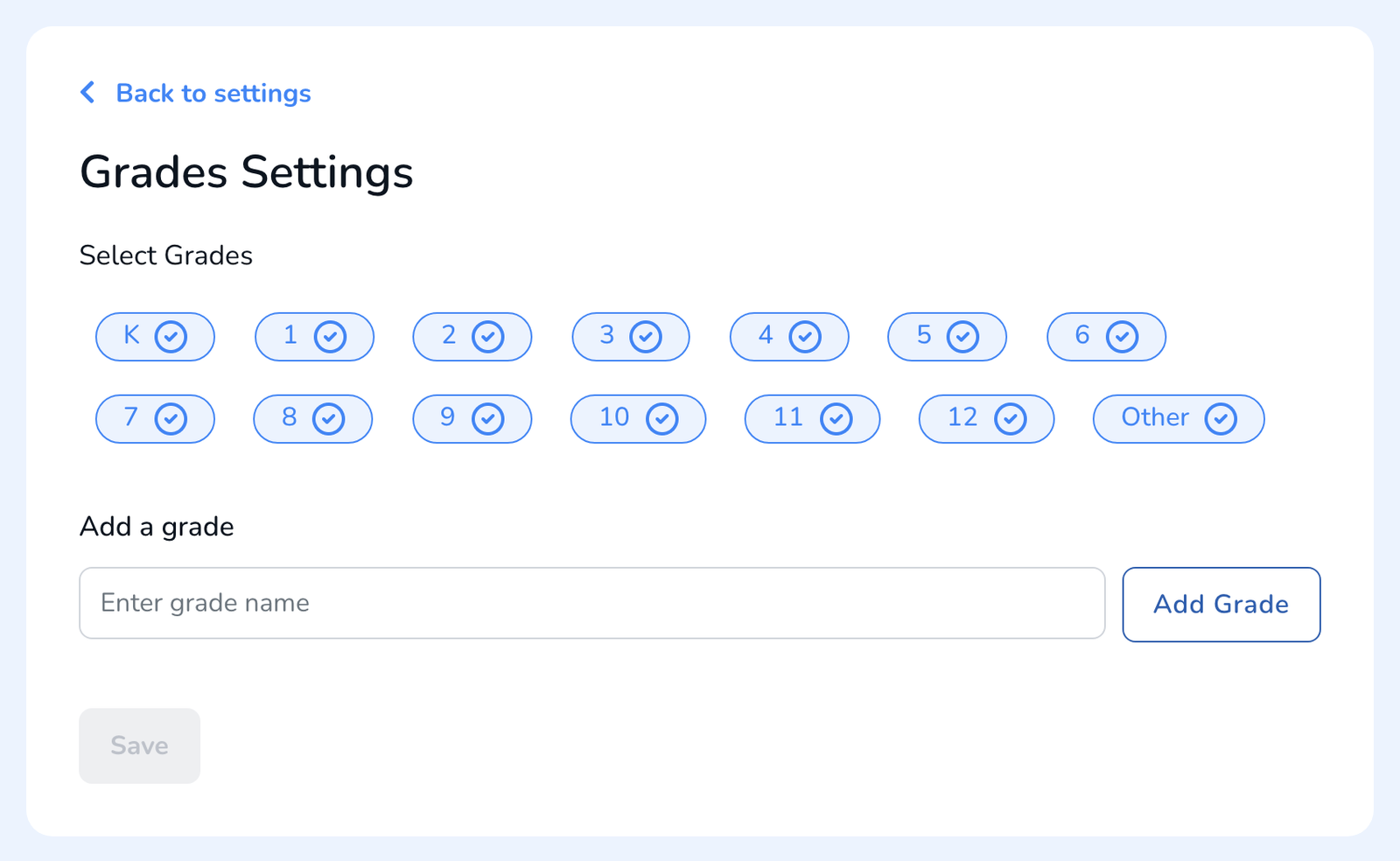
Set the grade list
Same panel, next door: click Edit Grades, tick the grades your school has, add any you need, and Save.
How the lists work
- Saving sets the list for everyone at the school at that moment. Observers who join later get the list when it is next saved, so re-save after adding users.
- Consistency is the point. Analyze Data filters by exactly the names in the list. Two spellings of the same department become two filters.
- Teacher records carry their own department and grade and pre-fill the pickers when you start a walkthrough, see How to Add Teachers.
Frequently asked questions
Q: An observer sees departments we removed.
A: Their copy of the list predates your change. Open Edit Departments, click Save again, and the list refreshes for everyone at the school.
Q: Can the district set one list for all schools?
A: Not in one step. A District Admin sets it school by school under School Settings.
Q: We renamed a department. What happens to old walkthroughs?
A: They keep the department name they were done with. Filter by both names in Analyze Data for a full picture, see How to View Walkthrough Results.
Q: Can I delete a department instead of unticking it?
A: Unticking is the way. The built-in names stay available to re-tick later; added names can be removed from the list.