
Your purchase order is approved, the licenses are live, and now accounts payable wants the invoice. Here is where it is and how it gets paid.
Find the invoice
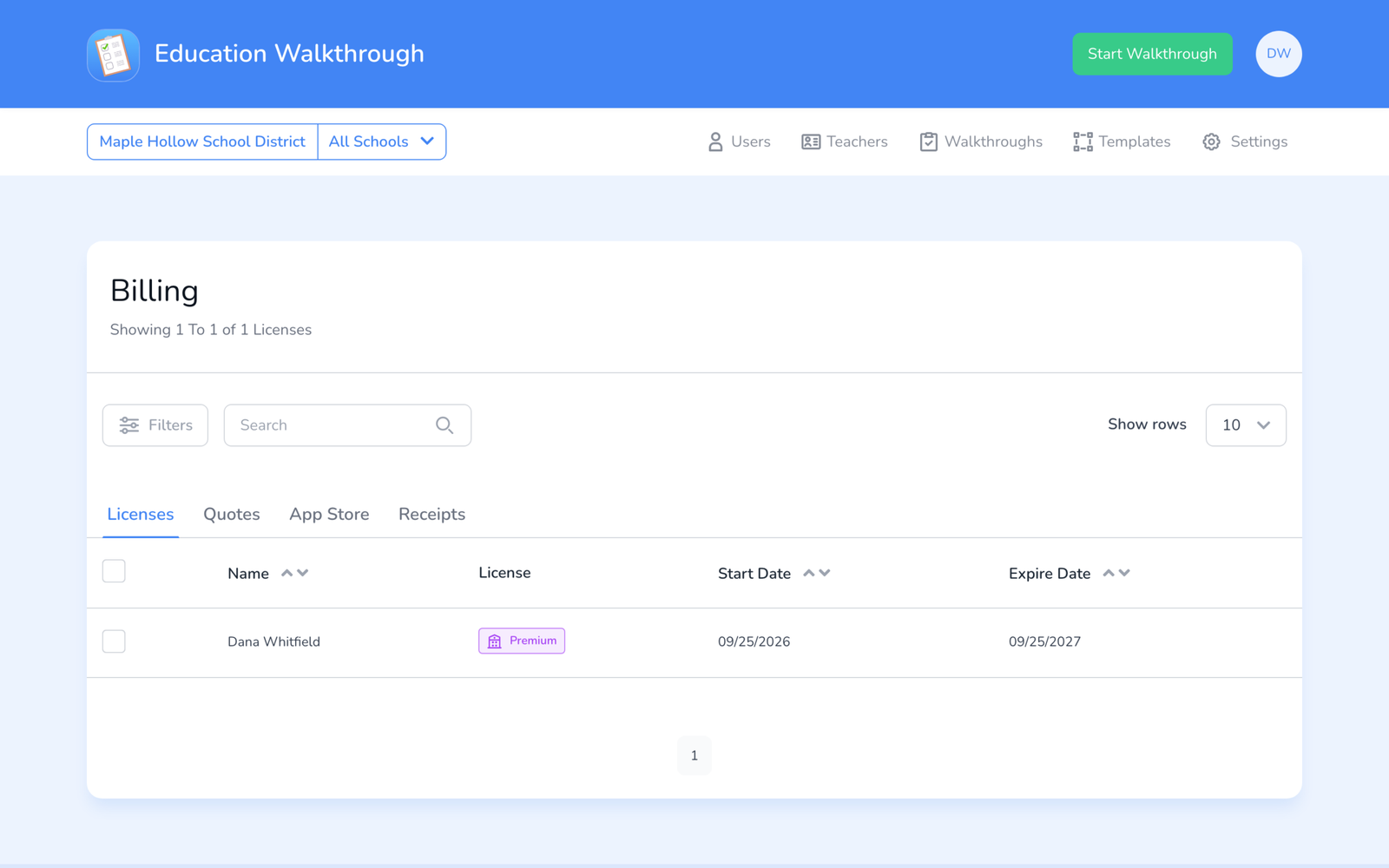
- Sign in to the web dashboard, click your initials at the top right, and choose Billing.
- Open the Receipts tab. Each paid or invoiced purchase is listed with its document.
- Download the invoice PDF. It carries the remittance details your business office needs.
Pay it
- Purchase order customers pay the invoice through their normal accounts payable process, using the details printed on it. Your licenses are already active; payment does not gate access.
- Card purchases are paid at checkout. The Stripe receipt is under Receipts; there is no separate invoice to pay.
- Need the invoice before the PO? Generate the quote first, see How to Get a Quote. The quote PDF is what most business offices attach to a requisition.
Frequently asked questions
Q: Our office needs a W-9 or vendor form first.
A: See W-9, Vendor Forms, and Other Procurement Documents.
Q: The invoice is not in Receipts.
A: Invoices are issued after the PO is approved and attached to your quote. If the PO was approved and nothing shows after a few days, submit a support ticket with the quote number.
Q: Can you invoice us without a PO?
A: Yes, if your district pays on invoice. Generate the quote, choose purchase order, and upload a letter or email of intent in place of the PO. Tell us in a ticket so we approve it the same way.
Q: Our fiscal year starts July 1. Can the invoice wait?
A: Yes. Say so when you upload the PO, and we date the invoice and the license start to match, see Paying by Purchase Order.