The business office asks for a receipt the week after you paid, usually the day before the reimbursement deadline. Every payment made through Education Walkthrough sits on the Billing page, and the receipt is one click from there.
Download a receipt
- Sign in to the web dashboard and click your initials in the top right corner.
- Choose Billing.
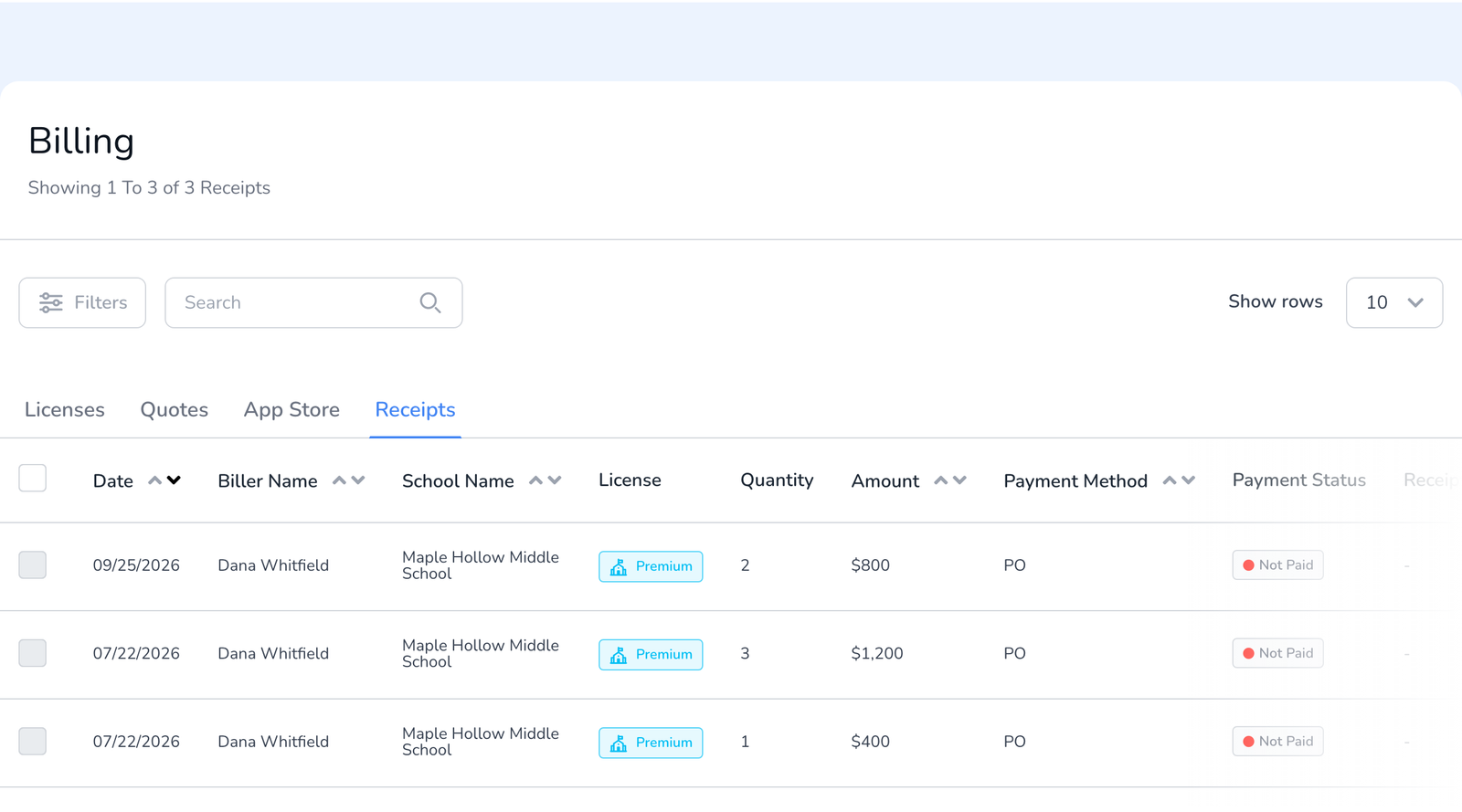
- Click the Receipts tab. Each row is one payment, with the date, who paid, the school, the number of licenses, the amount, the payment method, and whether it has been paid.
- In the Receipt column, click the receipt link on the row you need. It opens as a PDF you can save or print.
Which tab has what
- Licenses lists the seats on your account with their start and expiry dates.
- Quotes holds quotes you have requested and any purchase order you uploaded against them, see Paying With a Purchase Order.
- App Store covers subscriptions bought through Apple. Those receipts come from Apple, not from this page.
- Receipts is every payment with its receipt.
Frequently asked questions
Q: The Receipt column shows a dash.
A: The payment is not complete yet, usually a purchase order whose invoice is still open. The receipt appears once it is marked Paid.
Q: I paid through the App Store on my iPad.
A: Apple issues that receipt. Look in your Apple account’s purchase history or the email Apple sent at the time.
Q: Can someone else in my district download it?
A: The person who made the payment sees it under their Billing page. If they have left, contact us and we will send a copy.
Q: I need an invoice rather than a receipt.
A: Invoices go out with purchase orders. Open the Quotes tab, or see How to Renew Your License for the renewal paperwork.