
The Users page is everyone who signs in to observe: principals, assistant principals, coaches, district staff. It is where you invite the new assistant principal in August, hand a license to a coach who just joined, and see at a glance who still has not accepted their invitation. Teachers who are observed but never sign in live on the Teachers page instead.
What you see
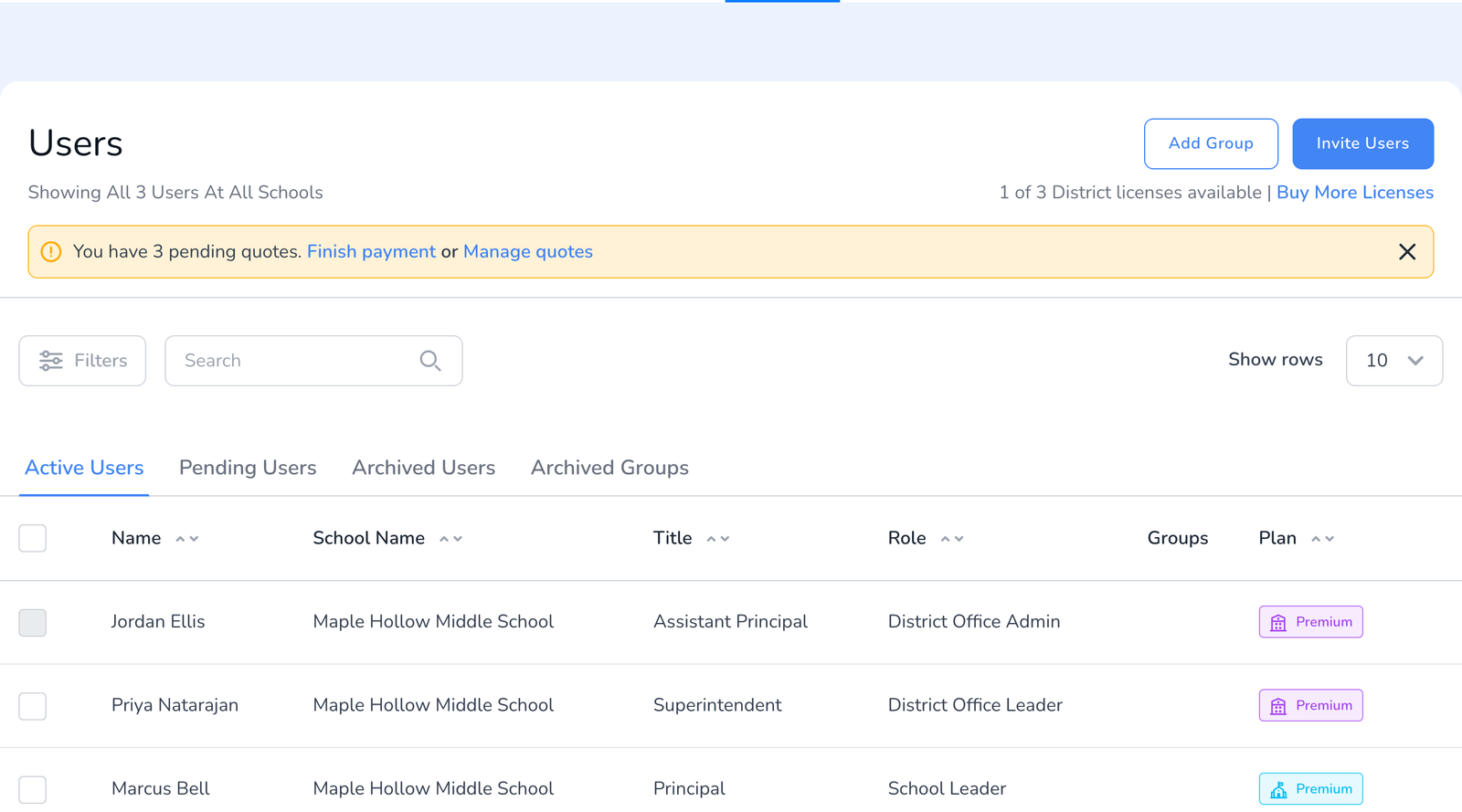
- Invite Users adds people by email, one or many at a time, see How to Invite Multiple Users. Add Group creates a user group for filtering and analytics, see How to Create and Use Groups.
- The license line shows how many seats are free in your pool. Click Buy More Licenses to add seats.
- Tabs. Active Users is everyone who has joined. Pending Users is everyone invited who has not accepted yet, see How to Resend or Withdraw Pending User Invitations. Archived Users and Archived Groups hold what you have set aside.
- Columns. Name, School Name, Title (their job), Role (what they can do in Education Walkthrough, see User Roles), Groups, and Plan, which shows whether they hold a Premium seat or are Basic.
- Filters and Search. Filter by name, job title, group, or role. Search matches names. Show rows changes the page size.
Act on one person or many
Tick the box next to one or more people and a bar appears above the table.
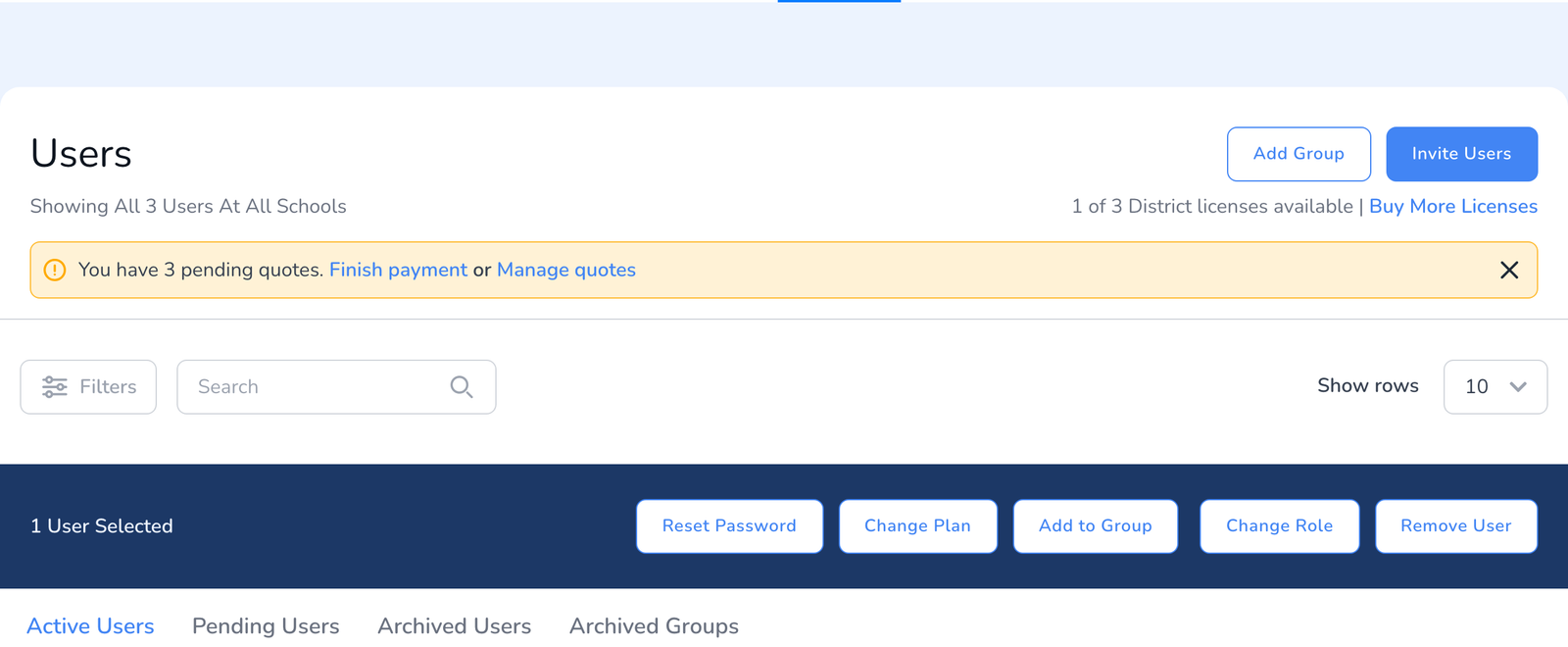
- Reset Password emails a reset link, see How to Change or Reset Your Password.
- Change Plan assigns or removes a Premium seat.
- Change School moves people to another school in the district. It appears for district-level admins with All Schools selected, see How to Move Users and Teachers to Another School.
- Add to Group puts them in a user group.
- Change Role changes what they can do, see How to Change a User’s Role.
- Remove User offers Archive User, which keeps their data, or Delete User, which cannot be undone, see How to Archive Users, Teachers, Walkthroughs, and Templates.
Click a person’s row to open their details, with their recent walkthroughs and a per-person version of the same actions.
Frequently asked questions
Q: Why is a teacher not on this page?
A: Teachers who are observed but do not sign in are managed on the Teachers page. A teacher who also observes, such as a department head, is on both.
Q: Someone shows as Basic. What does that mean?
A: They have an account but no Premium seat, so they can sign in but not run walkthroughs. Use Change Plan to give them a seat if one is free.
Q: Can I see users for one school only?
A: Yes. Pick the school from the dropdown at the top of the dashboard. All Schools shows the whole district.
Q: Where did a user go after I archived them?
A: The Archived Users tab. Select them there and click Unarchive to bring them back.