
Every August the same thing happens. You invite the new assistant principal and two instructional coaches, the invitations land during a week of back-to-school chaos, and a month later nobody has clicked. Invitation links only last 24 hours, so by the time someone finds the email it is already dead. The fix is not to invite them again one by one. The Pending Users tab lets you see every open invitation, resend the ones that went stale, and withdraw the ones that should never have been sent, in a single pass.
This article covers the web dashboard. Administrators who manage users in your school or district see the same options.
Where pending invitations live
- Sign in and open Users.
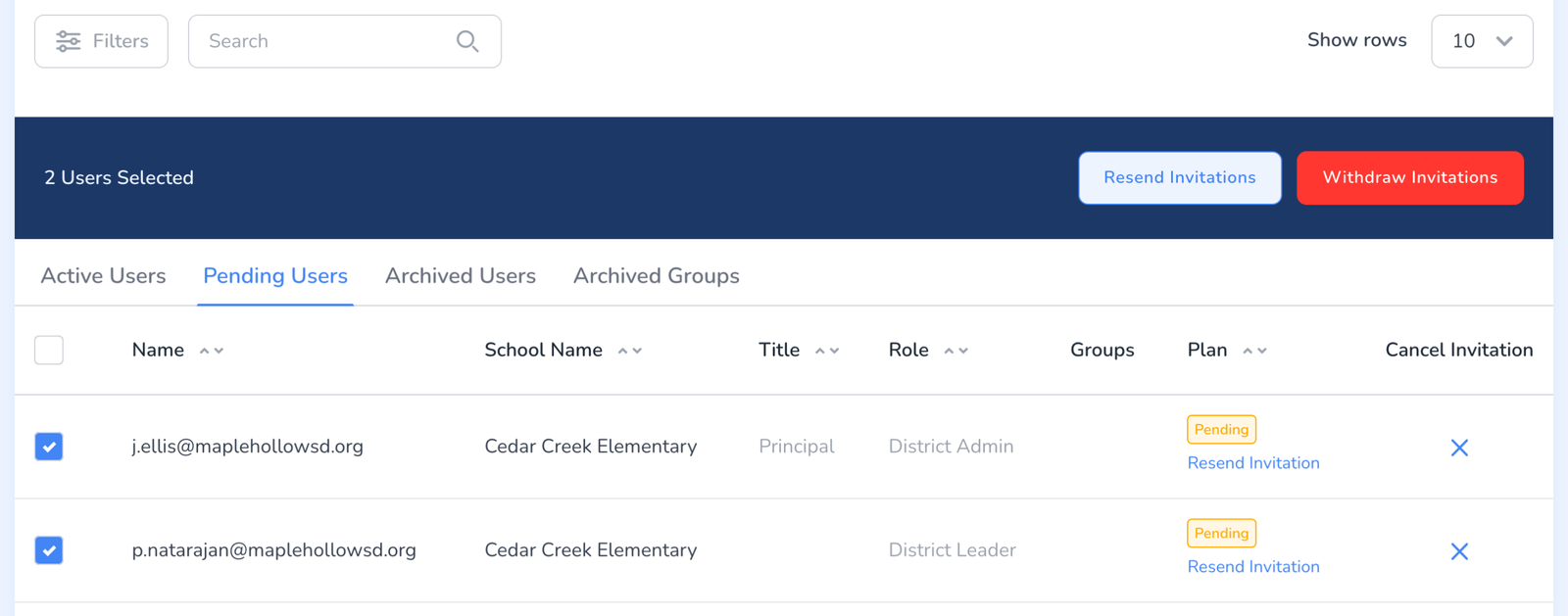
- Click the Pending Users tab. It only appears when at least one invitation is still open, so if you do not see it, everyone you invited has already joined.
Each row is one invitation. You see the email address it went to, the school, the role it will get, a Pending badge, and a Resend Invitation link for that one person.
Resend or withdraw several at once
- Tick the box at the start of each row you want to act on, or tick the box in the header to select everyone on the page.
- A bar appears above the table showing how many users are selected, with two buttons: Resend Invitations and Withdraw Invitations.
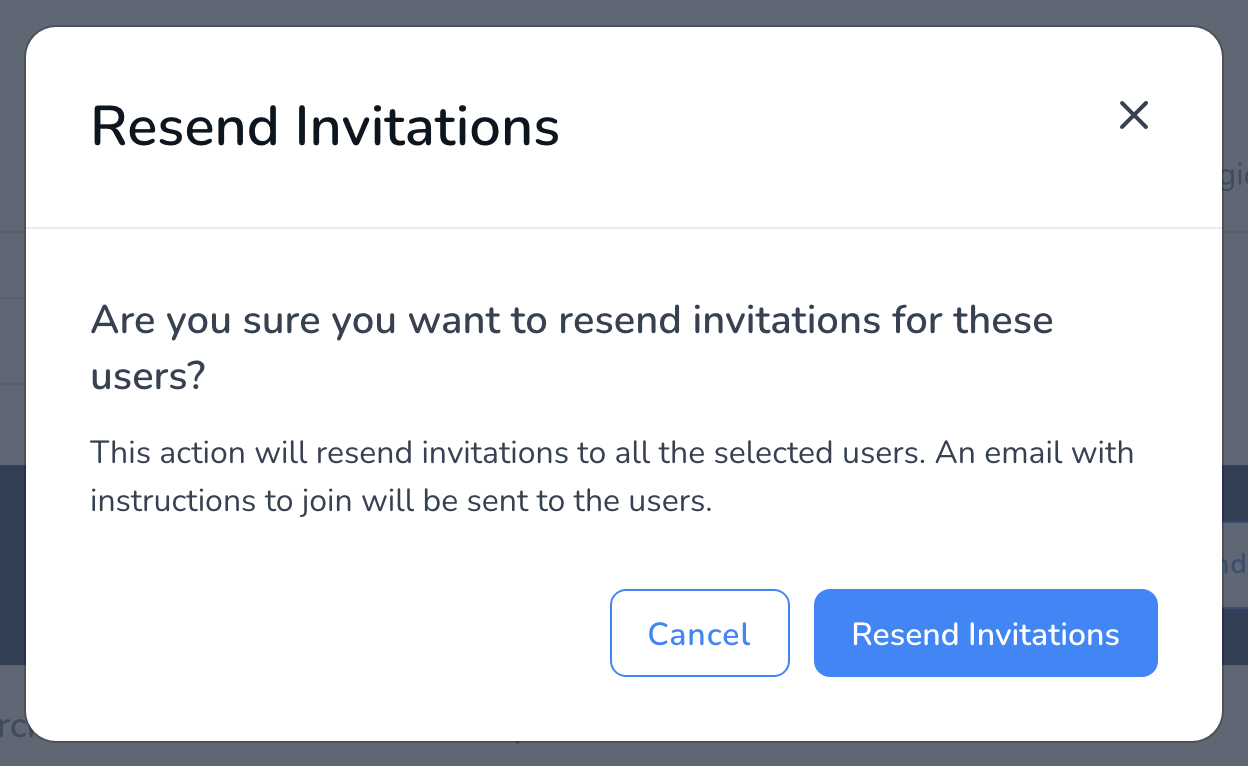
- Click Resend Invitations to send everyone selected a fresh email with a new link. Confirm in the window that opens.
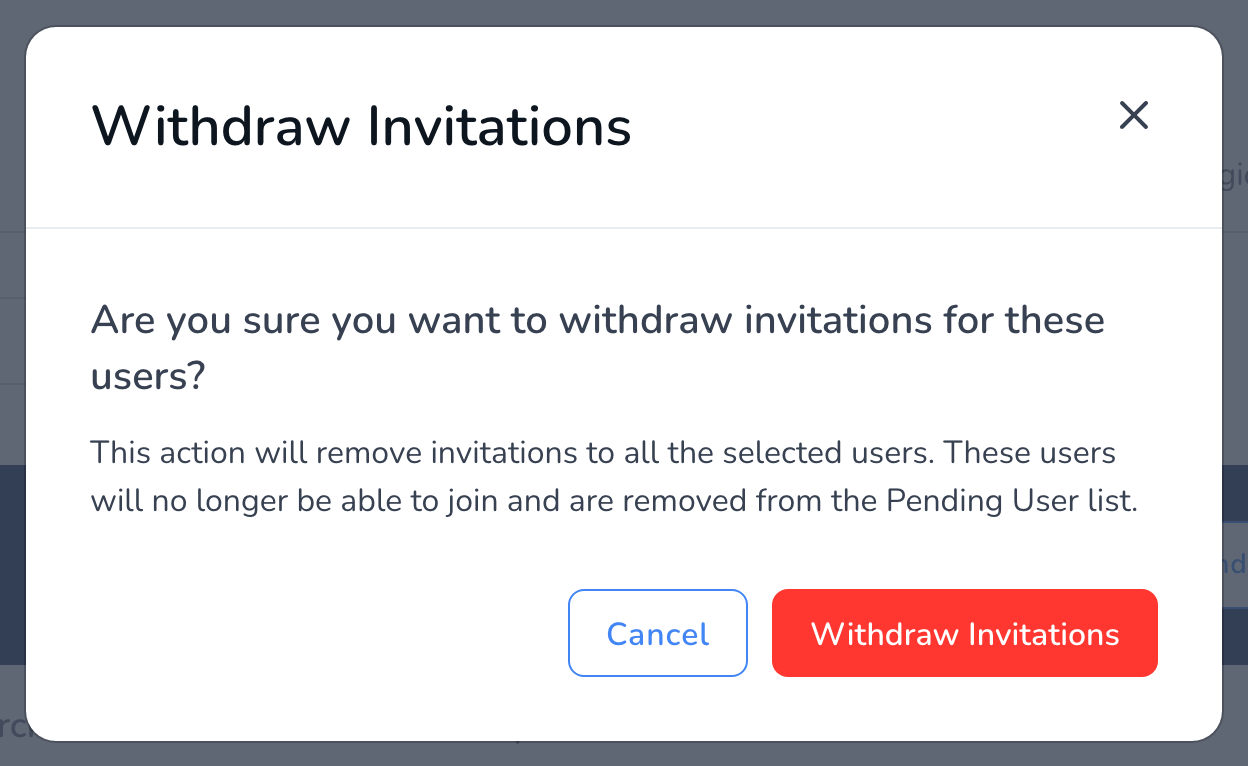
- Click Withdraw Invitations to cancel the selected invitations. Those people drop off the Pending Users list and their links stop working. Confirm in the window that opens.
One person at a time
You do not have to select anything to act on a single invitation. Click Resend Invitation under the Pending badge on that row to send a new link, or click the X at the end of the row to cancel that invitation.
Frequently asked questions
Q: Someone says their link does not work. Do I need to withdraw and re-invite?
A: No. Invitation links expire after 24 hours. Just resend. The new email replaces the old link, and if they open the expired one they are offered a resend from the sign-in page too. See Troubleshooting Login and Google Sign-In Issues if they still cannot get in.
Q: They are not receiving the invitation email at all.
A: Ask them to check spam and quarantine, then resend. District mail filters sometimes hold the first message from a new sender. How to Whitelist Email Addresses has the addresses to allow.
Q: Does withdrawing an invitation free up a license?
A: A pending invitation is not using a seat yet. Seats are assigned when the person joins, so withdrawing changes nothing about your license count. See Add Users to Your School for how seats are assigned.
Q: I withdrew by mistake. Can I undo it?
A: There is no undo, but nothing is lost. Invite the same email address again from Invite Users and they get a fresh link.
Q: Can I do this in the mobile app?
A: No. Pending invitations are managed on the web dashboard. The app is for conducting walkthroughs.
Q: Can I invite a lot of people at once instead?
A: Yes. How to Bulk Invite Users covers inviting a whole list in one go, and the invitations then show up here as pending until each person joins.