Sharing used to be one switch in Settings. It is now set where the thing lives: a template’s sharing level is on the template, and a teacher is shared by adding them to a second school. Both are done on the web dashboard, and the app picks them up.
Share a template
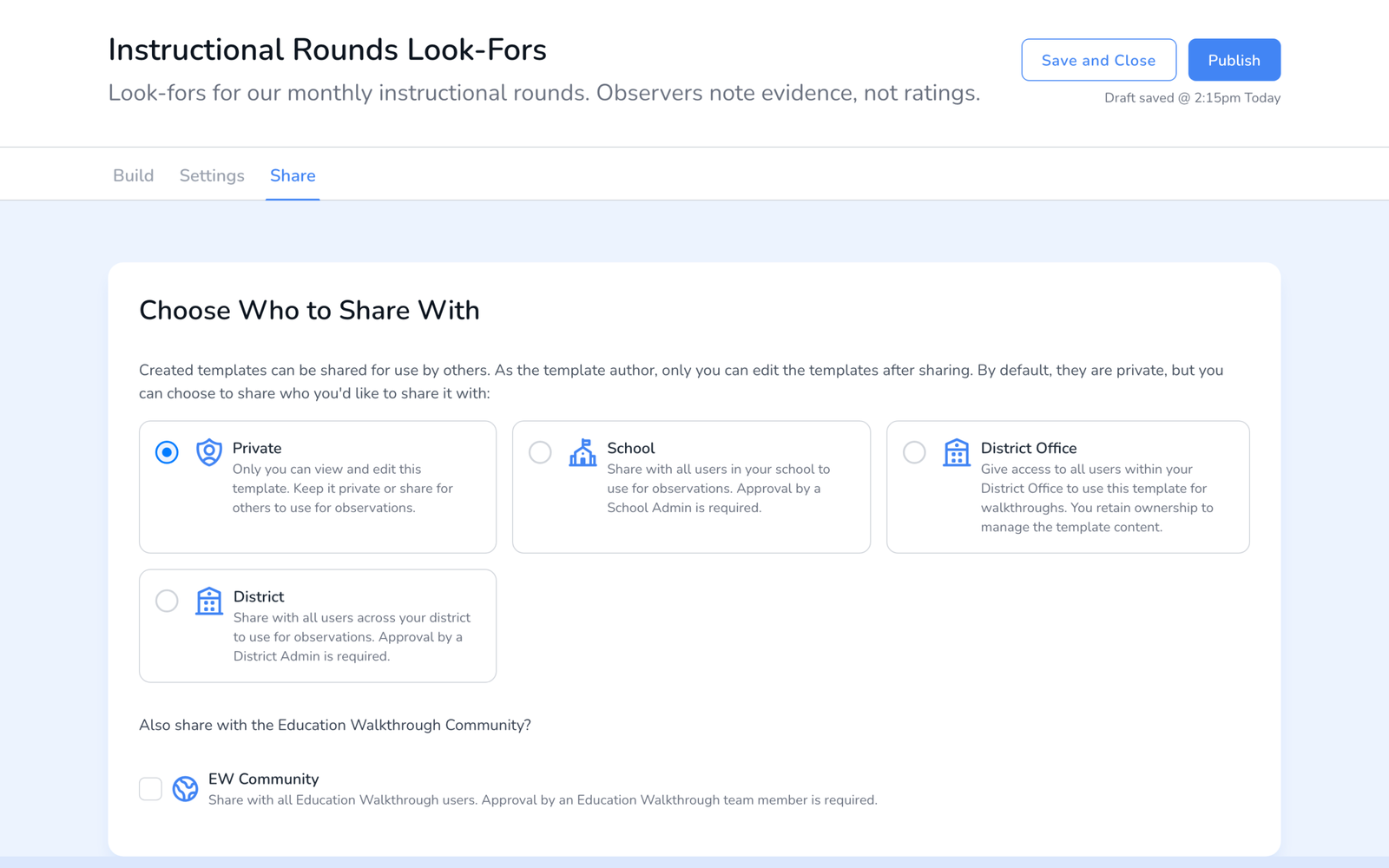
- Open Templates, click Edit on the template, and open the Share tab.
- Pick a level: Private (only you), School (every observer at your school), District (every school in the district), or Region where your account has one.
- Optionally share it with the Education Walkthrough community; we review those before they appear in the template library.
- Publish. A draft template is not visible to anyone, including you, until it is published, and the sharing level takes effect at that first publish, see How to Publish a Template.
Several at once: tick templates on the Templates page and use the bulk share action. Drafts are skipped.
Share a teacher between schools
A teacher who works in two buildings is one record on two rosters. Add them to the second school with the same email, and the dashboard offers to add them to that school as well rather than creating a duplicate. Each school sees its own walkthroughs of that teacher, see How to Share Teachers Across Schools.
Frequently asked questions
Q: Can I share from the mobile app?
A: The app can change a template’s sharing level and archive templates. Building and publishing templates, and rostering teachers across schools, are web dashboard tasks.
Q: Does sharing need a paid plan?
A: Yes. Sharing templates across a school or district is a School, District, or Region Premium feature. Basic and Individual Premium users build private templates.
Q: I shared it and my colleagues do not see it.
A: Nine times out of ten the template is still a draft. See Shared Teachers or Templates Not Showing Up.
Q: Can a school edit a template the district shared?
A: No. Shared templates are read-only outside their owner. Duplicate it to make a school version.