
A coaching version of the school’s walkthrough with three fewer look-fors. A Spanish-language copy for the dual-language wing. A district template that each school tunes to its own focus. All of these start by duplicating a template, so you edit a copy and leave the original, and its data, alone.
Duplicate a template
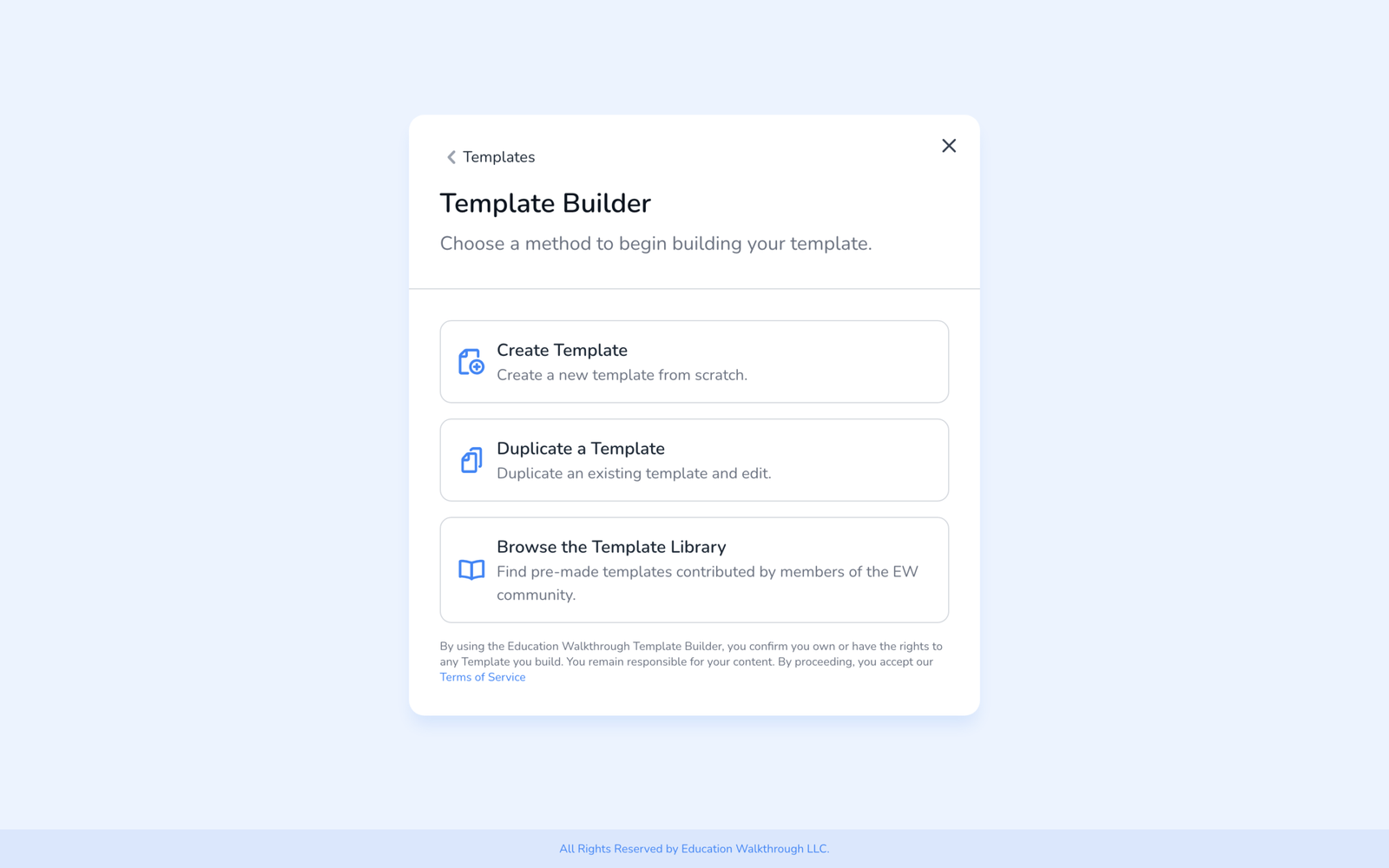
- Open Templates and click Create Template.
- Choose Duplicate a Template.
- Pick the template to copy from your list, give the copy a name, and open it in the builder. Every section, question, option, and setting comes across.
- Edit the copy and Publish it when it is ready, see How to Build a Walkthrough Template.
You can also duplicate from the list: select one or more templates and choose Duplicate from the bulk actions. The copies appear in the table.
When to duplicate, and when not to
- Duplicate to make a variant: a shorter version, a different observation type, a school-specific adaptation of a district template, a copy of a library template you want to change.
- Do not duplicate to fix a typo or reorder questions. Edit the original in place. Reports group walkthroughs by template, so a duplicate starts from zero and past walkthroughs stop rolling up with it, see What Happens to Your Data When You Edit a Template After Observations.
- Shared templates from a district cannot be edited by the school; duplicate them to customize, then share the copy where it is needed, see How to Share Templates.
Frequently asked questions
Q: Can I upload a template from a file?
A: Not from the dashboard. There is no file import. If you have a rubric or framework in a document, build it in the Template Builder, start from a similar library template, or send us the document and we will help build it in your account.
Q: Does the copy keep the observation type and weights?
A: Yes. Everything on the Settings tab comes with it. Change what you need on the copy.
Q: Does the copy keep the original’s walkthroughs?
A: No. Walkthroughs stay with the template they were done on. The copy starts with none.
Q: Can I duplicate a template someone shared with me?
A: Yes. The copy is yours. The original stays with its owner and is not affected.