
Every walkthrough you send starts with the same few lines. The default is polite and generic. A principal who writes Thanks for letting me in today, here are my notes, grab me if you want to talk gets a different reply rate. The email template is yours to change, and each observer has their own.
Edit your email template
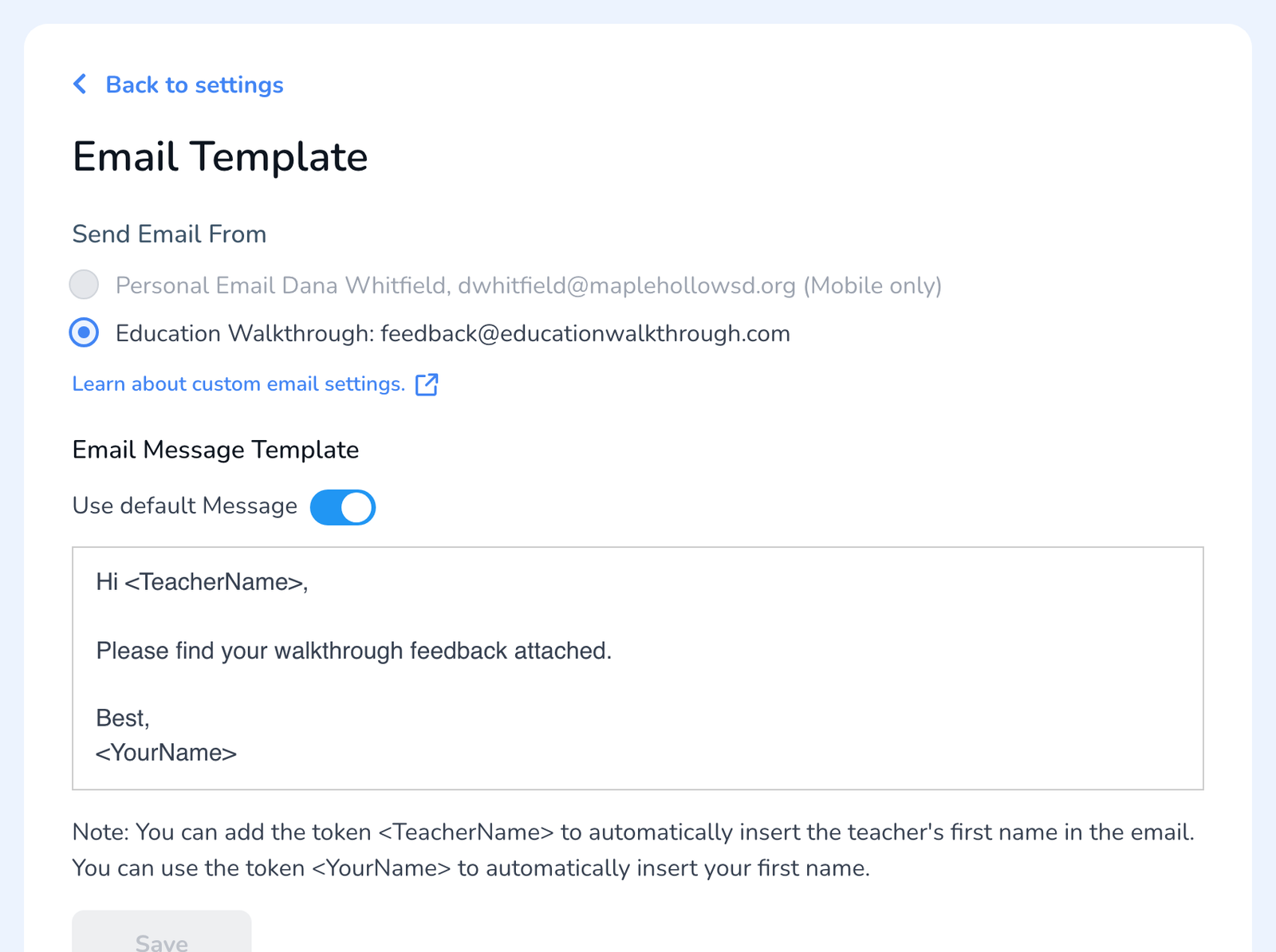
- Open Settings. Under User Settings, click Edit Email Template next to Sending Emails.
- Turn off Use default Message.
- Write your message. Use <TeacherName> where the teacher’s first name should go and <YourName> for yours.
- Click Save.
What the teacher sees
- Your template is the body of the email, followed by the general comment from the walkthrough if the template includes it, see How to Attach the PDF and Add General Comments to the Teacher Email.
- The sender on the web is always feedback@educationwalkthrough.com with your name shown. Sending from your own address is a mobile app option, see Set Up the Email Sender for Completed Walkthroughs.
- Language. The template is kept separately in English and Spanish; the one that matches your account language is used, see How to Change Your Language Settings.
Frequently asked questions
Q: Can the district set one template for everyone?
A: No. The email template is per observer. Share the wording you want and have each observer paste it in.
Q: Can I change the wording for one walkthrough?
A: Yes. When you send a walkthrough, the message is editable before it goes. Rewrite with AI can help tighten it, see Rewrite with AI.
Q: Teachers say they never get the email.
A: See What Can I Do If My Teachers Are Not Receiving Emails?. It is almost always a district spam filter.
Q: Can I add a link or formatting?
A: The template is plain text. Links paste as plain URLs, which teachers can click in most mail clients.