
School names change more often than you would think. A building is renamed after a merger, a campus becomes an academy, or the name was typed with a typo on day one and has been showing up on every report since. The name on your account is the name teachers see on their feedback emails and the name that prints on every PDF, so it is worth getting right.
School Admins can now rename their school, and District Admins can rename their district, directly in Settings. Most changes save instantly. If the new name matches one that already exists, we take a quick look before applying it so that two records for the same school do not end up side by side.
Who can change what
- School Admins can change the name of their own school.
- District Admins can change the district name, and can change the name of any school in the district.
- Other roles see the name but cannot edit it. See User Roles for how roles work.
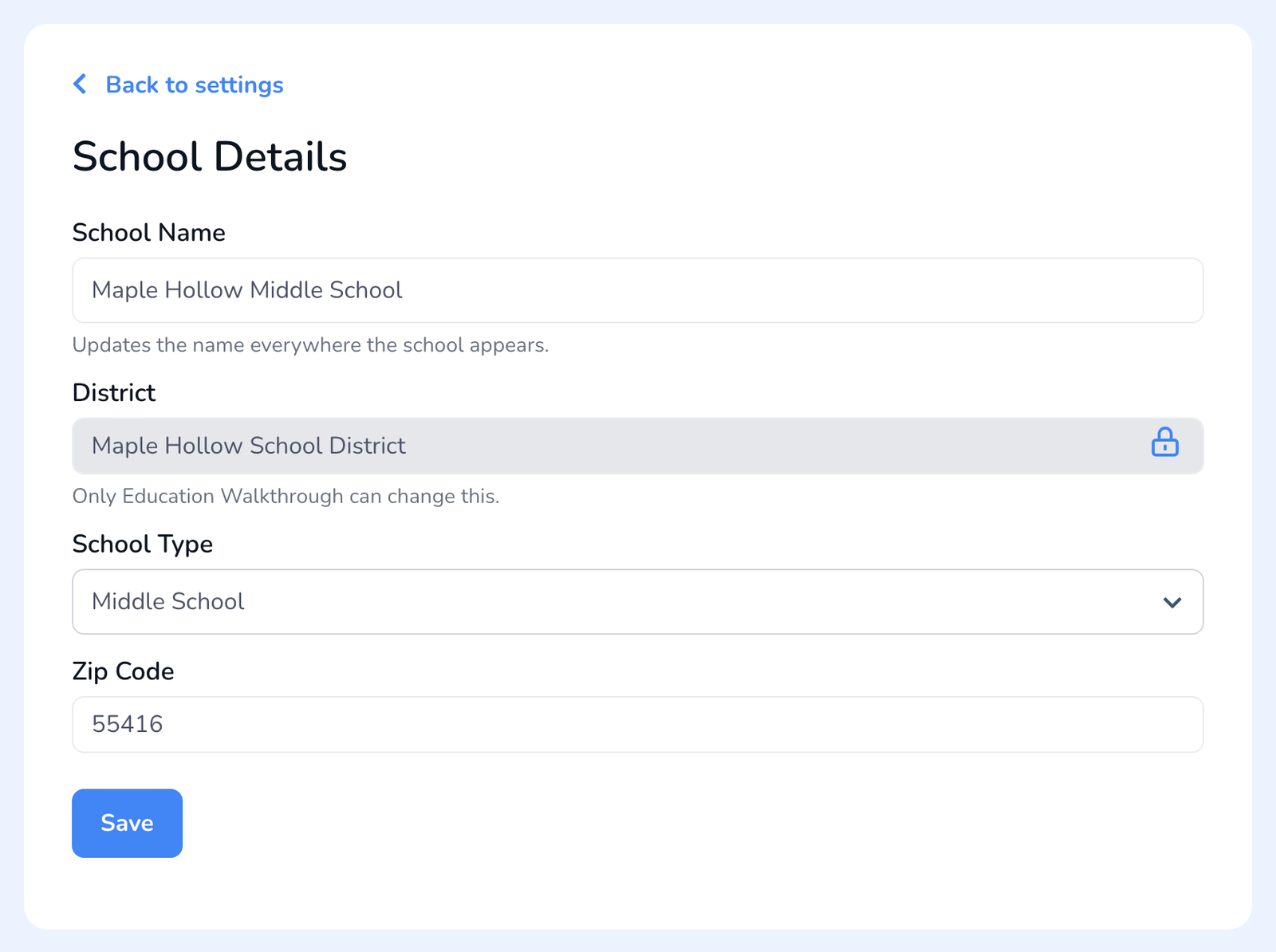
- Moving a school to a different district is not a name change. That field stays locked, and only Education Walkthrough can change it. Contact support if a school is filed under the wrong district.
Change a school name
- Sign in and open Settings, then scroll to School Settings.
- District Admins, pick the school from the Choose a School dropdown first. School Admins see their own school.
- Next to School Details, click Edit School Details.
- Edit the School Name field. The name updates everywhere the school appears, including past walkthroughs and reports. School type and zip code can be edited on the same page.
- Click Save. You will see School name updated and you are done.
Change a district name
- Sign in as a District Admin and open Settings.
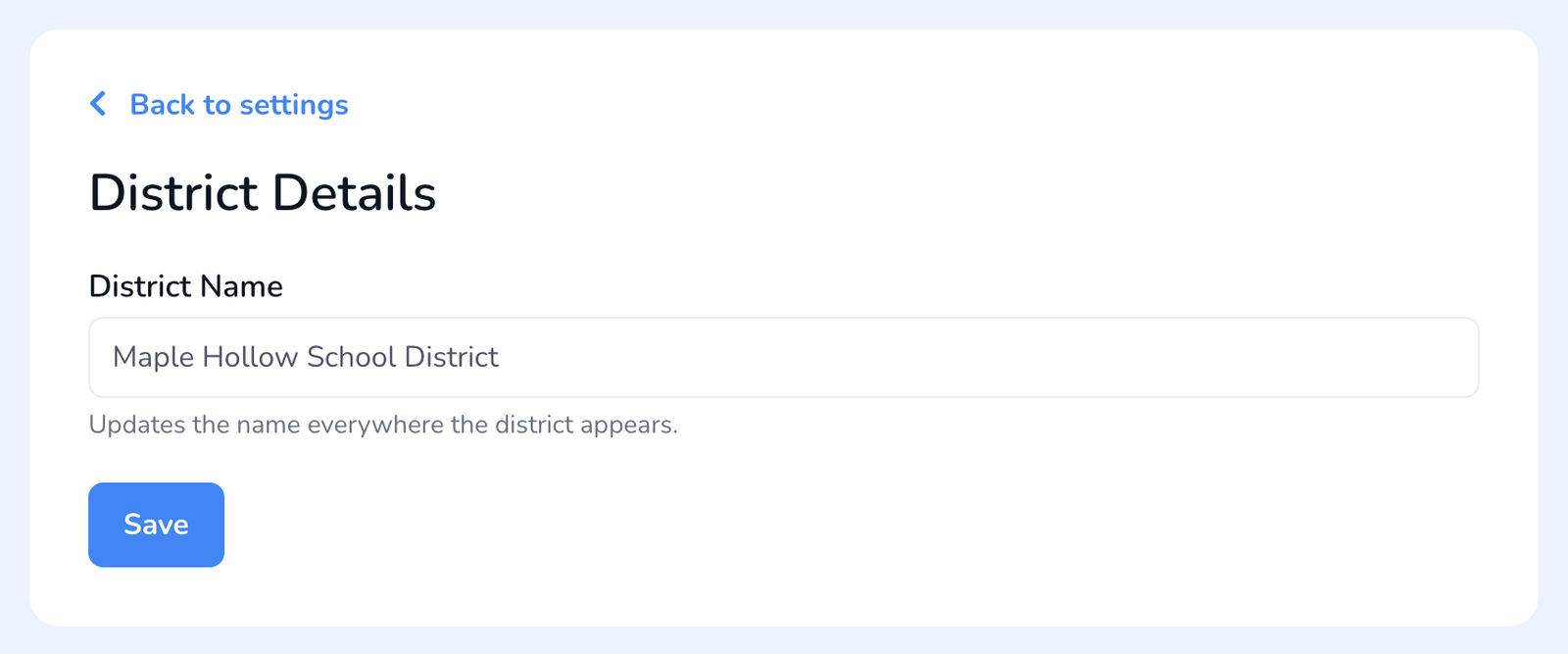
- Under District Details, click Edit District Details.
- Edit the District Name field and click Save. You will see District name updated.
If the name is already in use
Sometimes the name you want matches another record. For a school, that means another school in your district already has that name. For a district, it means another district already uses it. Instead of blocking you, Education Walkthrough shows a Change school name (or Change district name) panel with your current name and the new one side by side, and gives you two choices.
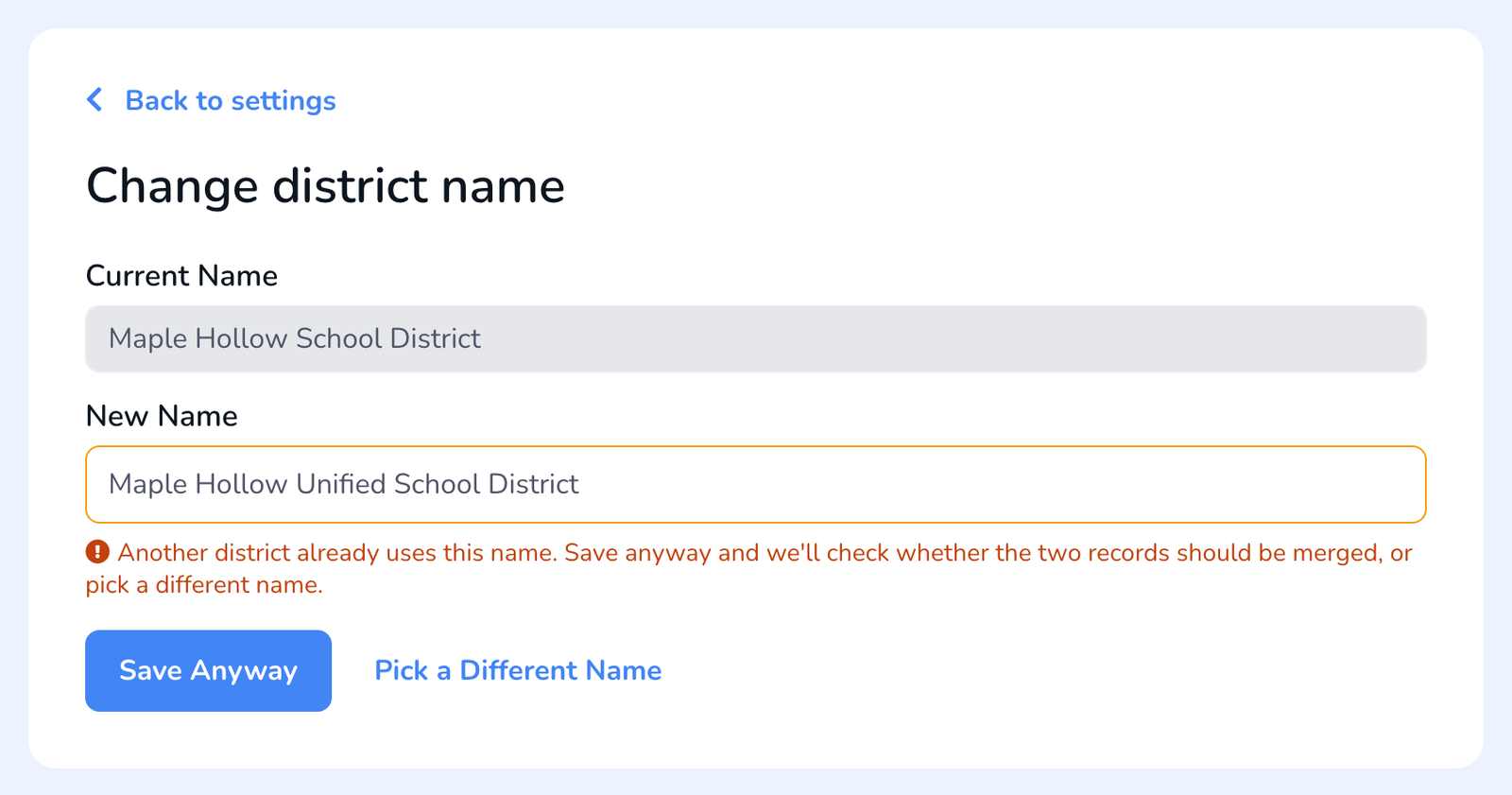
- Pick a Different Name takes you back to try another name.
- Save Anyway sends the change to our team for review. You will see Sent for review, and a Pending review note stays on the page with the old and new name. Your school or district keeps its current name until the change is approved.
We check whether the two records are really the same school or district. If they are not, we approve the rename and you receive an email titled Your school name was updated (or the district version). If it looks like a duplicate that should be merged instead, you receive About your school name change and a member of our team follows up with you. Either way you hear back by email, and nothing changes until you do.
Frequently asked questions
Q: Does renaming change my past walkthroughs and reports?
A: The new name shows everywhere the school or district appears, including existing walkthroughs and reports. Your data is not moved or copied. Only the label changes.
Q: Why did my change go to review instead of saving?
A: Because another school in your district (or another district) already uses that exact name. Names are matched without regard to capitalization, so North Street and north street count as the same. Review protects you from ending up with two separate records for one school.
Q: Can I cancel a pending name change?
A: Yes. Go back to the same panel and save a different name that is not already in use. That new name saves right away and the pending request is cancelled.
Q: I am a School Admin. Can I rename my district?
A: No. District names are changed by a District Admin. Ask them, or contact support.
Q: Our school moved to a different district. Can I change that here?
A: No. The district a school belongs to is locked. Contact support and we will move it for you.