
Email addresses change. A district moves everyone to a new domain, an assistant principal takes a role at a different school in the same district, or an account was set up with an address that is being retired. Your Education Walkthrough account, your walkthroughs, and your templates all stay the same. Only the address you sign in with needs to move.
You can now make that change yourself from Settings. The new address has to be confirmed before anything switches, so there is no risk of locking yourself out partway through.
Before you start
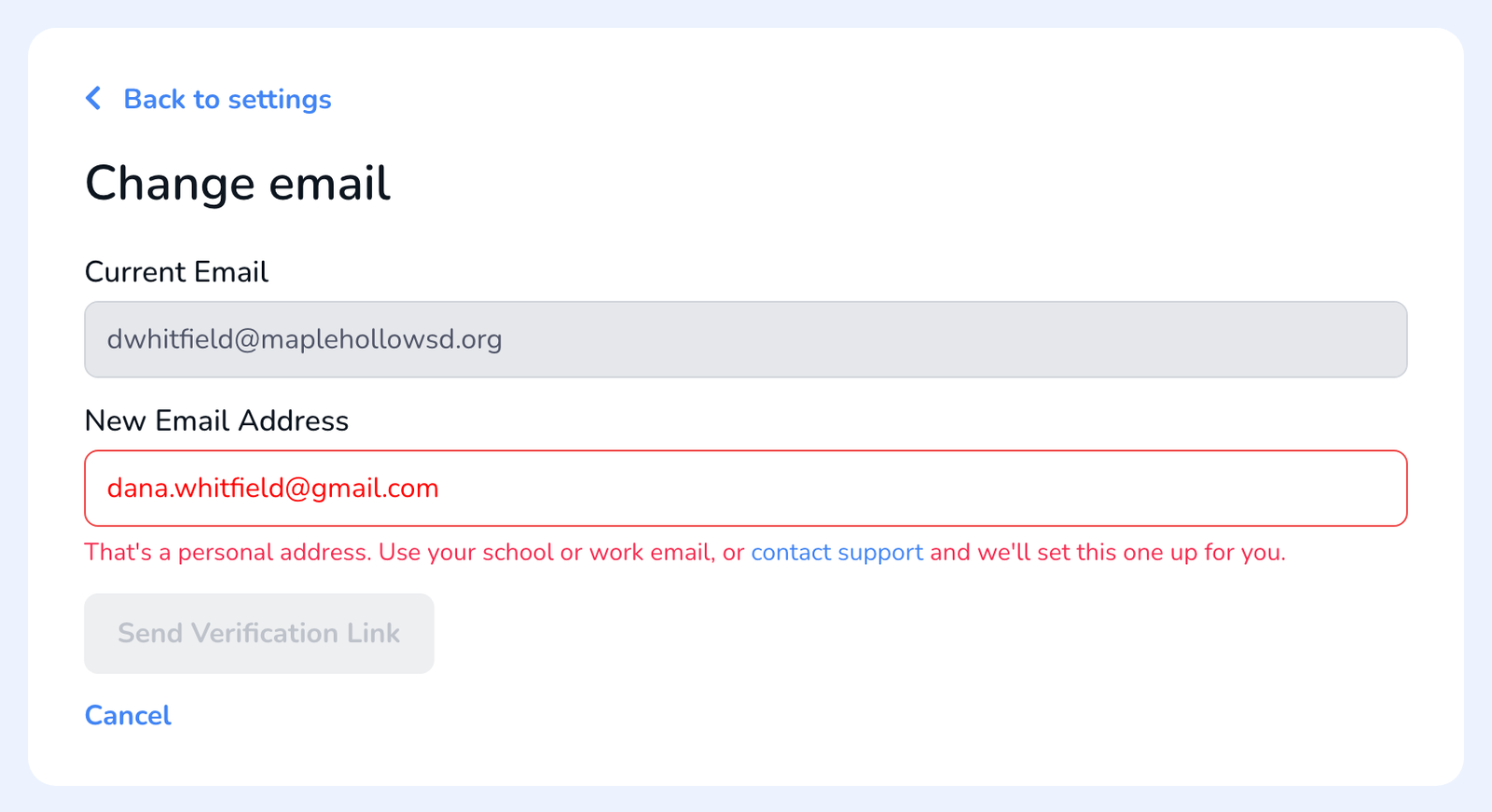
- Use a school or work email address. Personal addresses (Gmail, Yahoo, Outlook, iCloud, and similar) are not accepted here. If you need to use one, contact support and we will set it up for you.
- The new address cannot already belong to another Education Walkthrough account.
- If you sign in with Google or Microsoft, you will not see the Change option. Contact support and we will update your sign-in for you.
- Use the web dashboard at dashboard.educationwalkthrough.com for this change.
Change your email address
- Sign in and open Settings.
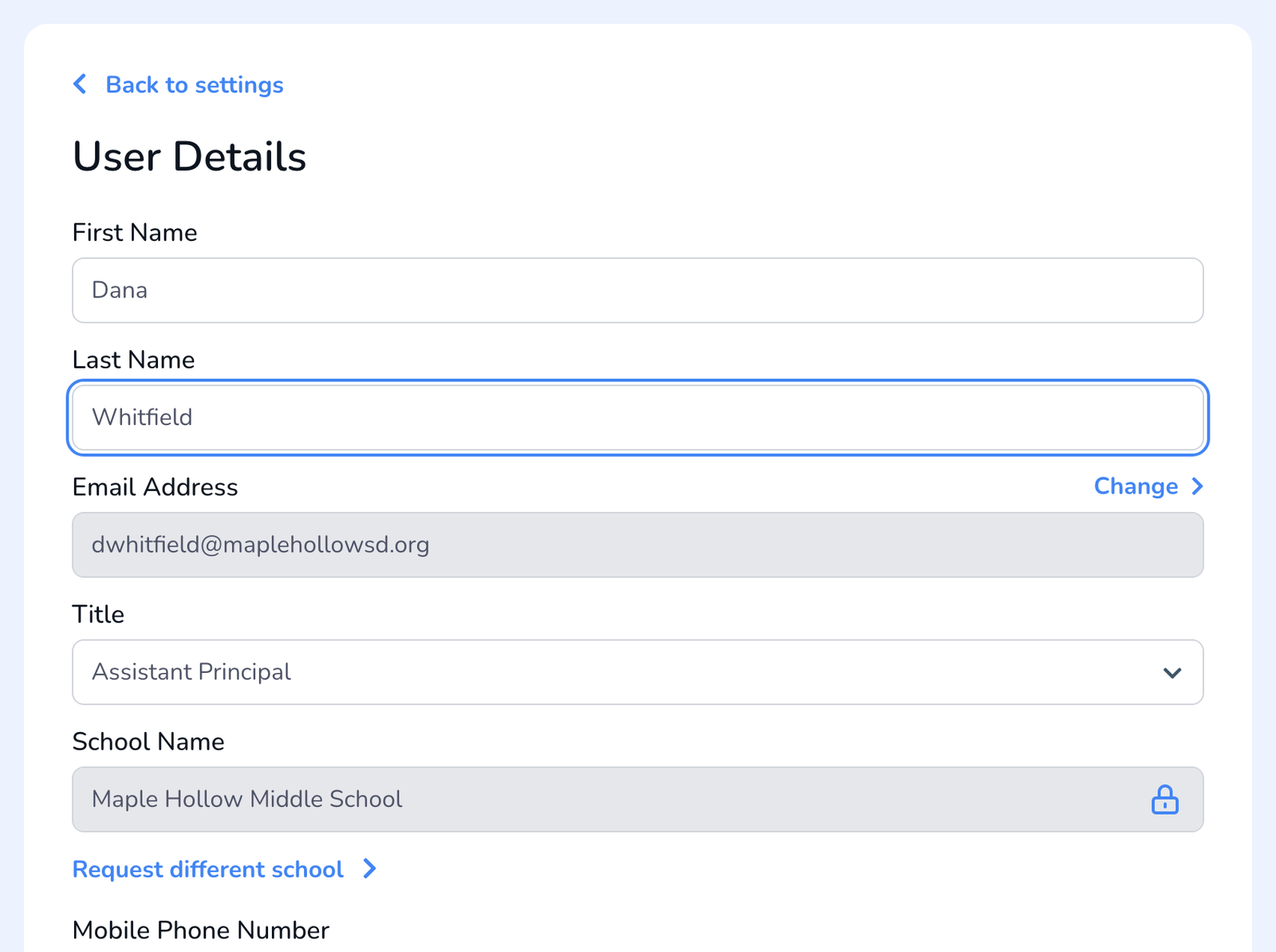
- Under User Details, click Edit Profile.
- Next to Email Address, click Change.
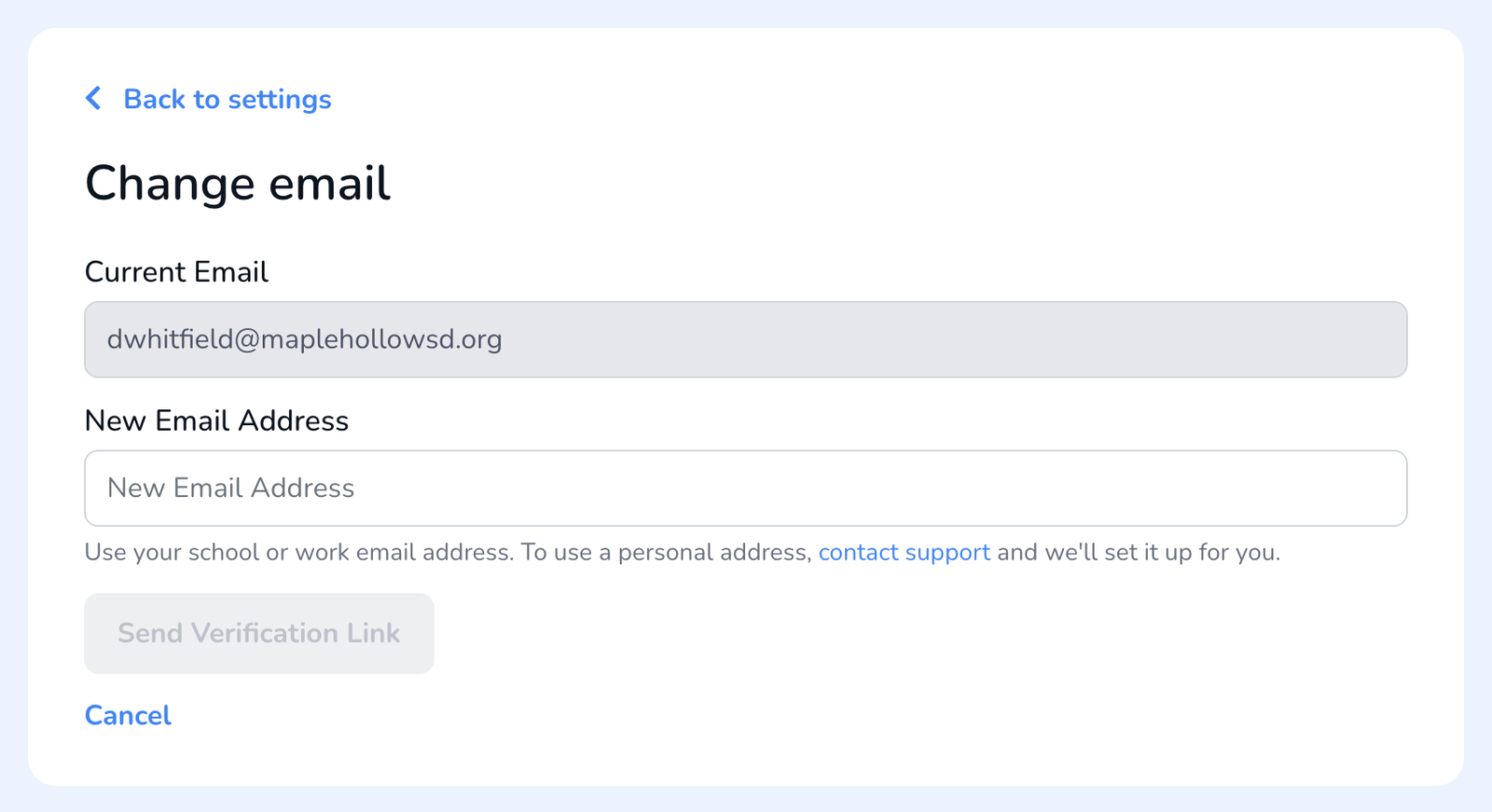
- On the Change email panel, your current address is shown for reference. Type the new address in New Email Address.
- Click Send Verification Link.
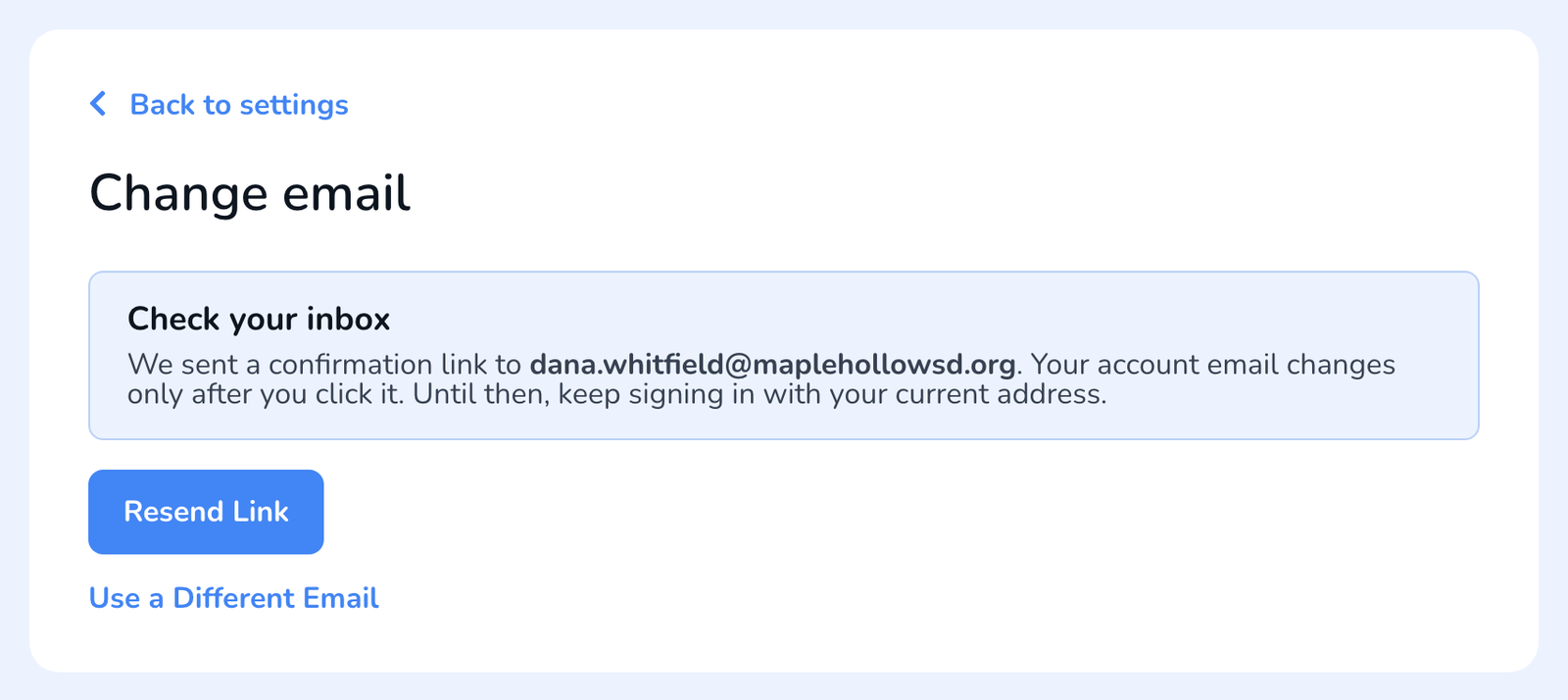
You will see Verification link sent, and the panel changes to Check your inbox. Nothing has changed yet. Your account email changes only after you click the link in that message, so keep signing in with your current address until then.
Confirm the new address
- Open the inbox for the new address and find the message titled Confirm your new Education Walkthrough email.
- Click Confirm Email.
- From then on, sign in with the new address. Your password does not change.
Both addresses get a note once the change goes through. The new address receives Your Education Walkthrough email was updated, and the old address receives Your Education Walkthrough sign-in email was changed. If you ever receive that second message and did not make the change, contact us right away.
Good to know
- The confirmation link is good for 24 hours. After that, start again from Settings.
- Only the most recent link works. If you click Resend Link, use the newest email.
- Typed the wrong address? Click Use a Different Email and send a new link. The first one stops working.
- Nothing about your account moves. Your walkthroughs, templates, school, role, and license all stay exactly as they were.
Frequently asked questions
Q: I never got the confirmation email.
A: Check the spam or quarantine folder for the new address, then click Resend Link in Settings. Some district mail filters hold messages from new senders. If it still does not arrive after a few minutes, your IT team can allow mail from educationwalkthrough.com, or contact support.
Q: Can I use my personal email?
A: Not through Settings. Account emails need to be a school or work address. If a personal address is your only option, contact support and we will set it up for you.
Q: I sign in with Google. How do I change my email?
A: Google and Microsoft sign-in accounts are tied to that provider, so the Change link does not appear. Contact support and we will handle the switch. See also Troubleshooting Login and Google Sign-In Issues.
Q: The link says it expired or was already used.
A: Links last 24 hours and work once. Go back to Settings, click Change again, and send a fresh link.
Q: I changed my email. Do I need a new password?
A: No. Your password stays the same. If you also want to change it, see How to Change or Reset Your Password.