
A new assistant principal signs up, pokes around, and hits the wall: Basic accounts can look but not walk. Or a school’s licenses expired over the summer and the principal needs seats before Monday’s rounds. Upgrading is self-serve from the web dashboard, the mobile app can start it too, and the same flow covers a first purchase, more seats, and renewals.
Upgrade from Basic or an expired license
- Sign in to the web dashboard.
- Click Buy More Licenses at the top of the Users page, or the Upgrade link next to a Basic user in the Plan column. Both open the quote flow.
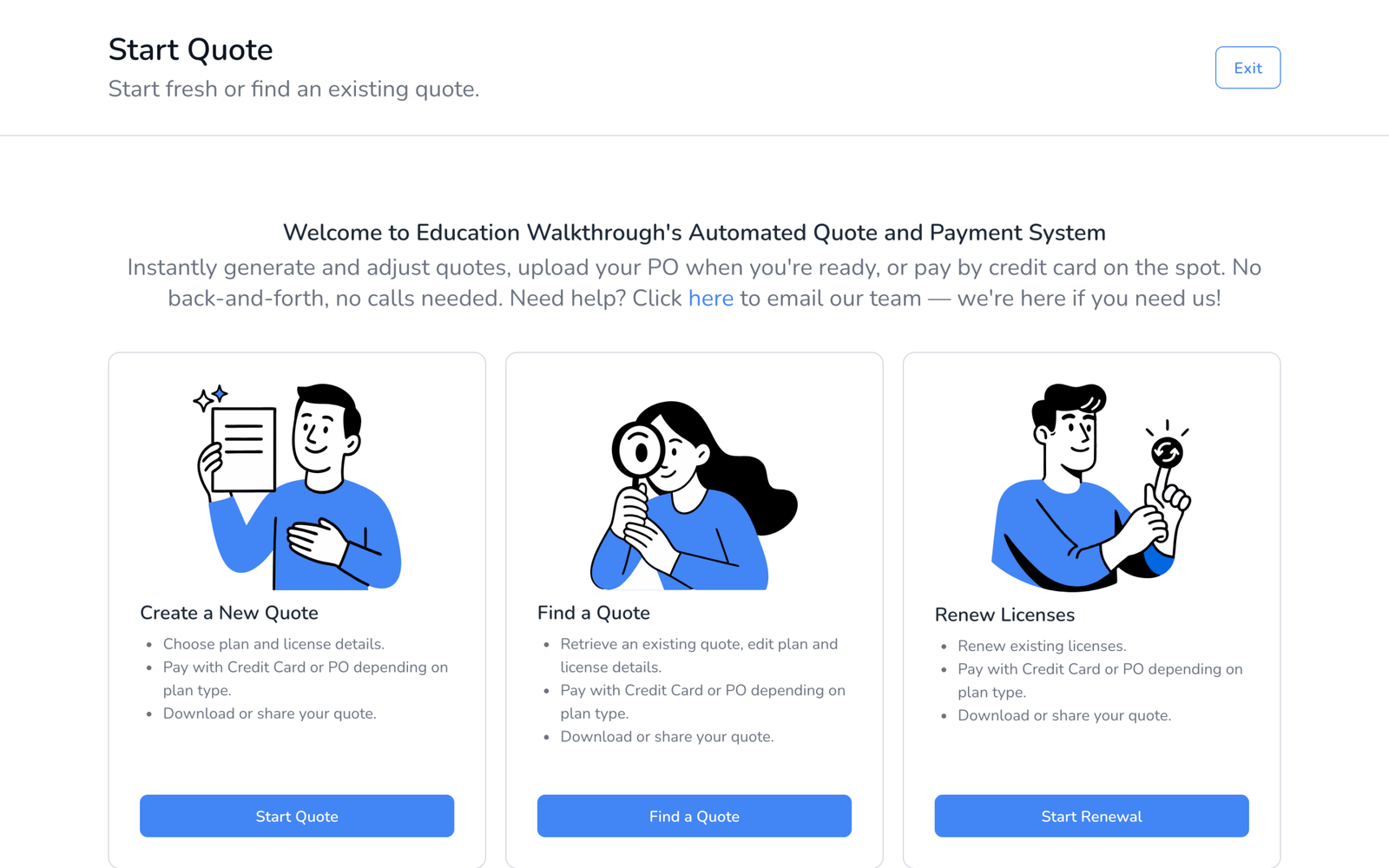
- On Start Quote, choose Create a New Quote for new seats or Renew Licenses for seats that have expired.
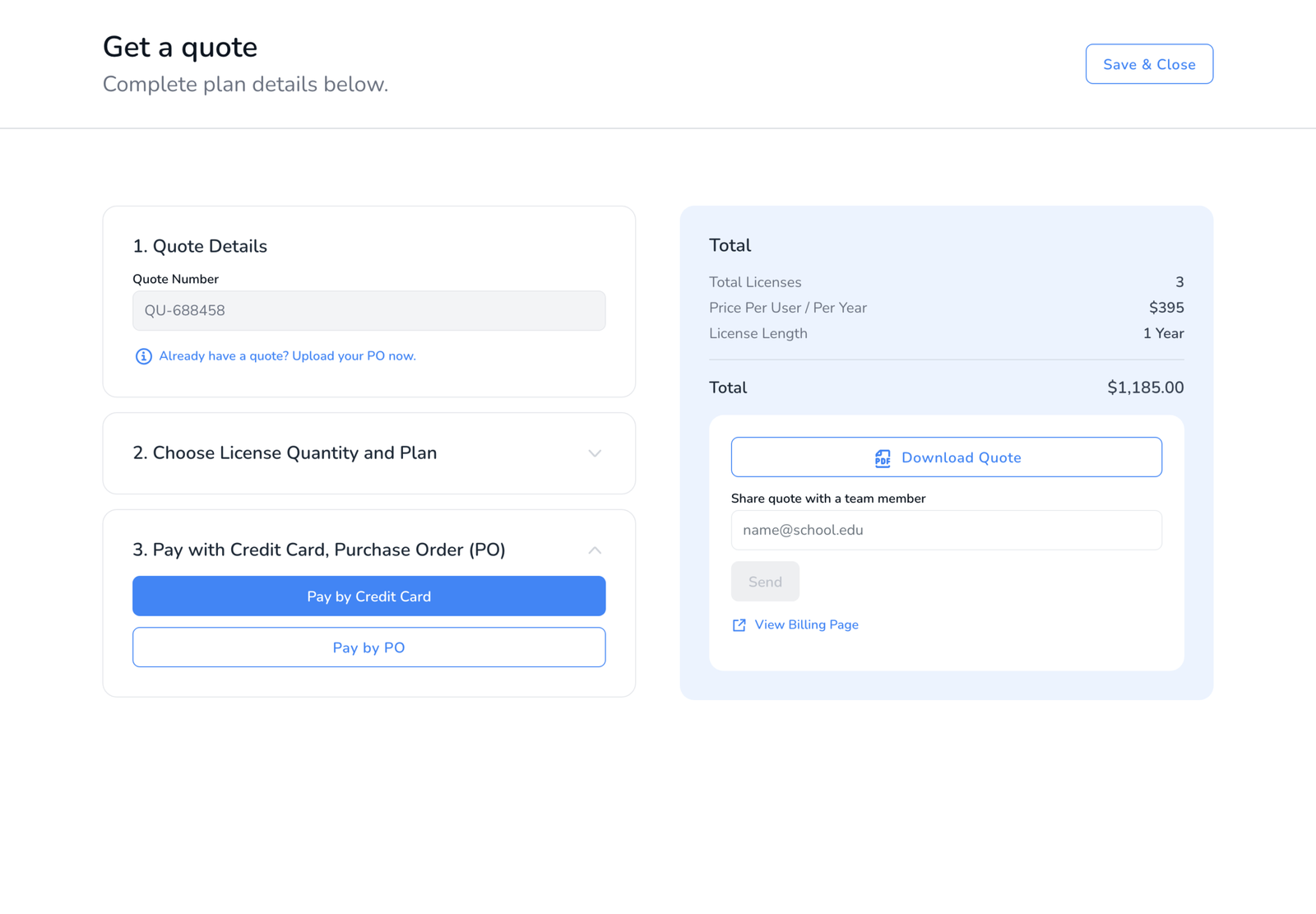
- Pick who the licenses are for, how many people need one, the plan, and the term. The total updates as you go. Download or share the quote if someone else approves purchases.
- Pay by card for immediate access, or upload a purchase order and we activate the seats when the PO is approved. The full walkthrough is in How to Get a Quote and Pay by Card or Purchase Order.
What changes after you upgrade
- Seats go to people. One license is one person. After a card payment the seats are on your account right away; assign them on the Users page with Change Plan.
- Basic users keep everything. Their account, drafts, and settings carry over. They just gain the ability to run walkthroughs.
- Expired licenses pick up where they left off. Renewing restores access to the same account and all its history, see How to Renew Your License.
Frequently asked questions
Q: Which plan should we buy?
A: One building is the School Plan. More than one is the District Plan. Current prices and the volume ladder are on the pricing page.
Q: Can I upgrade or get a quote from the mobile app?
A: Yes. Open Settings in the app and use the upgrade cards. Individual Premium is bought right there through the App Store or Google Play. The School and District Premium cards send us a quote request and we email you the quote to approve, pay by card, or attach a PO. If an App Store purchase is not showing, see I Paid for Premium on My Device.
Q: Our business office needs a quote first.
A: Generate the quote, then use Download Quote or Share quote with a team member. Come back with Find a Quote when it is approved.
Q: We pay by purchase order. How long until we are active?
A: As soon as our team approves the PO you uploaded. Card payments activate immediately. See Paying by Purchase Order.