
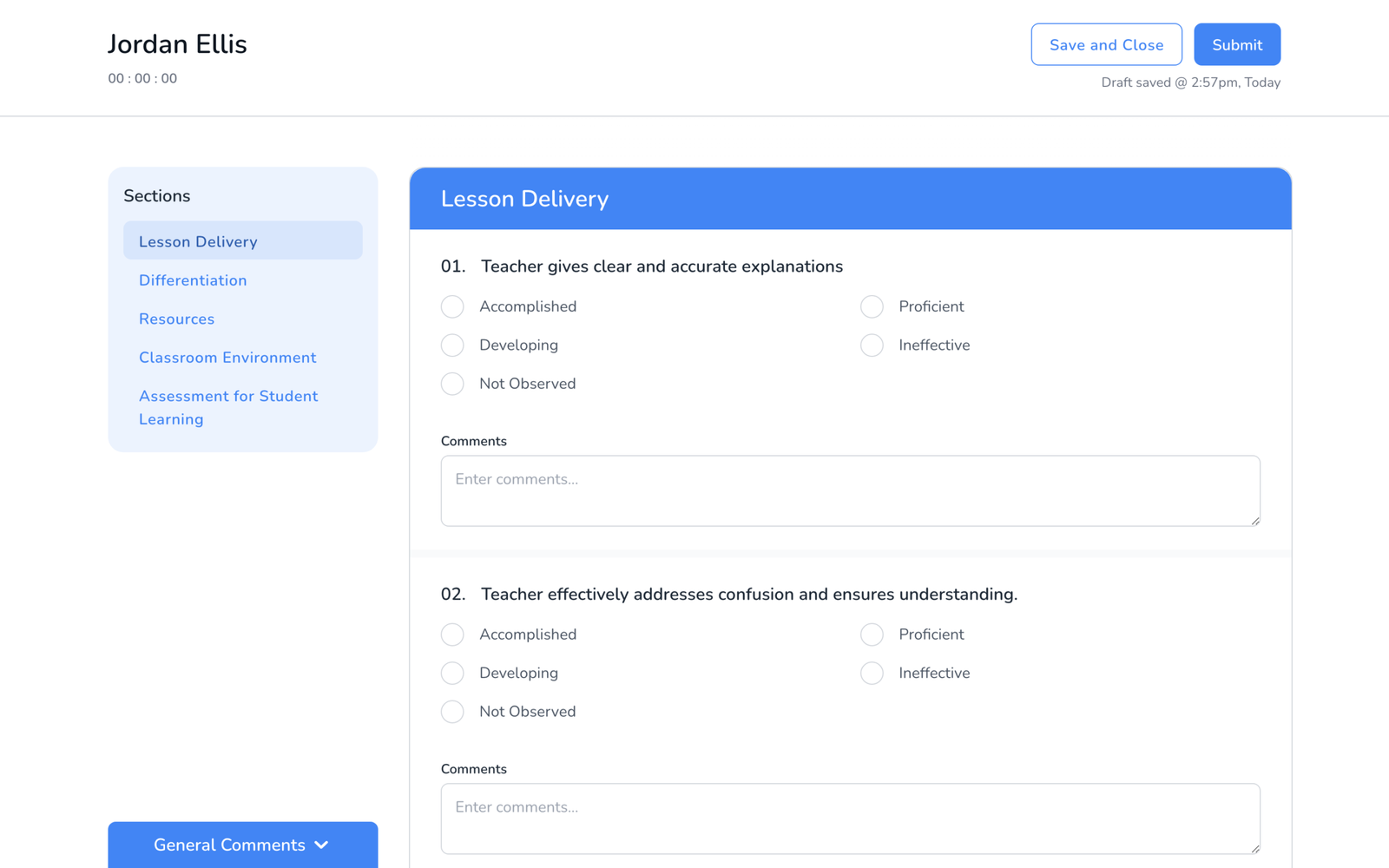
A framework template can run to forty look-fors across five or six sections. In a ten-minute visit you will not answer them in order. The lesson is in the middle of a check for understanding, so you jump to Assessment, then back to Lesson Delivery when the teacher moves on. The Sections panel is how you jump.
Jump between sections on the web
- On the left of the walkthrough, the Sections panel lists every section of the template. The one you are in is highlighted.
- Click a section name. The page scrolls to that section’s first question.
- Keep scrolling and the highlight follows you. Nothing you entered is lost when you move; answers stay put in every section.
In the mobile app
Sections show as tabs across the top of the walkthrough. Swipe left or right, or tap a tab, to move between them. The app keeps every answer as you move, and autosaves the draft to the device every 30 seconds.
Tips for long templates
- Answer what you see, skip the rest. Questions are not required. An unanswered look-for simply stays blank on the report.
- Rename sections for scanning. Short section names (Engagement, Questioning, Environment) make the panel readable at a glance. Section names are set in the template builder, see How to Rearrange Questions and Sections on a Template.
- Finish later if the bell rings. Save and Close keeps the walkthrough as a draft you can reopen, see How to Finish a Walkthrough Later.
Frequently asked questions
Q: Where is the general comment?
A: At the bottom of the Sections panel on the web, and after the last question in the app, see How to Add General Comments.
Q: Can I collapse a section?
A: No. Sections are a navigation list, not an accordion. Click to jump, scroll to read.
Q: The template has no sections.
A: Then there is one unnamed section and the panel has one entry. Sections come from the template; ask the template’s owner to add them if a long template needs structure.