
Ten minutes into a classroom visit you set the iPad down to watch a small-group rotation, and when you pick it back up the screen is dark. It happens on every tablet and phone. The question is whether the notes you had already written are still there.
They are. While a walkthrough is open, the Education Walkthrough app saves your progress on the device every 30 seconds, so a locked screen, a phone call, or a dead battery costs you at most the last half minute of typing. This article explains what to expect when you come back and how to pick up where you left off.
When the screen locks
- Your walkthrough stays open behind the lock screen. Unlock the device and you are right back in it.
- If the device was locked long enough for the system to close the app, or the battery died, the walkthrough is waiting for you as a draft. Nothing you had entered up to the last save is lost.
- The timer does not run while a walkthrough sits as a draft, so a long break does not inflate the recorded time.
Pick up a draft
Drafts show in the same list as finished walkthroughs, on the app and on the web dashboard.
- Open Walkthroughs.
- Find the visit. A draft shows a Finish button where a completed walkthrough shows View.
- Click Finish.

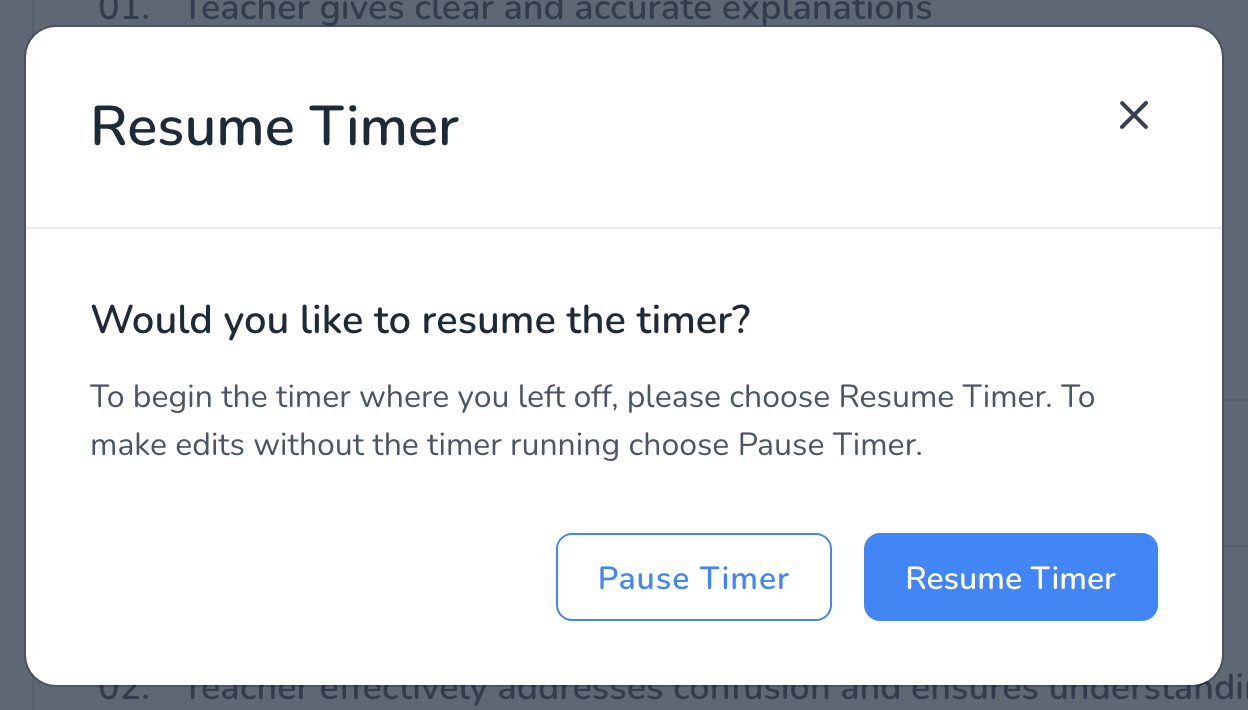
- You are asked Would you like to resume the timer? Choose Resume Timer if you are still in the classroom and the visit is continuing. Choose Pause Timer if you are just finishing notes later and do not want that time counted.
- Complete the walkthrough and submit it as usual.
Keep the screen awake for longer visits
Education Walkthrough does not override your device’s sleep settings. If your screen locks faster than a typical classroom visit, lengthen the auto-lock time in your device’s display settings before a day of walkthroughs, and set it back afterward. Every phone and tablet has this option, usually alongside brightness. The side sleep button still locks the screen immediately.
Frequently asked questions
Q: How much can I lose if the battery dies mid-walkthrough?
A: At most the last 30 seconds of entries, because the app saves to the device on that schedule while a walkthrough is open. Charge the device, reopen the app, and finish the draft from Walkthroughs.
Q: The draft is on my iPad. Can I finish it on the web?
A: A draft is saved on the device it was started on until it syncs. Once it appears in the list on the web dashboard, you can finish it there with the same Finish button. See Navigating the Walkthroughs Page.
Q: I lost Wi-Fi at the same time. Is the draft still safe?
A: Yes. The save happens on the device, not over the network, and there is nothing to switch on. The app keeps working without a connection and syncs the walkthrough when it reconnects, see Working Offline in the Mobile App.
Q: Should the timer resume or pause?
A: Resume when the observation itself is continuing. Pause when you are adding notes afterward, in the hallway or at your desk, so the recorded time reflects the time in the classroom.
Q: The app keeps closing when the screen locks.
A: Make sure you are on the current version of the app, see How to Check the Version of Your Mobile App. If it still happens, send us the device model and app version and we will look into it.