
You got pulled into the office halfway through a visit and finished your notes an hour later, so the walkthrough shows a sixty-minute observation that was really twelve. Or you wrote it up the next morning and it carries the wrong date. The record should say what actually happened in the classroom, so the date and times on a completed walkthrough can be edited, with a reason, without unsubmitting anything.
Edit the date, start time, and end time
- Open Walkthroughs and find the walkthrough. Search and the filters help on a long list, see Navigating the Walkthroughs Page.
- Click the arrow at the end of the row to open its details.
- Next to Walkthrough Date and Duration, click Edit.
- Change the Date, the Start Time, or the End Time. The previous times stay visible under each field while you edit, so you can see what you are changing from.
- Type a short Reason if your team keeps notes on edits. It is optional.
- Click Save.
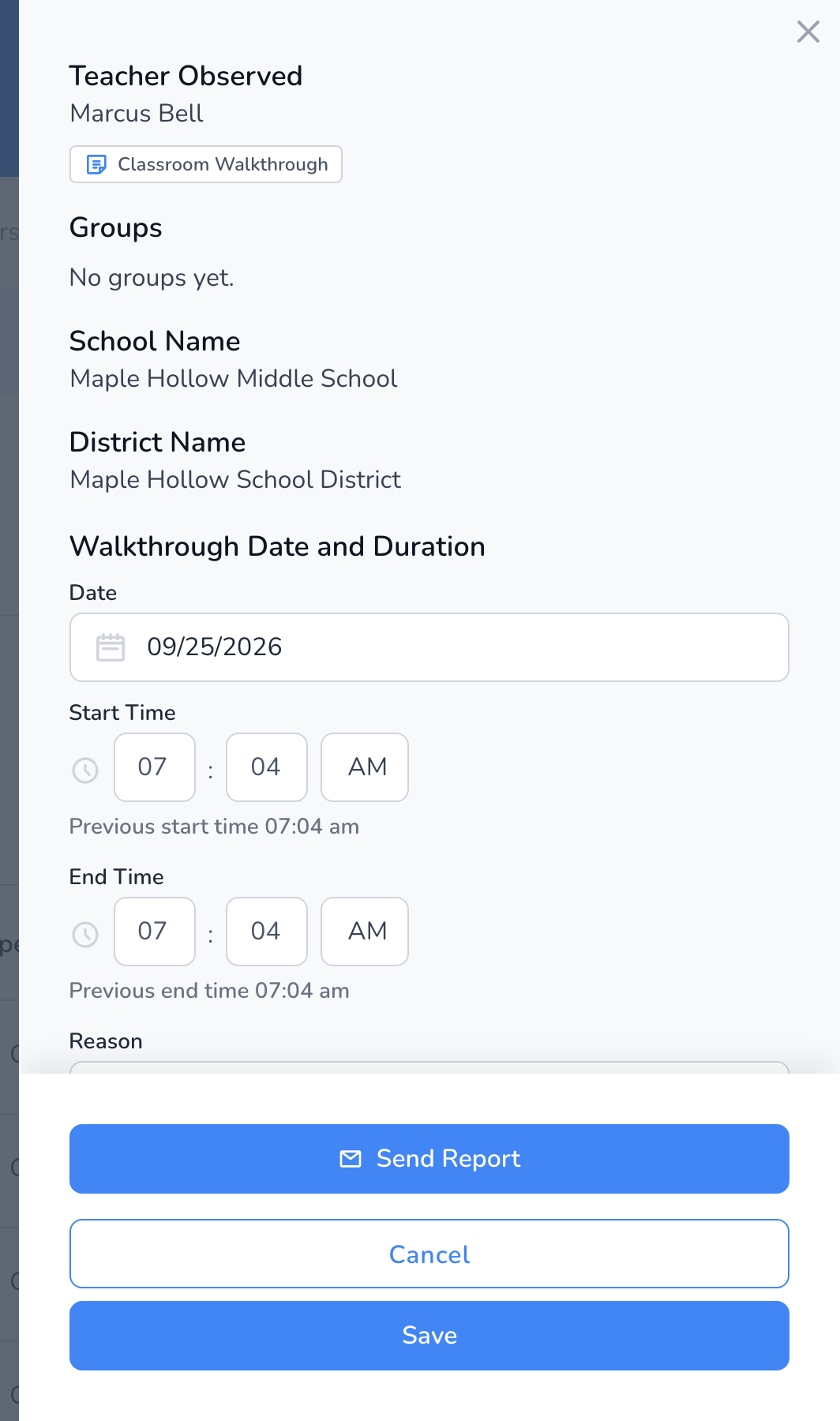
The duration recalculates from the new start and end times, and the walkthrough moves to its new date in the list and in analytics.
Other details on the same panel
Further down the panel, Edit Details changes the observer, department, grade, and class the walkthrough is tagged with, also with an optional reason. Scores and comments are not edited here. To change those, see How to Unsubmit a Walkthrough.
Frequently asked questions
Q: Does editing the time change the report the teacher already received?
A: No. Reports that were already emailed stay as sent. If the teacher should have the corrected date, send the report again, see How to Resend a Completed Walkthrough.
Q: I reopened a draft and the timer kept running. Is this how I fix it?
A: Yes. Submit the walkthrough, then edit the end time here. Next time choose Pause Timer when reopening, see How to Resume the Walkthrough Timer.
Q: Can I edit the date on a draft?
A: Finish and submit the draft first. Date and time edits are for completed walkthroughs.
Q: Who can see the reason I typed?
A: Administrators who open the walkthrough’s details. The teacher does not see it.
Q: Can I do this in the mobile app?
A: Yes. Edit works on the web dashboard and in the mobile app. In the app, open the completed walkthrough and tap Edit next to the date and duration; the change shows on the web right away.