
Some teachers do not belong to one building. They travel. A shared teacher is one teacher profile that lives at more than one school in your district, so whoever observes them is looking at the same person and the same history.
Why you would share a teacher
Districts usually turn to this for staff who split their week across sites, often called itinerant staff.
- Music, art or PE teachers who rotate between elementary buildings.
- Speech language pathologists, occupational and physical therapists, and school psychologists who serve several sites.
- Special education and intervention staff who cover more than one school.
- Instructional coaches and mentors who support teachers across buildings.
- A teacher who splits the week between, say, the middle school and the high school.
The reason it matters is history. Without sharing, the same person ends up as two or three separate profiles, and their walkthroughs scatter across those records. Nobody can see the whole picture, and your analytics count one teacher as several people. Sharing keeps one profile, so every observation lands in one place and each building leader can still observe them.
It also retires an old workaround. Districts used to add a plus sign and a number to the email address to get the same teacher into a second school, for example john.smith+1@school.org. You do not need to do that any more.
Who can do this
Sharing a teacher across schools is a District Admin action, because it reaches across more than one school. If you are not sure what your account can do, see User Roles.
How to share a teacher across schools
The teacher has to exist in your account first. If you have not added them yet, start with How to Add Teachers or How to Import Teachers (CSV or Copy and Paste).
- Log in and click Teachers.
- Find the teacher and click their name to open their profile.
- Next to School, click Add Another School.
- Pick the school from the Choose a school dropdown.
- Click Save.
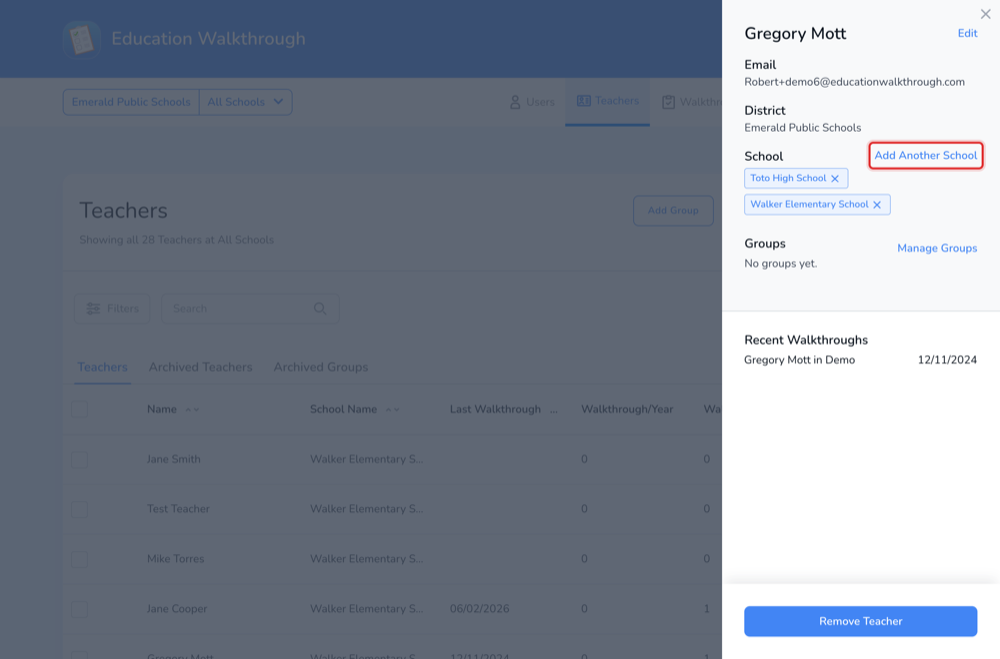
Each school the teacher belongs to appears as a chip on their profile. Remove one with the x beside it. In your teacher list, a shared teacher shows their first school followed by a note that there are others, for example Walker Elementary School +1 Others.
Sharing teachers during an import
Setting up a whole roster? You do not need to import first and share afterward. In your teacher import CSV, list every school the teacher works at in the School Name column, separated by commas, like Walker Elementary School, Toto High School. The Confirm Import screen shows those rows with a Shared Teacher status, and the teacher lands at every school as one profile. Teachers with a single school need no change at all, one school in the column works exactly as before.
Frequently asked questions
Can a teacher be at more than two schools?
Yes. Use Add Another School as many times as you need.
Does sharing create a duplicate teacher?
No. There is one profile per teacher, shared into each school roster. Their walkthrough history stays with them.
I cannot find the teacher I want to share.
They have to be added to your account before they can be shared. See How to Add Teachers.
What happens if I remove a teacher from one school?
Users at that school lose access to that teacher and their walkthroughs. The teacher and their history stay with the other schools.
Do teachers have to approve being shared?
No. An administrator with the right permissions manages this, and the teacher is not notified.