
Your signature is the sign-off on every observation report, the same way you would initial a paper walkthrough form left in a teacher’s mailbox. Once added, it automatically appears on every observation you complete, with a timestamp and the date of completion. You can add or update your signature from the web dashboard or the mobile app.
Add Your Signature on the Web Dashboard
1. Log in to your Education Walkthrough account and go to Settings.
2. Under User Settings, find Signature and click Edit Signature.
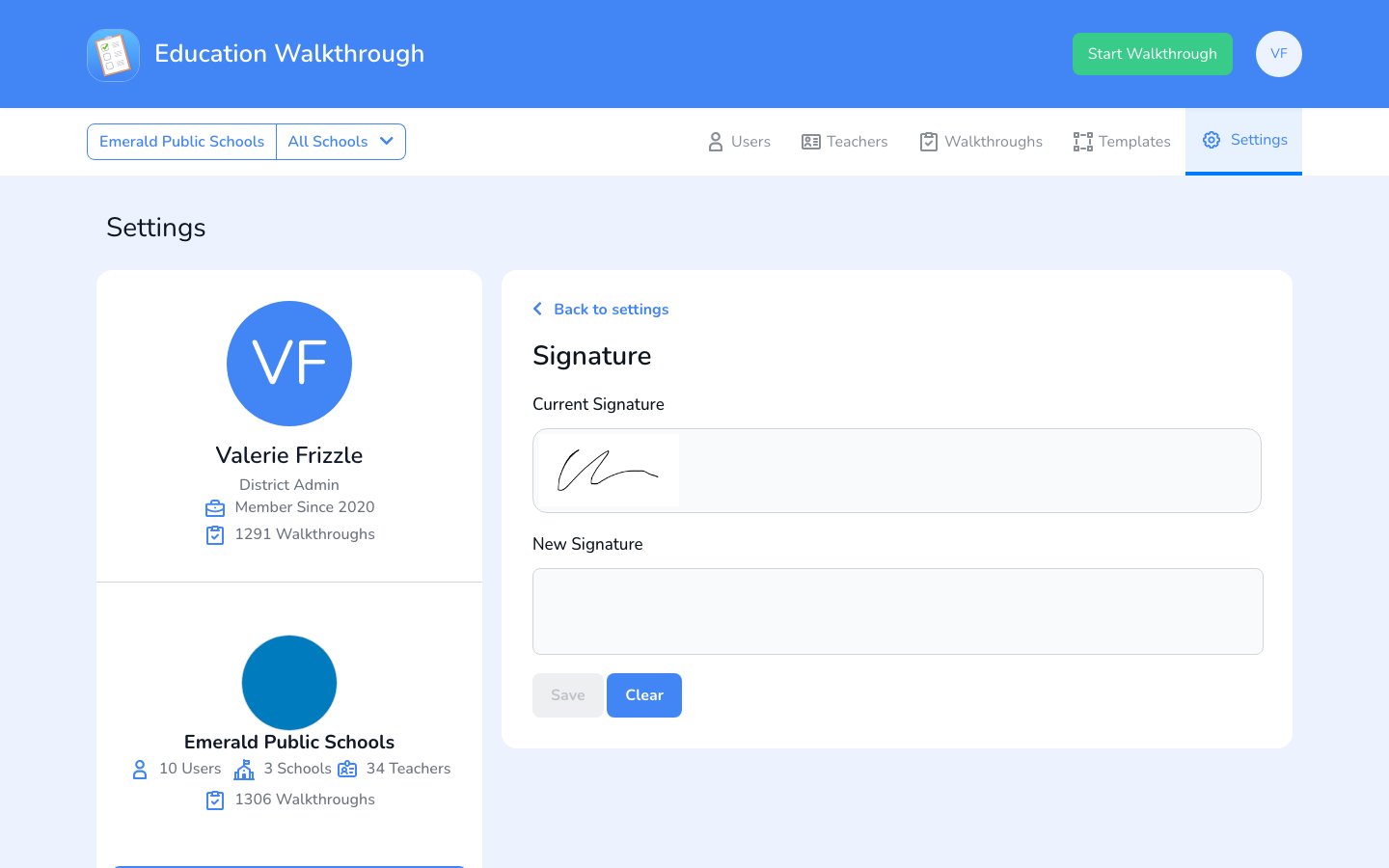
3. Draw your signature in the New Signature box. Click Clear to start over as many times as you need.
4. Click Save. Your signature appears in the Current Signature box and will be applied to your completed observations.
Add Your Signature in the Mobile App
1. Open the app and navigate to Settings.
2. Tap Signature.
Not seeing the signing area? Turn your phone sideways. Rotating to landscape gives the signature pad the room it needs to appear.
3. Sign your name with your finger. You can redo it until it looks right.
4. Tap Save. You will see your signature in the current signature box with a confirmation.
Adding a signature is the last step of setting up your account, once it is saved you are ready to observe.
Preguntas frecuentes
Can I change my signature later?
Yes. Follow the same steps any time, the new signature replaces the old one.
Will my signature show on reports I already sent?
No. The signature is applied to observations when they are completed, so it appears on reports going forward.
My phone will not let me sign. What do I do?
Turn the phone sideways. In landscape the signature pad has enough width to show, and you can sign as normal.