
When you finish an observation you can send the results straight to the teacher, without leaving Education Walkthrough. The email goes out under your own name, so it reads as a note from you rather than a system message.
This is how most instructional leaders close the loop after a walkthrough. The teacher gets your feedback while the lesson is still fresh, and the completed observation can travel with it as a PDF.
Sending the email
- Complete a walkthrough and click Submit.
- Click Email to Teacher.
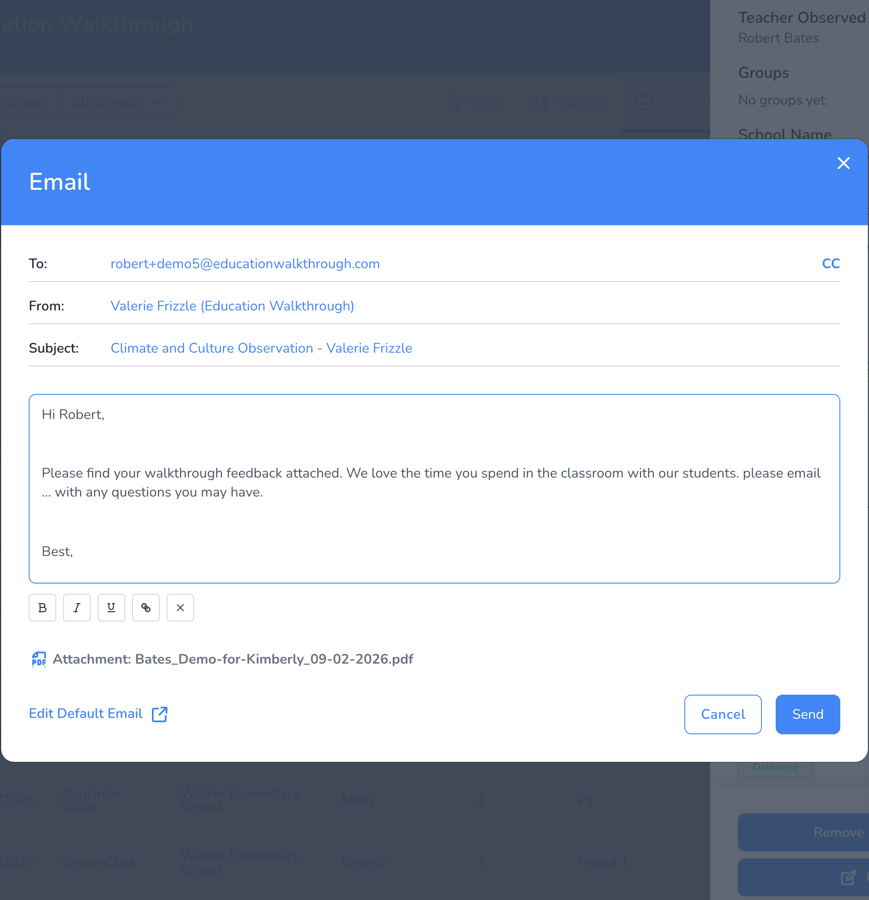
- Check the To, From and Subject lines. Use CC if you want to copy yourself or another administrator.
- Edit the message. You can use the formatting buttons underneath for bold, italic, underline and links.
- Click Send.
What the email contains
- Your message. This starts from your default email text, which you can change at any time with the Edit Default Email link at the bottom of the window.
- The observation PDF. When the template attaches it, you will see an Attachment row naming the file.
- Your general comments. When the template includes them, a Comments Added label appears and your comments sit in the body of the email.
Both the PDF and the general comments are controlled by the template, not by each individual email. See How to Attach the Observation PDF and Add General Comments to the Teacher Email to change them.
Adding or removing your general comments
If the template allows general comments, the email window gives you two buttons.
- Add General Comments drops your general comments into the body of the message.
- Remove Comments takes them back out and leaves your default message on its own.
If you do not see either button, the template that walkthrough was built from has Include General Comments turned off.
Polishing the wording
When general comments are switched on you will also see Rewrite With AI, which tidies up the wording of your comment while leaving the rest of the email alone. See How to Use Rewrite With AI in the Teacher Email.
Checking the status or sending it again
- Go to Walkthroughs and click the walkthrough you want.
- Look at Report Sent and Report Status in the panel that opens.
- Click Resend to open the same email window and send it again.
Resend is useful when a teacher has changed email address, when you want to copy another administrator, or when you have since added comments you want them to see.
Frequently asked questions
Can I copy myself on the email?
Yes. Click CC next to the To line and choose the administrators you want to copy.
Can I change the wording that appears every time?
Yes. Click Edit Default Email at the bottom of the email window to update the message you start from.
Why is there no PDF attached?
The template controls whether the observation PDF is attached. Turn Attach Observation PDF back on in the template settings.
How do I know the teacher received it?
Open the walkthrough from the Walkthroughs list. Report Sent and Report Status show whether the email went out and was delivered.