The first few walkthroughs with a new template always teach you something about the template. The question you put last is the one observers want to answer first, and the two look-fors about student talk belong next to each other, not in different sections. Both are a drag away in the builder.
Reorder questions
- Open Templates and click Edit on the template.
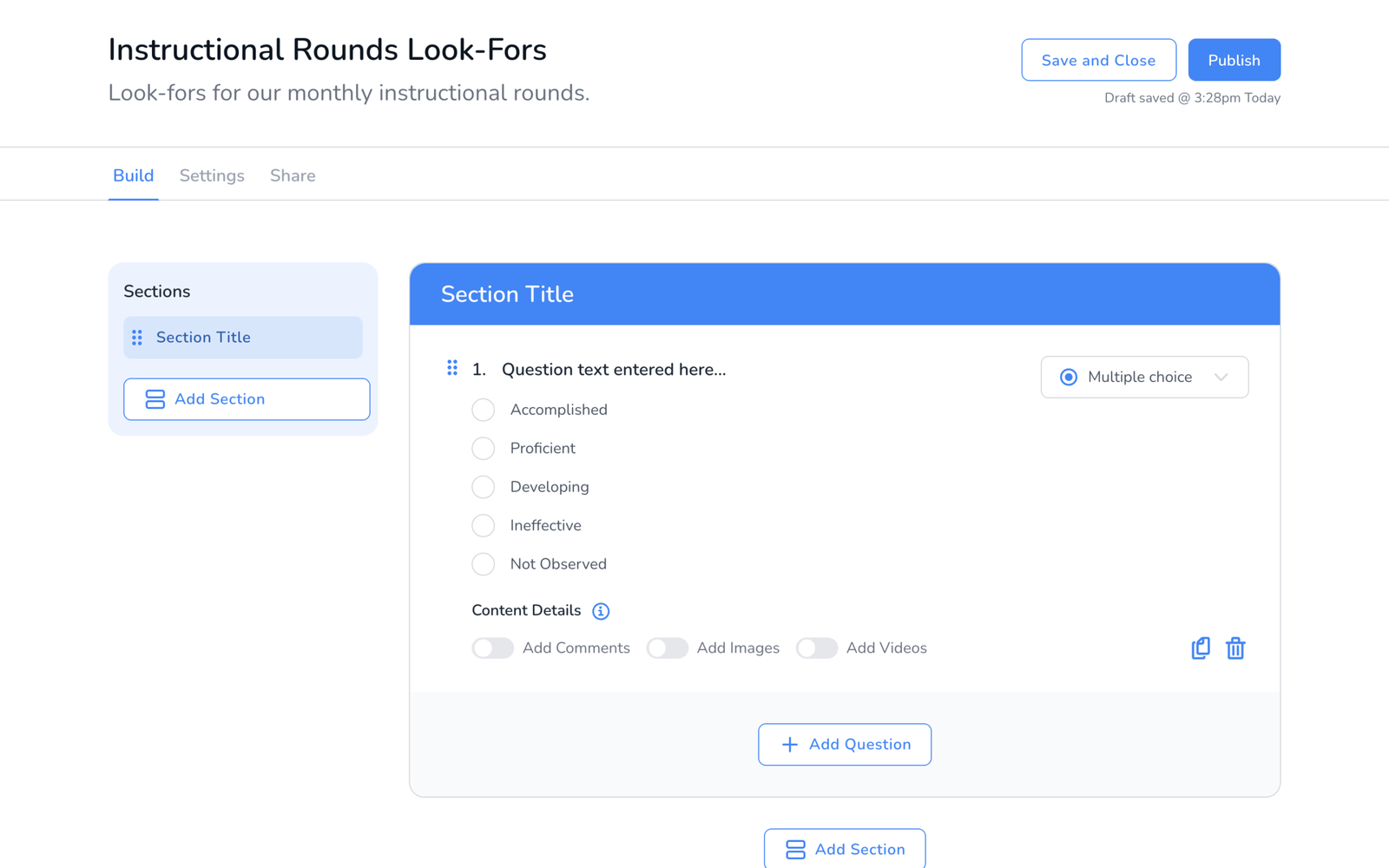
- On the Build tab, find the question. Each one has a drag handle, the dotted grip to the left of its number.
- Press and hold the handle, drag the question up or down inside its section, and release where it belongs. The numbers renumber on their own.
- The change saves as a draft automatically. Click Save and Close when you are done, or Publish if the template is live, see How to Publish a Template.
Reorder sections
Sections work the same way. In the Sections panel on the left, drag a section by its grip to change its order. The questions inside it move with it.
Move a question to another section
Dragging stays inside the current section. To move a question to a different section, use the duplicate icon on the question, drag the copy into place in the new section after adding it there, and delete the original. Or add the question fresh in the other section and delete the old one.
Frequently asked questions
Q: I reordered a published template. Do completed walkthroughs change?
A: No. Past walkthroughs keep the order they were done in. Reports generated from now on use the new order, see What Happens to Your Data When You Edit a Template After Observations.
Q: The drag is not working.
A: Make sure you are pressing on the dotted grip, not on the question text, which opens it for editing. On a laptop trackpad, click and hold for a moment before moving.
Q: Can I reorder on the mobile app?
A: Templates are built and edited on the web dashboard.
Q: Can I reorder the answer options inside a question?
A: Options follow the order on the template’s Settings tab under Default Options. Change the order there and every multiple choice question follows, see How to Build a Walkthrough Template.