
If you lead instruction, you are in classrooms for different reasons on different days. Monday might be a quick walkthrough to see how a new routine is landing across the building. Wednesday is a coaching visit with one teacher you have been working with since September. Next month there are formal observations that feed the evaluation cycle, and somewhere in between a safety round that has nothing to do with teaching at all. Each of those is an observation, but they are not the same job, and the notes from one should not end up in the report for another.
Observation types are how Education Walkthrough keeps that straight. Every template has a type. The type says what kind of visit the template is for, and it sets the template up to match: which pickers an observer sees when they start, which reports the results feed, and what the teacher does afterward, if anything. Each type also comes with its own workflow, which you can adjust to match how your school runs that process. Pick the right type and the right things happen on their own.
You pick the type once, when you create the template. This article explains what each type means, how to choose, and what you can still change later.
Where you pick the type
- Go to Templates and click Create Template.
- Enter the template name and description, then click Next.
- On Pick an Observation Type, choose the card that fits closest and click Confirm.
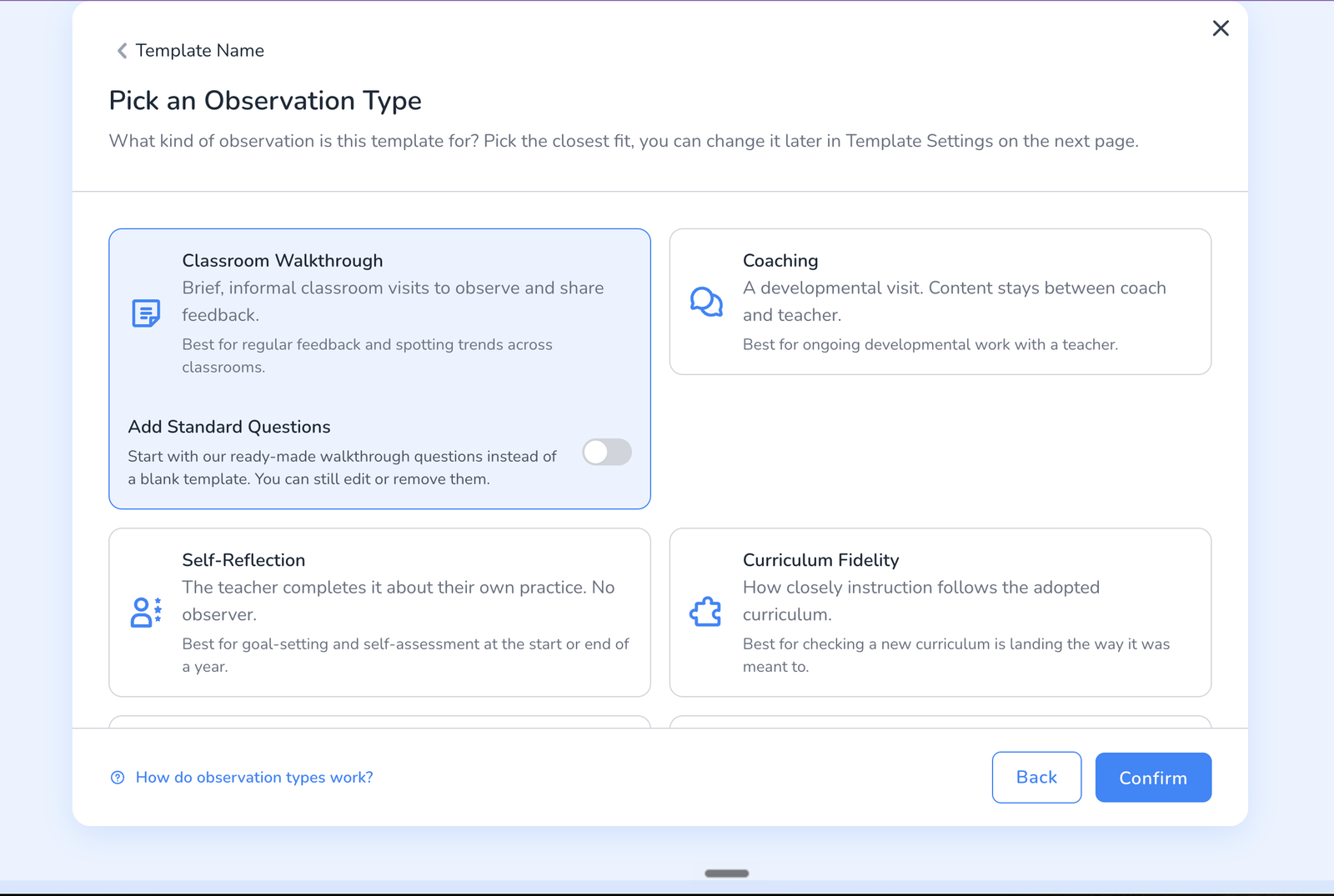
If you are not sure, pick the closest fit. The type can be changed afterward in Template Settings, before the template is published.
The observation types
Education Walkthrough is built around walkthroughs and growth, so the day-to-day types are on for every account. The two formal types, Formal Observation and Formal Evaluation, are off by default. An administrator turns them on in your account settings when your district uses Education Walkthrough for its evaluation cycle. Until then they do not appear when you create a template. Your list may also be shorter depending on your plan.
Classroom Walkthrough. Brief, informal classroom visits to observe and share feedback. Best for: Regular feedback and spotting trends across classrooms.
Coaching. A developmental visit focused on one teacher’s growth over time. Best for: Ongoing coaching cycles where the notes are about next steps, not a rating.
Self-Reflection. The teacher completes it about their own practice. There is no observer. Best for: Goal-setting and self-assessment at the start or end of a year.
Curriculum Fidelity. How closely instruction follows the adopted curriculum. Best for: Checking that a new curriculum is landing the way it was meant to.
Team Learning. Several people observe together and their evidence lands in one shared record. Best for: Leadership teams and coaches doing learning walks together.
Operations. Safety walks, facility checks, and other non-instructional rounds. Best for: Keeping a record of safety and facility checks.
Site Visit. A whole school rather than a classroom. Cross-school rounds. Best for: Reviewing school quality against a common set of criteria.
Formal Observation. A scored observation that may inform, but is not itself, a summative rating. Best for: The scored visits that lead up to a final rating.
Formal Evaluation. The summative, on-record evaluation of teaching performance. Best for: The evaluations your district requires.
What the type changes
- Start pickers. What an observer is asked for when they start. A Classroom Walkthrough asks for the teacher, and can also ask for grade, department and class. A Site Visit asks for the school.
- Who it goes to. A Self-Reflection is assigned to a teacher, who fills it in from a private link. An Operations check is filed for your organization and is not sent to anyone.
- Reports. Each type feeds the reports that make sense for it. Operations checks, for example, stay out of your instructional analytics so a facilities round never shows up in a teacher report.
You can see exactly what a type does on the template’s Settings tab. The What Will Happen panel there spells it out for the template you are editing.
Each type comes with a workflow you can shape
Picking a type does more than label the template. Every type has its own workflow, the steps that happen around the observation from start to finish: the observation itself, sending feedback to the teacher, the teacher acknowledging or signing, reflection questions, and saving to the teacher record. You will find it on the template’s Settings tab under Workflow Settings.
Steps that have a switch can be turned on or off per template, so the workflow matches how you actually run that process. A coaching template might skip the signature and keep the reflection questions. A formal evaluation keeps the signature and the acknowledgement deadline. A quick walkthrough might be the observation and a feedback email and nothing else. Set it once on the template and every observation started from it follows the same path.
Tips for choosing
- Pick Classroom Walkthrough for most instructional rounds. It is the type instructional leaders use week to week.
- Pick Self-Reflection when the teacher is the one answering.
- Pick a Formal type only for visits that are part of your district’s evaluation cycle, and only after an administrator has turned the formal types on in settings.
- Pick Operations or Site Visit for anything that is not about one teacher’s instruction.
Frequently asked questions
Q: Can I change the type after I create the template?
A: Yes, in Template Settings, as long as the template has not been published. Once observations exist against it, keep the type as is so your reports stay consistent.
Q: What happens to my existing templates?
A: Templates created before observation types were introduced are treated as Classroom Walkthroughs. You can review the type in Template Settings.
Q: Does the type decide who can use the template?
A: No. Sharing is separate, on the template’s Share tab. The type only shapes what happens during and after an observation.
Q: I do not see Formal Observation or Formal Evaluation.
A: They are off by default. An administrator on your account turns them on in settings. Walkthroughs, coaching, self-reflection and the other growth-focused types are always available.
Related: How to Build a Walkthrough Template, Using the New Template Builder, How to Publish a Template. Learn more about Education Walkthrough at educationwalkthrough.com.