
You built a template for this week’s instructional rounds, the questions look right, and now you want your team to use it. That last step is publishing. Until a template is published it stays a draft, and a draft does not appear when anyone, including you, starts a walkthrough.
This article walks through publishing a template, how to tell which of your templates are published, and what happens when you edit one after it goes live.
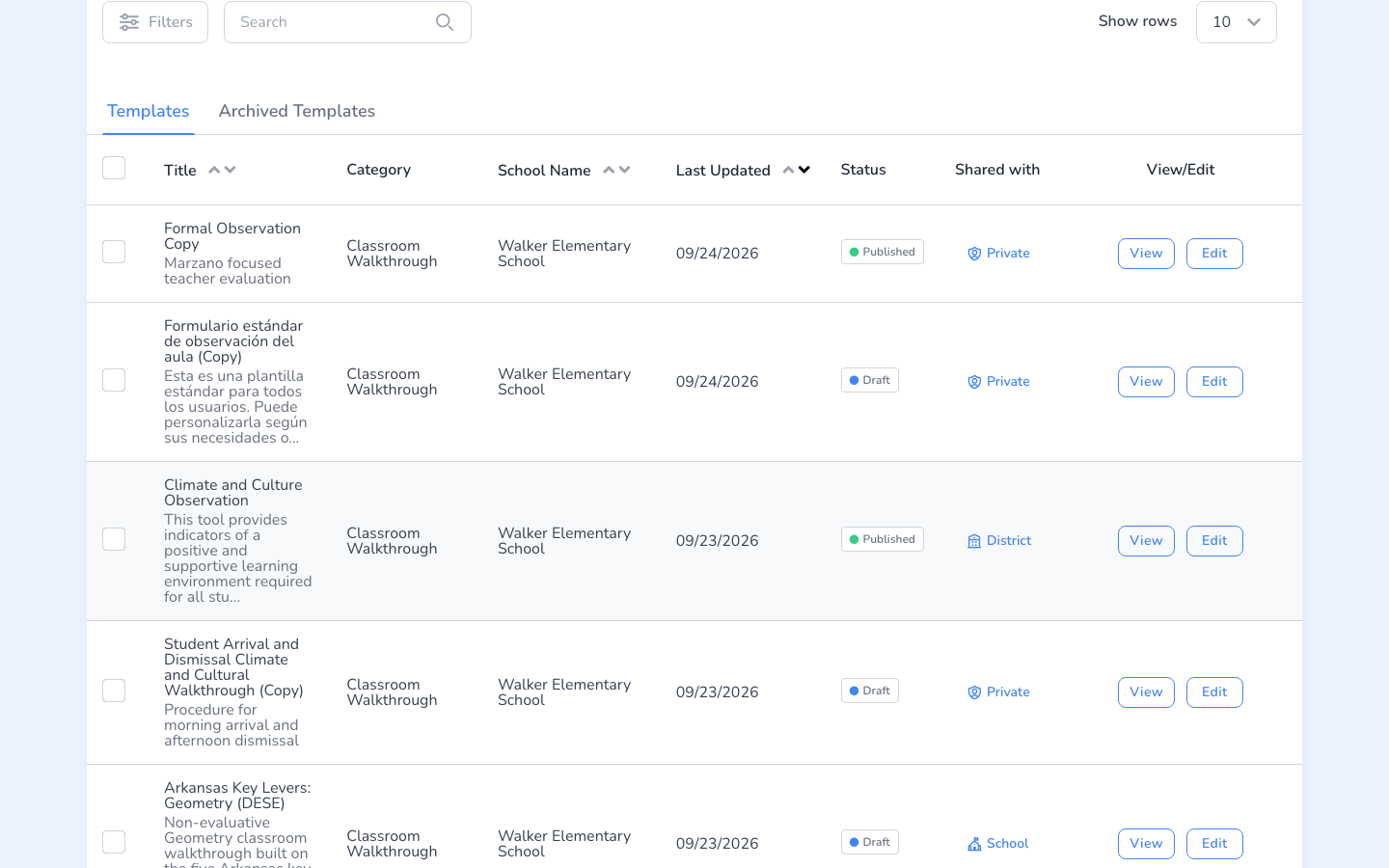
Draft or published, check the Status column
Go to Templates. Every template in the list has a Status, either Published or Draft. The Shared with column beside it shows who the template is shared with.
How to publish a template
- Go to Templates, find your draft, and click Edit. If you are starting a new one, click Create Template instead. See Using the New Template Builder for building it.
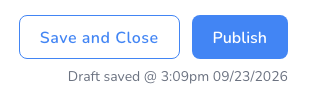
- Finish your sections and questions. While you work, the builder saves your draft automatically, and you will see Draft saved with the time under the buttons.
- Click Publish in the top right corner.
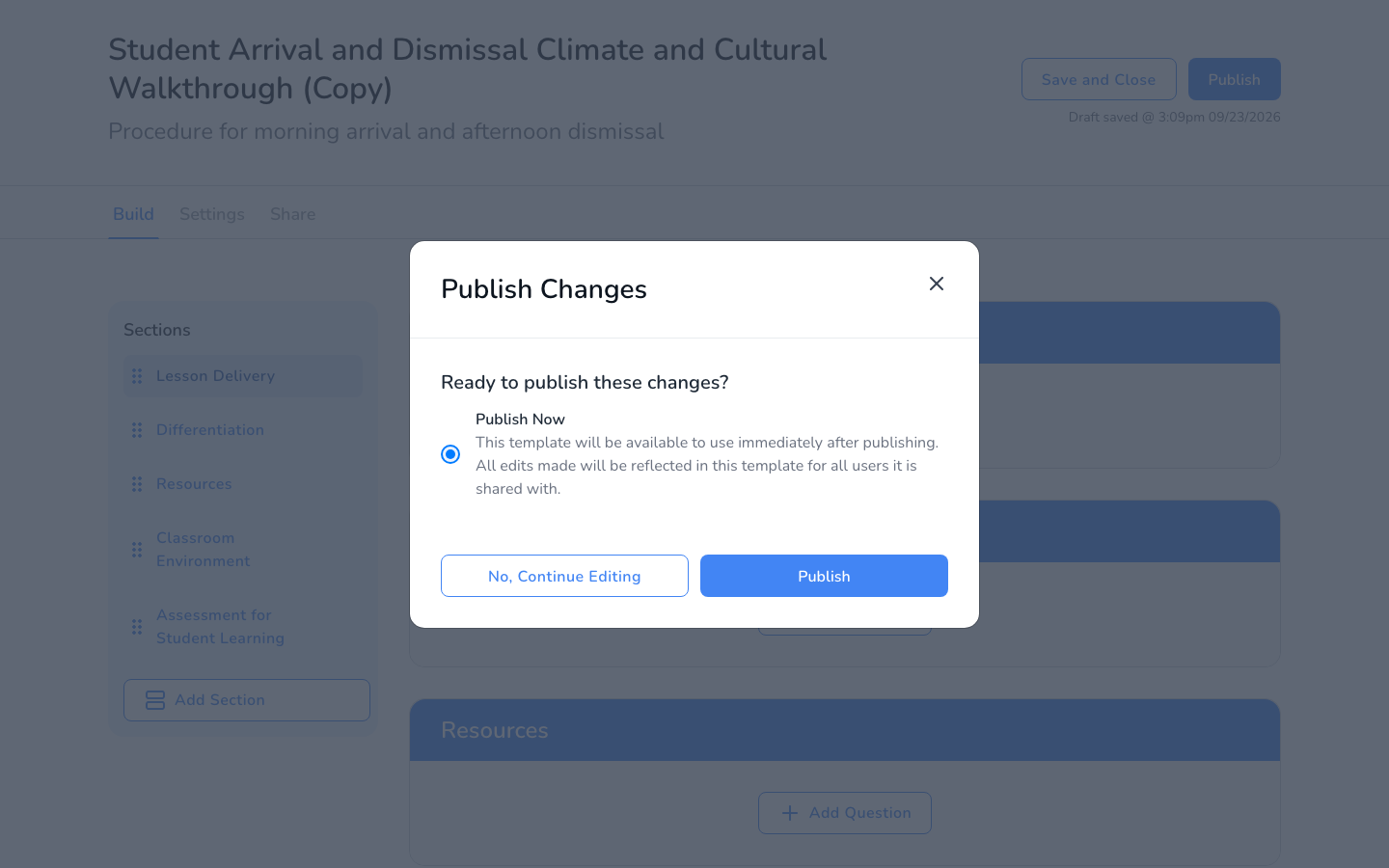
- In the Publish Changes window, leave Publish Now selected and click Publish.
- Confirm by clicking Publish once more. If you want to keep working, click No, Continue Editing and nothing is published.
You are taken back to your Templates list, and the template’s status now reads Published. It is ready to use for your next walkthrough.
Not ready yet? Click Save and Close instead of Publish. Your template stays a draft, and you can come back to it any time from the Templates list.
Why publishing matters
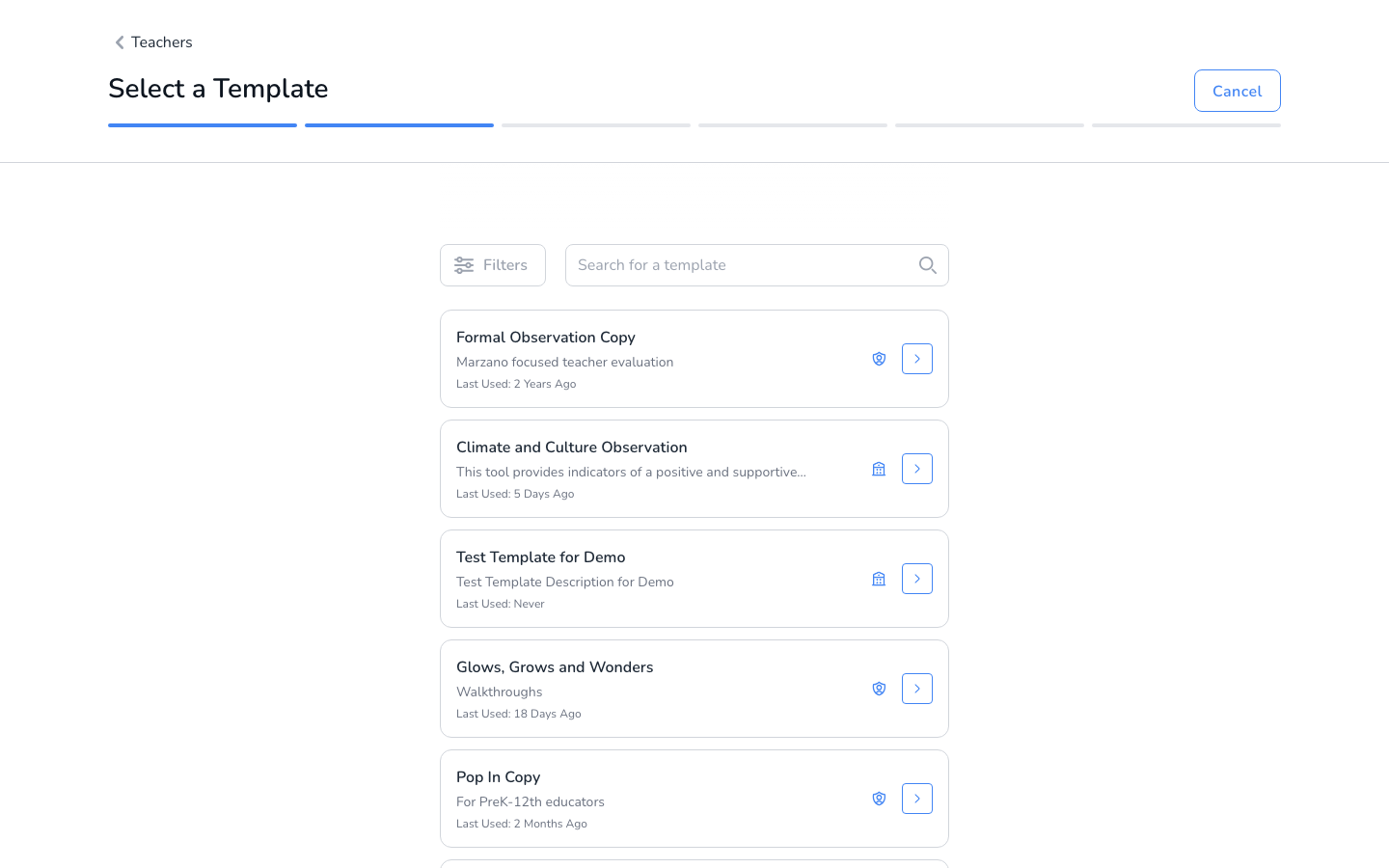
When you click Start Walkthrough and pick a teacher, the Select a Template list shows only published templates. A draft will not be there, even for the person who built it.
Publishing and sharing are two separate steps. Publishing makes the template ready to use. Sharing decides who else can use it. For your team to see your template, it has to be both published and shared with them. See Sharing Templates.
Editing a template after it is published
Open a published template with Edit and the buttons change to Cancel and Publish. Publish stays greyed out until you make a change. When you are done, click Publish to save, and the template stays published.
If observations have already been completed with this template, read What Happens to Your Data When You Edit a Template After Observations Have Started before you change question wording, option labels, or section names.
الأسئلة الشائعة
Q: My colleague cannot find the template I published. Why?
Check that it is shared with them, not just published. A template set to Private is only available to you. School, district, and region sharing can also need an administrator’s approval first. Sharing Templates covers each option.
Q: Why can I not click Publish?
On a template that is already published, Publish stays greyed out until you make a change. On a template with a rubric question, every rubric must be completed before the template can be published. The template also needs a name and a description.
Q: Can I unpublish a template?
There is no unpublish option. If you want to stop others from using a template, change its sharing to Private so only you can use it.
Q: I see a Pending Review option. What is that?
Some accounts can send a template to a colleague to review before it is published. Choose Pending Review, pick the person in Choose a User, and click Send. They receive an email, and the template shows as Pending until it is published.
Related articles
- استخدام منشئ القالب الجديد
- مشاركة القوالب
- كيفية استخدام قفل القالب
- What Happens to Your Data When You Edit a Template After Observations Have Started
New to walkthroughs in general? Start with educationwalkthrough.com.